INFOSEC UPS SYSTEM - 4, rue de la Rigotière - 44700 Orvault - FRANCE - www.infosec-ups.com
Hot Line – Tel + 33 (0)2 40 76 15 82 - Fax + 33 (0)2 40 94 29 51 - hotline@infosec.fr – 03 11 AA AA 201 18
27
Wait for alarm message to appear:
Screen 4.*
The fuse holder switch from battery cabinet (Q8) and/or battery fuse holder switch or switch from UPS
(Q3) can only be turned “On” when the previous alarm message has been cancelled.
DO NOT TRY to close any battery fuse holder switch at any other moment, because this operation could
damage the equipment and/or potentially cause an accident. They can only be turned on by following the
aforementioned steps.
The UPS supplies output voltage entirely protected against cuts, micro cuts, voltage variations, electric
noise, etc.
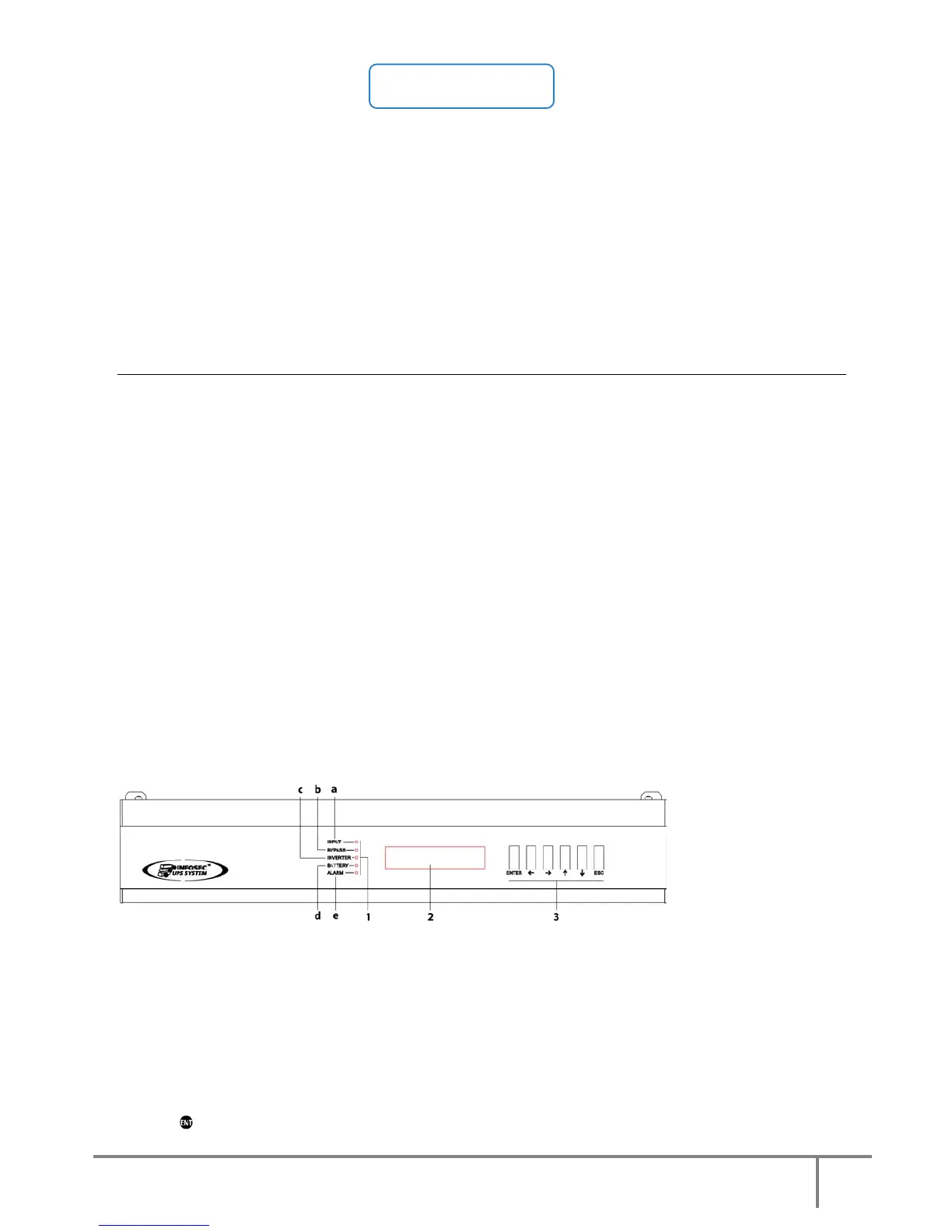
6 CONTROL PANEL AND DISPLAY DESCRIPTION
6.1 Control panel parts.
(LEDs) LED indications:
(a) Rectifier Input Voltage OK (green).
(b) Unit on Bypass (orange).
(c) Inverter is working (green).
(d) Unit working from batteries -mains failure- (red).
(e) In the event of a unit alarm (red).
(2) Character Display
(3) Keyboard
ENT “Enter” key. Confirmation of orders, program values (or other specified functions)
“Left” key for submenu navigation, or cursor displacement.
“Right” key for submenu navigation, or cursor displacement.
“Up” key for menu navigation, or digit modification.
“Down” key menu navigation, or digit modification.
ESC “Escape” key. Return to main screen, cancel/finish programming (or other specified functions).
ENT,
When pressed simultaneously at least during 3 seconds, equivalent to an Emergency Power Off
(EPO), turn-off any voltage at the output (see section 5.3).
Fig.20. Control panel parts.
6.2 Basic functions of keyboard from overview.
Advance () and return () keys give access to all the LCD panel menus and allow movement from one
to another.
Right (
) or left () keys give access to the screens of all the LCD panel submenus, and allow
movement from one to another.
Key (
), has different purposes depending on the menu:



 To Next Page