FIRMWARE UPDATE -1
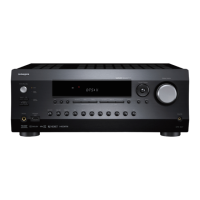
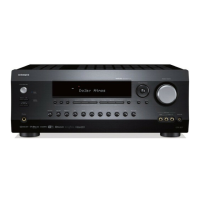
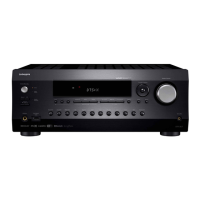
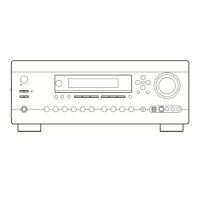
DTR-7.7
Preparation for Update
How to Check Versions of Main, DSP and Video(HDMI) microprocessor
1. Press and hold down DISPLAY button, then press STANDBY/ON button when the unit is power on.
The main microprocessor version will be displayed on FL for 3 seconds.
2. Press SETUP button while the version is displayed, then " DSP Ver: " will be displayed.
3. Press ENTER button while " DSP Ver: " is displayed, then " DSP F/W Update " will be displayed.
4. Again, press and hold down DISPLAY button, then press STANDBY/ON button in order to get DSP version.
5. Press SETUP button a few times.
The versions of DSP ROM ---> HDMI micom ---> Main micom will be displayed in turn.
DSP Ver:
DSP F/W Update
6. To check DSP version next time, the procedures of 2-4 are not necessary until the power cord is off.
Ver.1.01/06920a
HDM.Ver:06607A
DSP Ver:05Y28A
Ver.1.01/06920a
<Ex.>
<Ex.>
<Ex.>
<Ex.>
1. Personal computer(PC) with Windows XP or 2000
2. Flashwriter jig: 0JFLASH and 0JFLASHEX
3. Writing soft: "flasta_exe.zip" and Manual: "Flash Writer M16 Manual.pdf" for Main microprocessor
4. Writing soft: "firmware.zip" and "Update.exe" for DSP and Video(HDMI) microprocessors
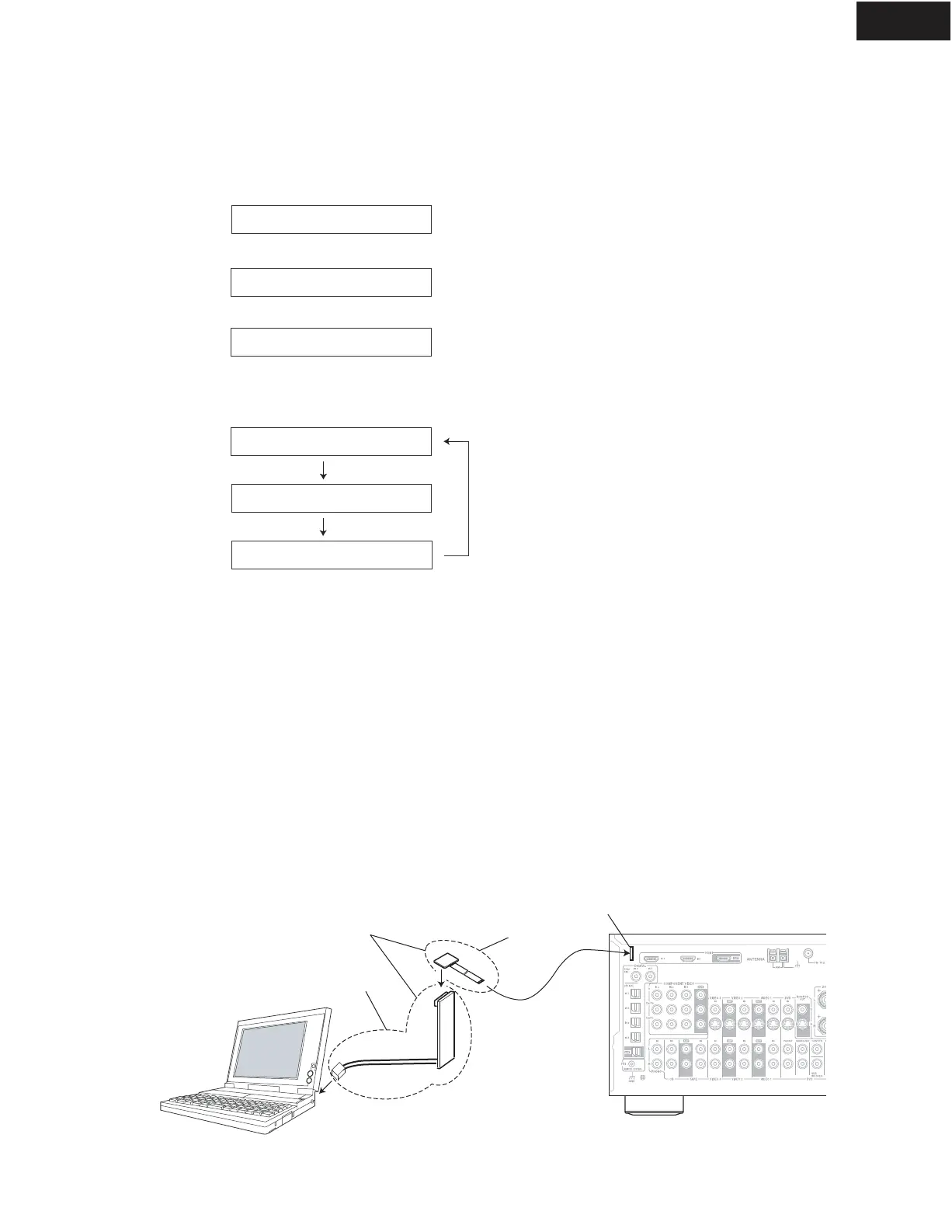
1. Press STANDBY/ON button to power off the target unit.
Power off the PC and connect 0JFLASH and 0JFLASHEX to RS232 port of the PC.
2. Connect the FFC of the jig to the connector slot on the rear panel of DTR-7.7.
3. Power on the PC.
Hardware and Software
First Procesure
PC
(Personal computer)
RS232C
0JFLASH
0JFLASHEX
FFC
Flashwriter Jig
DTR-7.7 Rear Panel
(Target unit)
Connector slot
for version up


 To Next Page