28
System Power, Startup, and Shutdown
When you connect the power cord from the system to an AC power outlet, auxiliary power is
applied to the system. This auxiliary power is available for the system to monitor, among
other things, the Standby button.
Using the Standby Button
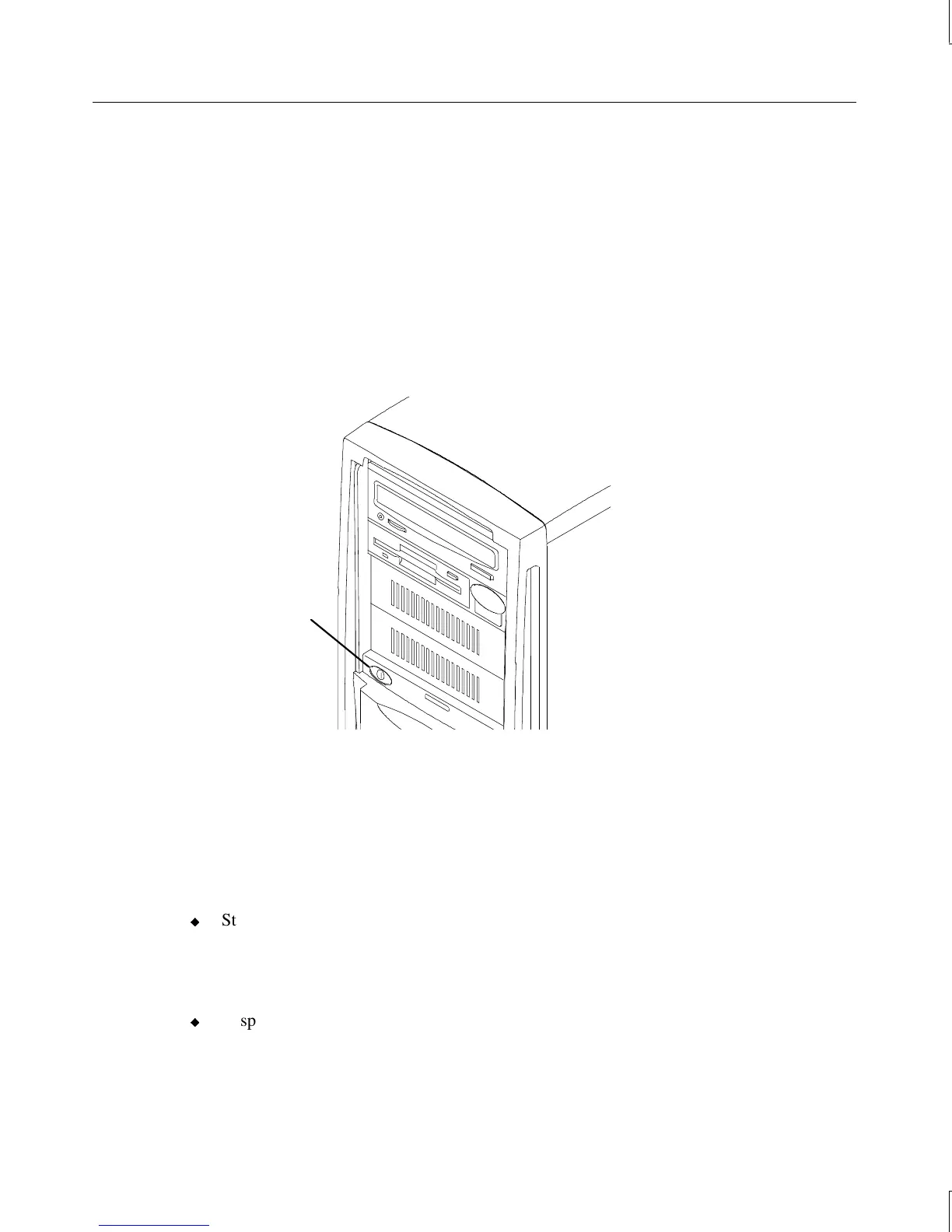
The Standby button is on the front left side of the system, just below the external drive bay.
Open the door to access the Standby button.
Standby button
Although the Standby button affects system power management, it is not an “on or off”
power switch in the traditional sense. The Standby button is a momentary contact switch,
changing system states based upon the length of time the button is pressed. Depending on
which operating system is loaded and what the system’s current power state is, you can use
the Standby button to start, suspend, wake up, or power down the system.
On a system running Windows 95 or Windows 98 you can:
u
Start the system from a powered-down state by pressing the Standby button
momentarily. The system powers on and loads the operating system.
To shut down the system, select Shut Down from the Start menu. Select the shutdown
option, and then select OK.
u
Suspend the function of the system by pressing the Standby button momentarily while
the system is in normal operating mode. The system enters Suspend mode, which
lowers the power consumption levels of most system devices.



 To Next Page