How to fix ION Action Cameras when LED flashes and camera turns off?
- MMary LawrenceAug 17, 2025
If the LED flashes and the ION Action Camera turns off, it means that the camera ran out of battery. You should recharge the camera.
How to fix ION Action Cameras when LED flashes and camera turns off?
If the LED flashes and the ION Action Camera turns off, it means that the camera ran out of battery. You should recharge the camera.
What to do if I cannot take photos or video on my iON Action Cameras (Green LED flashes)?
If you cannot take photos or video and the green LED flashes on your iON Action Camera, it indicates that the memory is full. Replace the memory card with one that has available space.
What to do if I cannot take photos or video on my iON Action Cameras (Green and Red LED flashes alternatively)?
If you're unable to take photos or video with your iON Action Camera and the green and red LEDs flash alternatively, it could be due to one of two reasons: either a MicroSD card is not inserted, or the MicroSD card has not been formatted properly. To resolve this, first ensure that a MicroSD card is inserted. If one is already inserted, format the MicroSD card on your PC.
What to do if my ION Action Camera removable disk cannot be found after connecting to the computer?
If your ION Action Camera is not recognized when connected to your computer, the connection may have failed. Ensure all cable connections are secure. If the issue persists, try restarting your computer. Also, try using a different USB port on your computer.
Why my ION Action Camera cannot take photos or video and the Green and Red LED flashes alternatively?
If your ION Action Camera cannot take photos or videos and the Green and Red LEDs are flashing alternatively, it could be due to two reasons: either a MicroSD card is not inserted, or the MicroSD card has not been formatted properly. To resolve this, first, insert a MicroSD card into the camera. If the problem continues, format the MicroSD card using your PC.
What to do if my ION Action Camera cannot take photos or video (Green LED flashes)?
If your ION Action Camera cannot take photos or video and the Green LED is flashing, it means that the memory is full. Replace the memory card with one that has available space.
Why does the red LED flash during recording on my ION Action Camera?
If the red LED flashes during recording on your ION Action Camera, it indicates low battery. You should recharge the camera.
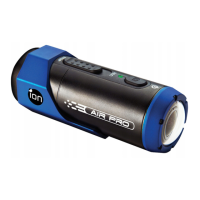
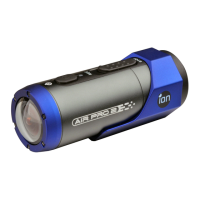
Why my ION AIR PRO Action Cameras cannot turn on?
If your ION Action Camera won't turn on, it's likely because the battery is depleted. To fix this, recharge the camera.
What to do if I cannot turn on my iON Action Camera?
If you're unable to turn on your iON Action Camera, the battery may be depleted. The suggested solution is to recharge the camera.
What to do if I cannot find removable disk after connecting the iON Action Camera to the computer?
If you cannot find the removable disk after connecting your iON Action Camera to the computer, it may be due to a connection failure. First, make sure all cable connections are secure, and restart the computer if needed. If the issue persists, try using a different USB port.
Details about trademarks used in the manual.
Information about product design and specifications.
Important warnings regarding product usage and potential hazards.
Precautions for handling and using the camera in various environments.
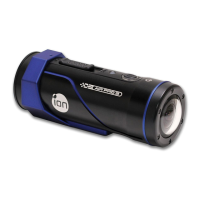
General introduction and features of the ion AIR PRO camera.
Instructions on how to charge the camera's battery.
Guide on how to insert a MicroSD card into the camera.
Steps to set the camera's date and time using the software.
Instructions on how to properly seal the camera's waterproof housing (PODZ).
How to turn the camera on and off.
Detailed steps for recording videos with the camera.
Instructions on how to capture still images with the camera.
How to reset the camera to its default settings.
Information on different PODZ accessories and their functions.
How to use the CamLOCK mount system for attaching the camera.
Instructions for installing and running the ion software on a computer.
Guide on how to view and copy files from camera to PC.
How to configure photo settings via the ion software.
How to configure video settings via the ion software.
How to configure general camera settings via the ion software.
Instructions for resetting camera to factory default settings.
Steps to check for and install camera firmware updates.
Steps to take photos when connected to a TV.
Steps to record video when connected to a TV.
How to play back photo files via TV connection.
How to play back video files via TV connection.
Steps to delete photos or video files when connected to a TV.
How to format the MicroSD card via TV connection.
Troubleshooting for camera power and LED issues.
Troubleshooting for red LED flashing during recording.
Troubleshooting for inability to take photos/videos when Green LED flashes.
Troubleshooting for camera issues with alternative LED flashes.
Troubleshooting for computer not recognizing the camera.
Details about trademarks used in the manual.
Information about product design and specifications.
Important warnings regarding product usage and potential hazards.
Precautions for handling and using the camera in various environments.
General introduction and features of the ion AIR PRO camera.
Instructions on how to charge the camera's battery.
Guide on how to insert a MicroSD card into the camera.
Steps to set the camera's date and time using the software.
Instructions on how to properly seal the camera's waterproof housing (PODZ).
How to turn the camera on and off.
Detailed steps for recording videos with the camera.
Instructions on how to capture still images with the camera.
How to reset the camera to its default settings.
Information on different PODZ accessories and their functions.
How to use the CamLOCK mount system for attaching the camera.
Instructions for installing and running the ion software on a computer.
Guide on how to view and copy files from camera to PC.
How to configure photo settings via the ion software.
How to configure video settings via the ion software.
How to configure general camera settings via the ion software.
Instructions for resetting camera to factory default settings.
Steps to check for and install camera firmware updates.
Steps to take photos when connected to a TV.
Steps to record video when connected to a TV.
How to play back photo files via TV connection.
How to play back video files via TV connection.
Steps to delete photos or video files when connected to a TV.
How to format the MicroSD card via TV connection.
Troubleshooting for camera power and LED issues.
Troubleshooting for red LED flashing during recording.
Troubleshooting for inability to take photos/videos when Green LED flashes.
Troubleshooting for camera issues with alternative LED flashes.
Troubleshooting for computer not recognizing the camera.
| Aspect ratio | 16:9 |
|---|---|
| Video resolutions | 1280 x 720, 1280 x 960, 1920 x 1080 pixels |
| Maximum frame rate | 60 fps |
| Video formats supported | H.264, MPEG4 |
| Maximum video resolution | 1920 x 1080 pixels |
| Photo mode | Yes |
| Sensor type | CMOS |
| Total megapixels | 5 MP |
| Optical sensor size | 1/2.5 \ |
| White balance | Auto |
| Built-in display | No |
| Aperture range (F-F) | 2.8 - 2.8 |
| USB 2.0 ports quantity | 1 |
| Compatible memory cards | MicroSD (TransFlash) |
| Maximum memory card size | 32 GB |
| Product color | Black, Blue |
| Protection features | Water resistant |
| Mac operating systems supported | Mac OS X 10.4 Tiger, Mac OS X 10.5 Leopard, Mac OS X 10.6 Snow Leopard, Mac OS X 10.7 Lion, Mac OS X 10.8 Mountain Lion |
| Windows operating systems supported | Windows 7 Home Basic, Windows 7 Home Basic x64, Windows 7 Home Premium, Windows 7 Home Premium x64, Windows 7 Professional, Windows 7 Professional x64, Windows 7 Starter, Windows 7 Starter x64, Windows 7 Ultimate, Windows 7 Ultimate x64, Windows Vista Business, Windows Vista Business x64, Windows Vista Enterprise, Windows Vista Enterprise x64, Windows Vista Home Basic, Windows Vista Home Basic x64, Windows Vista Home Premium, Windows Vista Home Premium x64, Windows Vista Ultimate, Windows Vista Ultimate x64 |
| Battery capacity | 1100 mAh |
| Battery life (max) | 2.5 h |
| Width | 37 mm |
|---|---|
| Height | 107 mm |
| Weight | 130 g |