Cub Instrument User Manual V2.4
Unrivalled Gas Detection. Page 30 of 46 ionscience.com
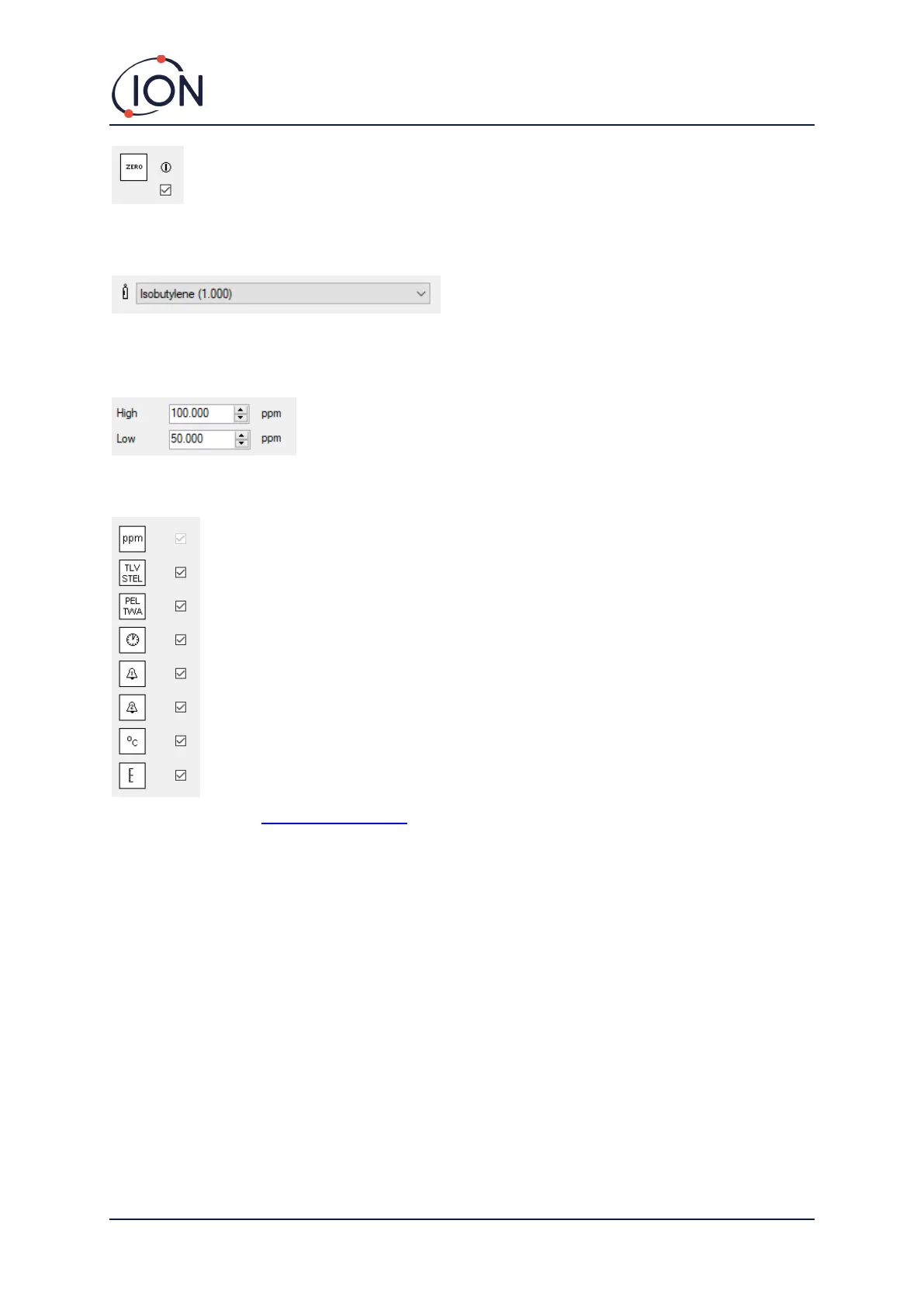
To set the Cub to auto-zero during start-up check the checkbox. This is the default setting.
To use the calibration zero instead, untick the checkbox. ION Science recommends using the default
settings where possible.
Select the type of gas and RF from the drop-down
list.
Alarms
In this section enter the high and low alarm levels for the selected gas.
Screens
In this section tick or un-tick the checkboxes to specify which screens are displayed on
the Cub. Refer to the Display Screens topic for further details.
Send to Instrument
When you have entered the required configuration, send it to your Cub by clicking on the Send to
Instrument button.
It is possible to send the same configuration file to multiple docked Cubs simultaneously by selecting
the Send to all docked Cubs checkbox and then clicking on the Send to Instrument button.
• The USB LED on the Docking Station will change to yellow while the new settings are being
downloaded to the connected Cub.
If the message “There was a problem sending to the instrument” appears:
• Exit the CubPC software.
• Restart the CubPC software.
• Repeat the Send to Instrument instruction.


 To Next Page