Fail Result
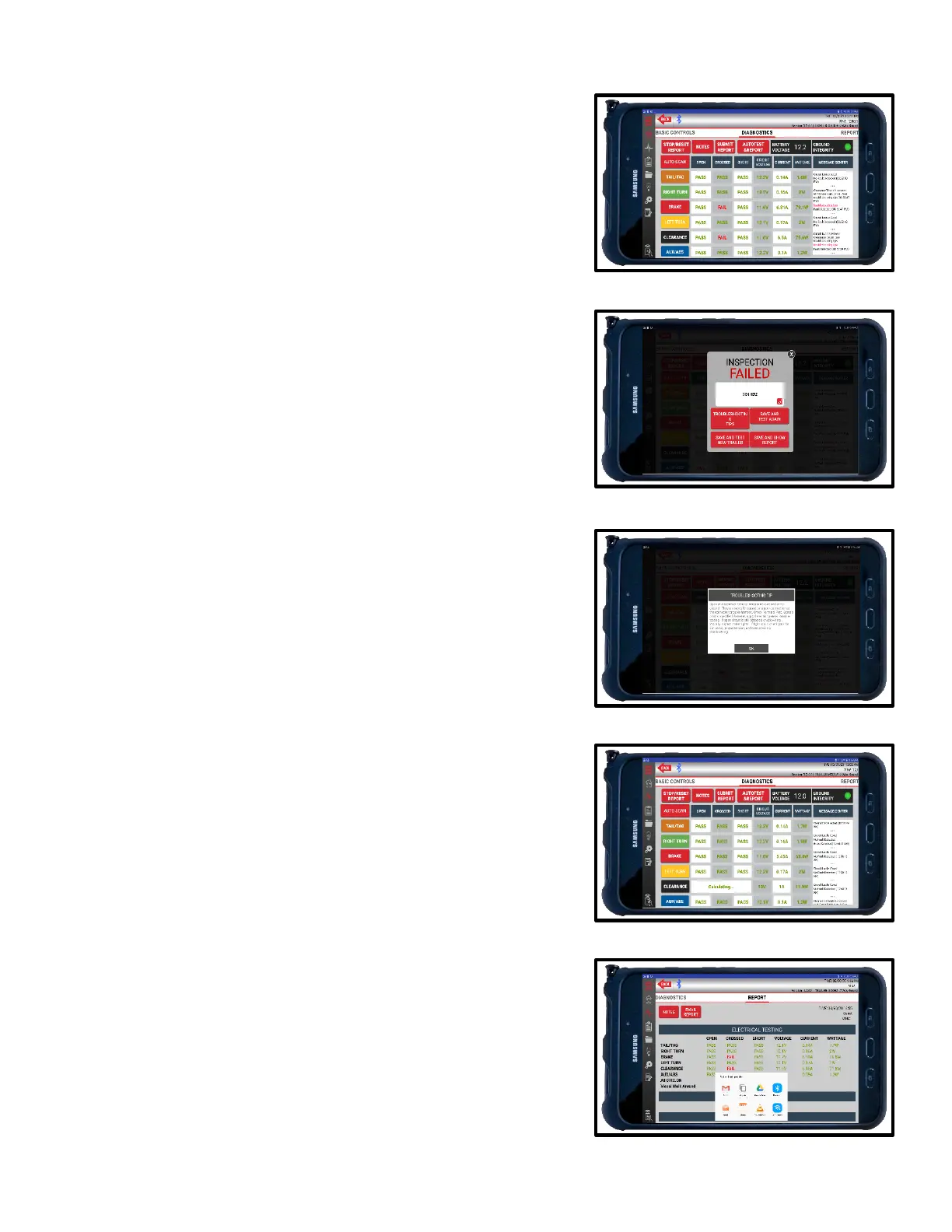
1. If some or all circuits fail, the app will prompt you to
troubleshoot or finalize the inspection. Once a
FAILED result is found, you have four options to
proceed:
2. A: Troubleshoot the failed circuits.
B: Save the inspection and test again.
C: Save and test a new trailer.
D: Save and show the report.
3. Options B-D will require a signature to proceed.
4. Press the TROUBLESHOOT TIPS button to view
potential issues with the circuits.
Note: Troubleshooting tips can also be accessed
through the Message Center at any time during an
inspection.
5. If possible, fix the issues and retest the circuit in
question or all circuits at once until a PASS result is
achieved. See PASS RESULT for further steps
after PASS has been achieved.
6. If you do not fix the issues, you can either press
SAVE AND TEST NEW TRAILER if you have more
trailers to inspect or press SAVE AND SHOW
REPORT if you are finished and want to view the
FAILED Electrical Testing results.
7. From the Reports screen, you can view the results,
log and view notes or share the report.
8. To share the report, press EMAIL REPORT in the
top left corner. A pop-up window will show all the
available options on your tablet. Choose your
preferred sharing method.
9. Images must be attached to the email separately.
Select the attach option in your email browser and
chose the desired images that match the report.
Images are saved with the following naming
mechanism: “Category_Section.jpg”.
(ex. 1BrakeSystem_AServiceBrake.jpg”)


 To Next Page