11.3 Saved Reports
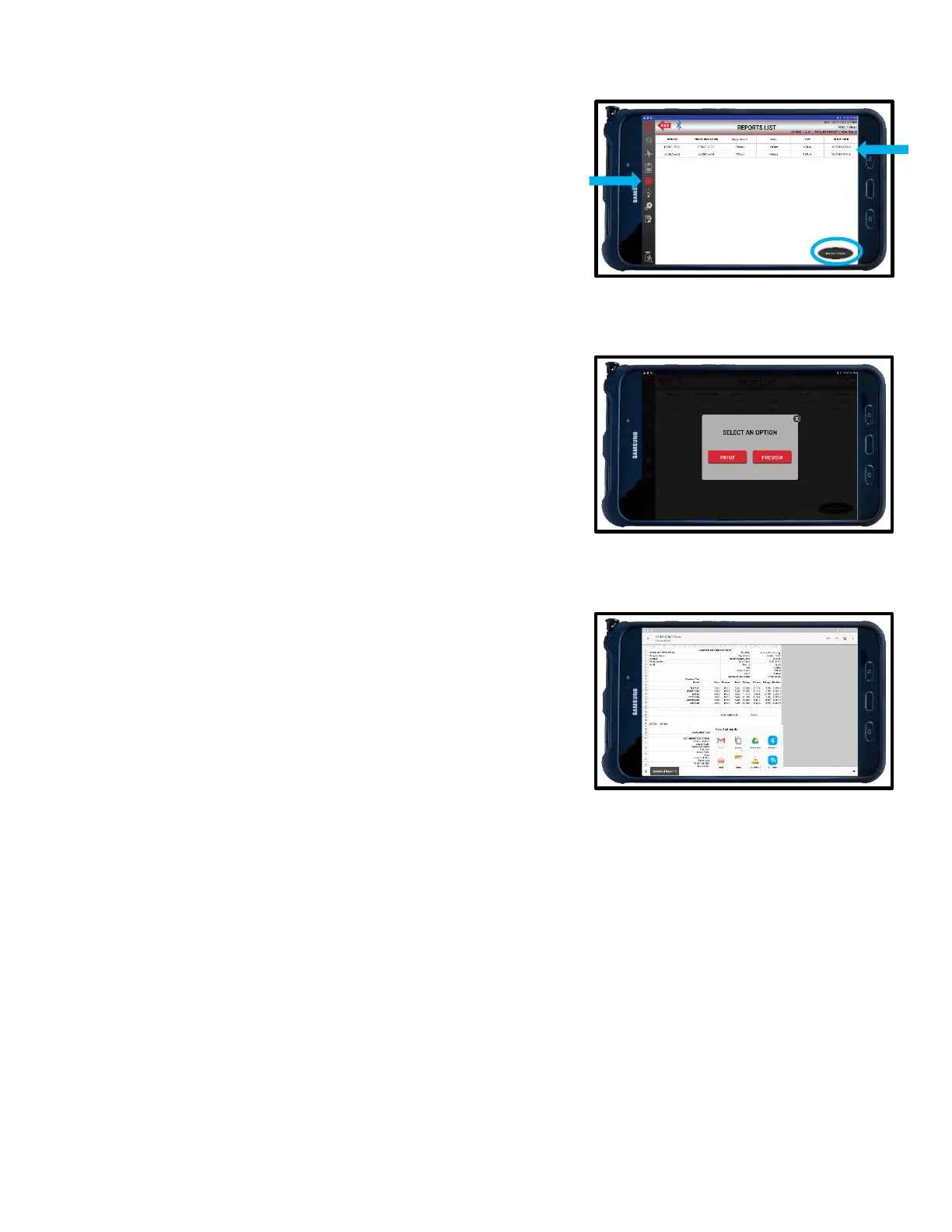
1. Reports generated through the Alpha MUTT
®
app
can be found in the Reports tab on the left side of
the screen.
2. To toggle between Electrical and Inspection
Reports, press the button in the bottom right corner.
3. Press VIEW SIGNATURE to see an image of the
signature assigned to each report.
4. Press anywhere on the line of the report you wish
to view to open the report.
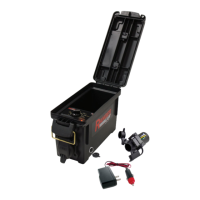
5. Press PRINT to send the report to any available
printer.
6. Press PREVIEW to view a printable version of the
report.
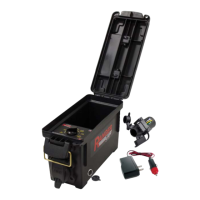
7. To share report from the Reports tab, preview the
desired report, then press the three dots icon in the
top right corner of the screen and follow the
prompts. NOTE: Report is in an editable state. Be
careful to not save unintended edits.
8. Images must be attached to the email separately.
Select the attach option in your email browser and
chose the desired images that match the report.
Images are saved with the following naming
mechanism: “Category_Section.jpg”.
(ex. 1BrakeSystem_AServiceBrake.jpg”)


 To Next Page