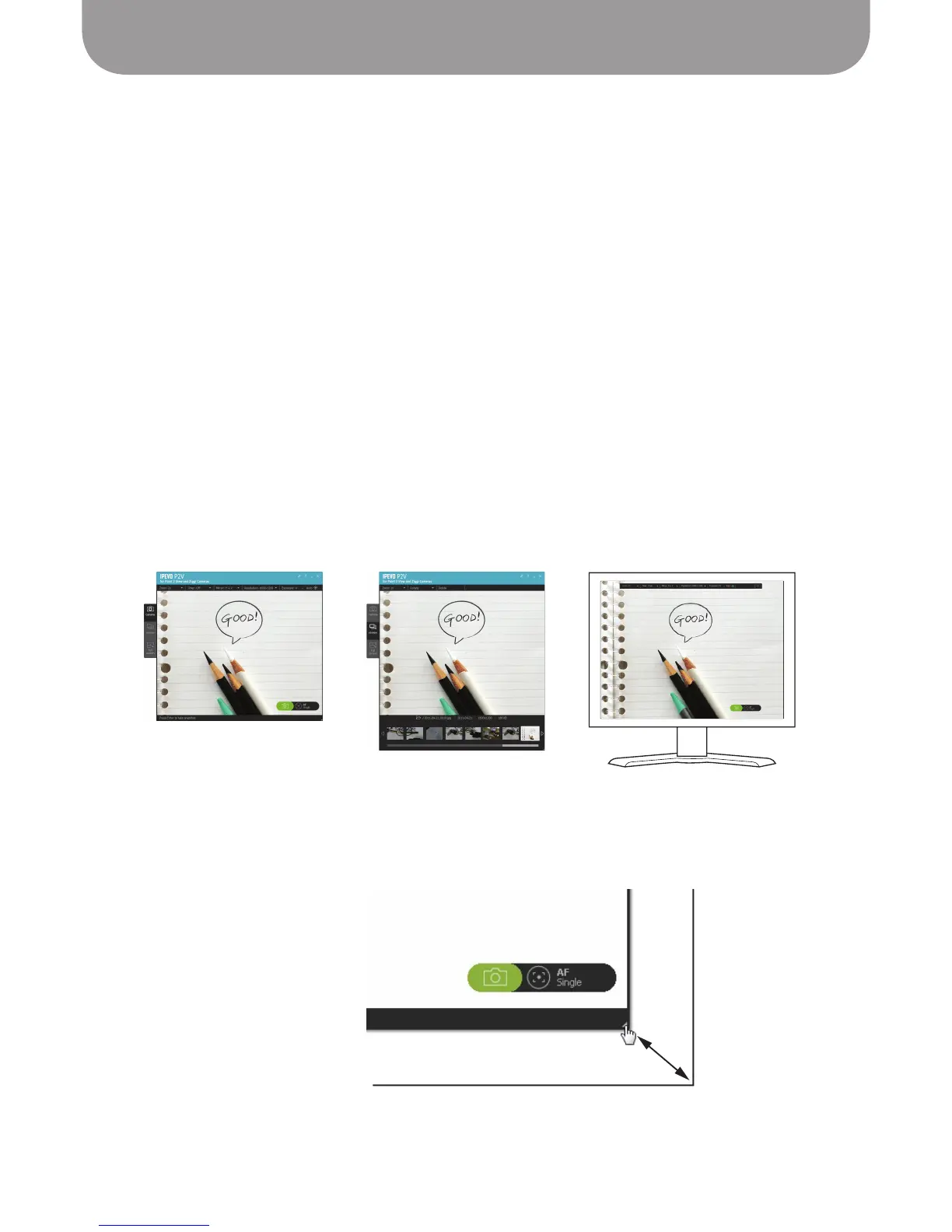
P2V Software Introduction
10
The Ziggi software
Specially-designed P2V software is included on your CD-ROM, and provides a rich suite of features to
maximize your Ziggi use.
Ziggi operates in one of three modes:
• Camera mode – This is the default mode upon software startup. This mode shows the current video
capture coming from the Ziggi camera. In this mode, you are also able to change aspects of the image
such as exposure, mirroring, and resolution.
See Pages 13 to get started with capturing your image.
• Review mode – This mode gives you an easy way to review snapshots taken with your Ziggi. Snapshots
are presented as thumbnail images in a row at the bottom of the screen.
See Page 21 for more on taking
snapshots.
• Full Screen mode – In this mode, the image fills up the entire computer screen. Full screen is
particularly useful when you need to project the Ziggi’s video for presentations.
See Pages 22 and 23 for
more on projecting your image.
To switch between modes, click on the Mode Tab on the left-hand side of the capture window.
The size of the window for Camera and Review modes can be changed by clicking and dragging on the
edges of the window.
Camera mode Review mode Full Screen mode


 To Next Page