Resolution
20
Resolution
Resolution describes the amount of detail (information) an image holds. High resolutions relay more
information (and therefore more detail), and also consume more computing power. Low resolutions
communicate less detail, but are also less demanding of computer resources. Resolution is measured in
pixels, the smallest part of a picture element.
Changing Resolution
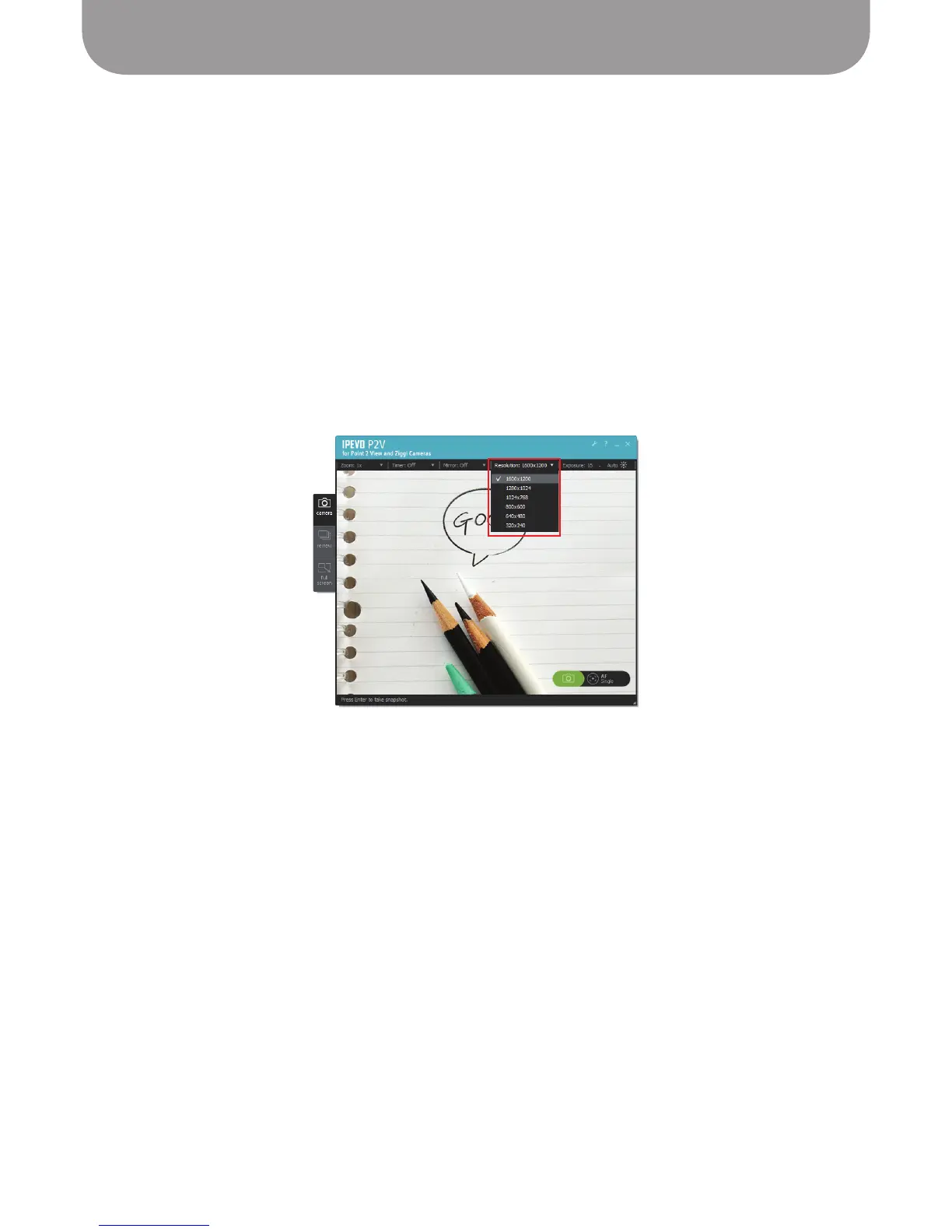
To change resolution, click on the Resolution tab in Camera mode. There are six different resolutions
to choose from, ranging from 1600 x 1200 pixels (the highest resolution) to 320 x 240 pixels (the lowest
resolution). As 1280 x 720 resolution (and above) is commonly accepted to be “high-definition” (HD), the
top two resolutions—1600 x 1200 and 1280 x 1024—are HD resolutions, while the four lower resolutions are
standard-definition (SD) resolutions.
Resolution and Frame Rate
Generally, as resolution increases, frame rate decreases. Frame rate is a measure of how many distinct
images are captured in a single second to make up the full-motion video perceived. Depending on
your computer power, high resolutions may result in a low frame rate, and consequently a “stuttering,”
“blurring,” or “strobing” of moving subjects, such as with a hands-on demonstration.
If you find the amount of strobing to be unacceptable on your current resolution, consider lowering the
resolution, which will increase frame rate and reduce or eliminate strobing.


 To Next Page