Projecting Your Image
22
Projecting Your Image
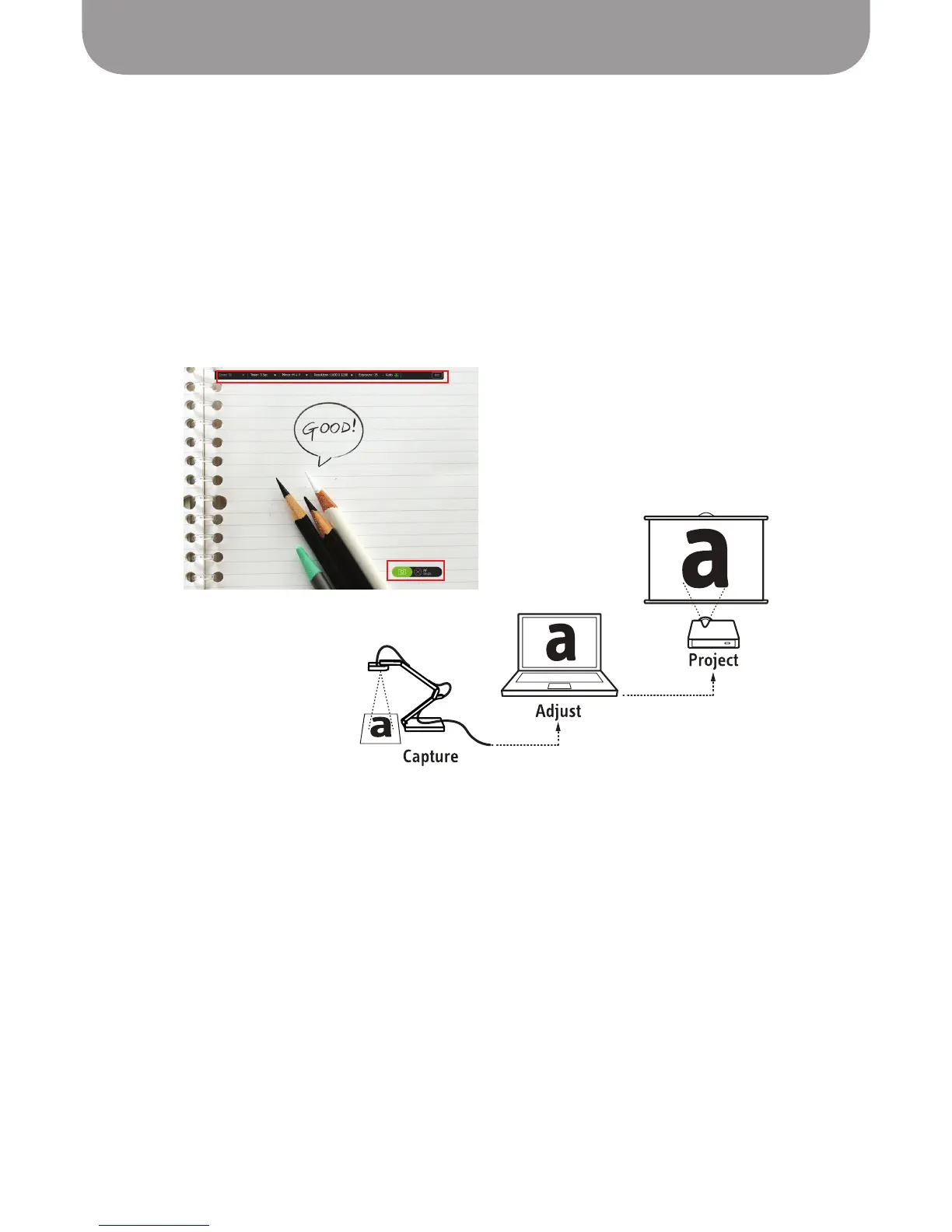
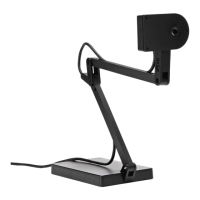
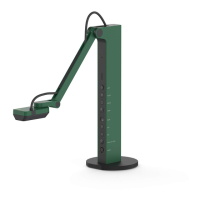
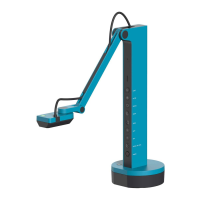
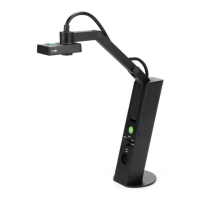
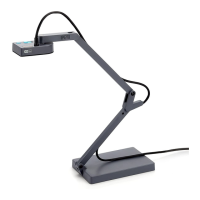
Ziggi’s image quality and high resolution are perfect for large-screen projections in the classroom or
conference room. In general, you’ll need Ziggi, your PC or Mac, and a separate projector device (not
included, sold separately).
In most cases, Full Screen mode is preferred for projection. To enter Full Screen mode, click on the “full
screen” tab on the left-hand side of the software. Full Screen mode will give you the same functions
available in Camera mode. To exit Full Screen mode, press the Esc key, or click the “Esc” button in the
upper right-hand section of the screen.


 To Next Page