Focus
19
Focus
Focus refers to the convergence of light in your image. If your subject is “in focus,” light is properly
converged at the right point. If your subject is “out of focus,” light has not properly converged at the right
point. In most circumstances, you want your image to be sharp and in focus.
Ziggi gives you a few tools to achieve proper focus, including the ability to automate focus for convenience.
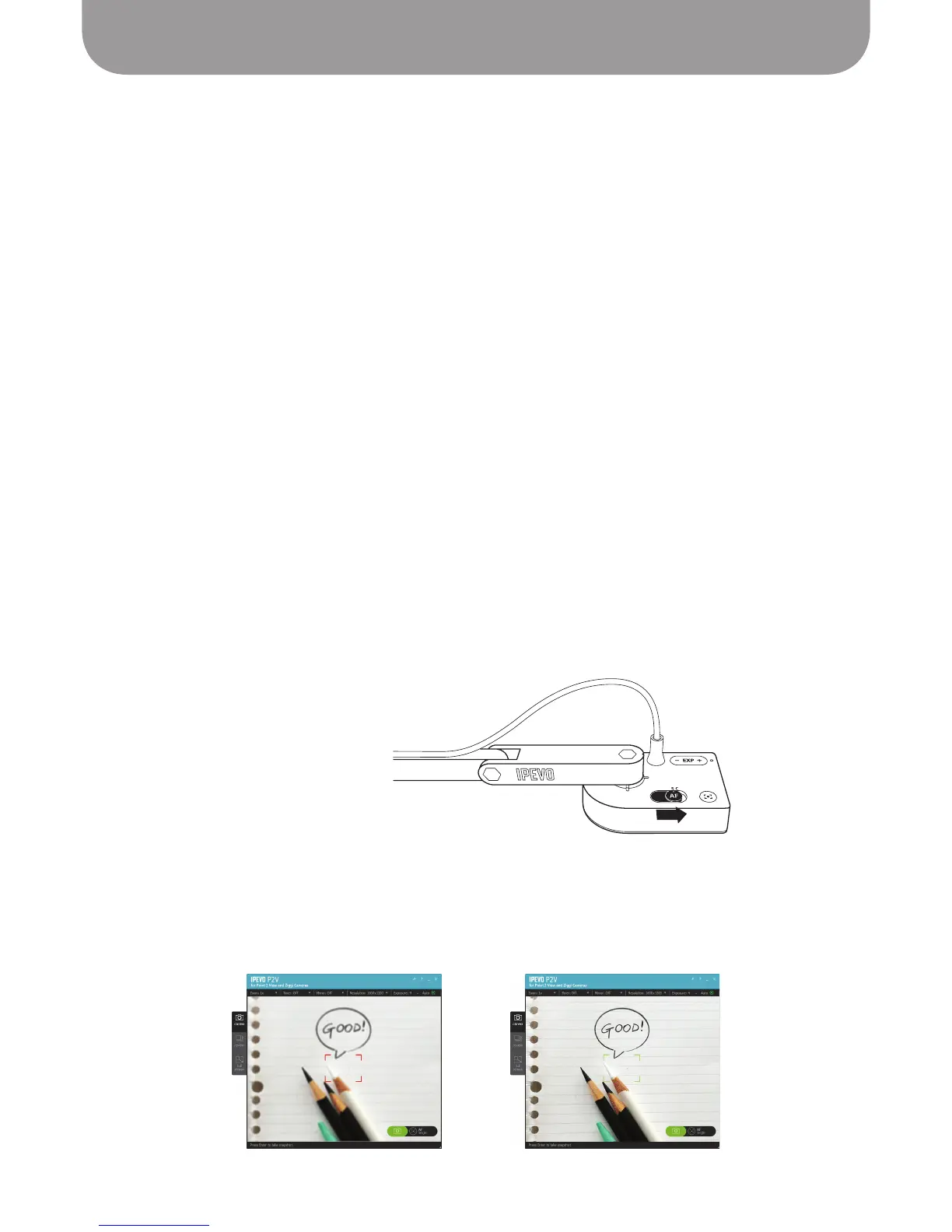
• Focus modes: Ziggi can be set to one of two focus modes using the Autofocus (AF) switch on
the camera body. The software will indicate which focus mode you are in with either “Single” or
“Continuous” under “AF” in the lower right-hand corner of the screen.
Continuous (C) mode:
In Continuous mode, Ziggi will constantly determine the best focus for your
image and change its focal length accordingly. This is ideal for “set it and forget it” convenience,
and also if the distance between the camera and the subject will be changing. For example, if you
are showing the parts of a phone and are flipping the phone around in a hands-on demonstration,
setting the Ziggi in Continuous mode will ensure your image is always in sharp focus.
Single (S) mode:
In Single mode, Ziggi will stay at a single focal length, and will not try to
constantly adjust itself. This mode is ideal for manual control of focus. If you are capturing a text
document laid on the table which is not moving, single mode will be sufficient for sharp focus.
• Focus button: While the focus button is best for Single mode manual focus control, it will also work in
Continuous mode. There are two focus buttons: the physical button on the camera body, and the four-
cornered “crosshair” icon in the lower right-hand corner of the software. In either case, Ziggi will find
the optimum focus.
Focusing
When focusing, four corners of a red box will appear in the center of the screen and a beep will sound,
letting you know Ziggi is attempting to focus. The image may appear to slightly zoom in and out. When
Ziggi is done focusing, the red corners will change to green corners, and there will be two
quick beeps.
For disabling the beep sound effects, see Page 24, Advanced Settings.


 To Next Page