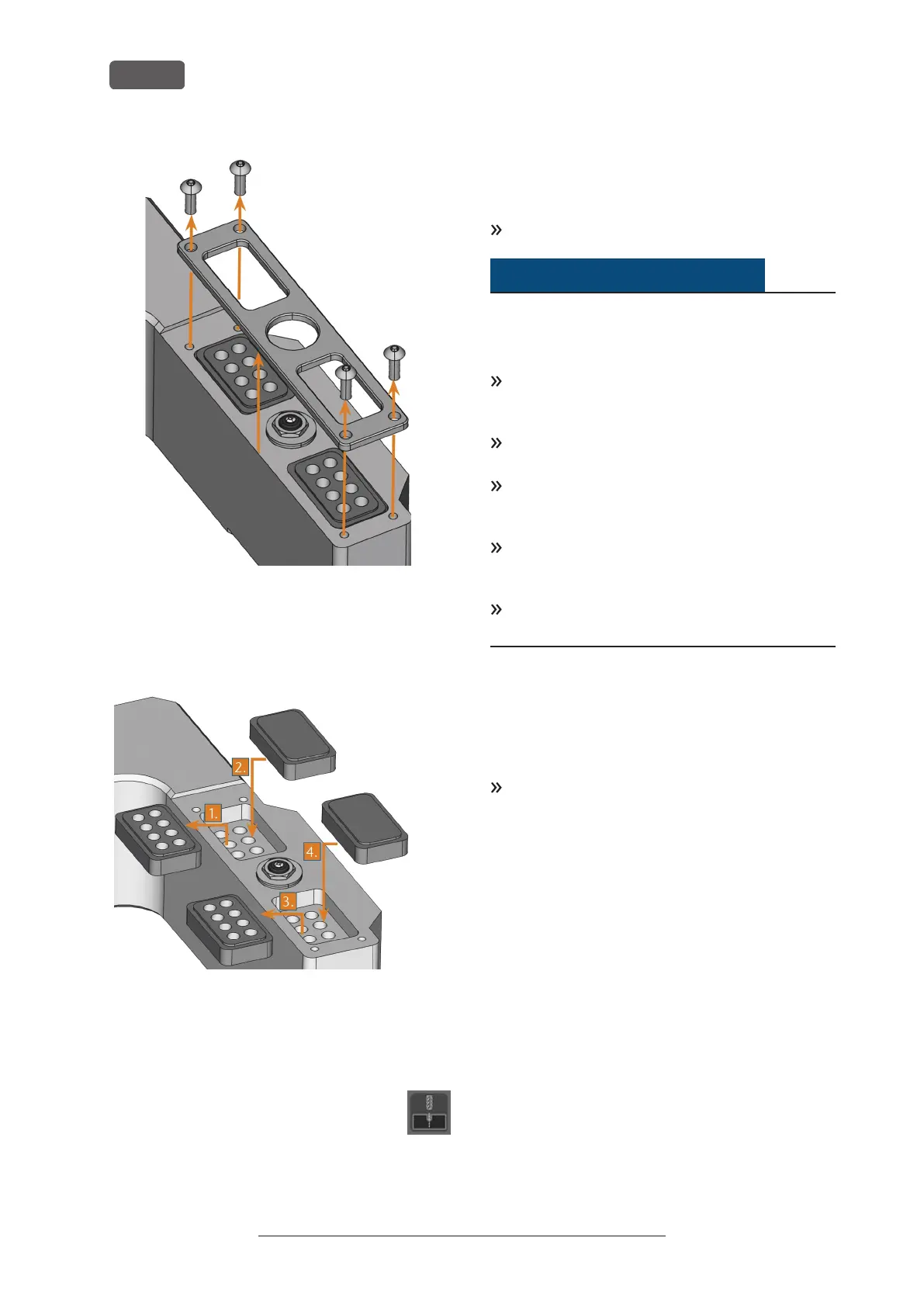
FIG. 34 – UNSCREWING THE SCREWS AND LIFTING THE
COVER
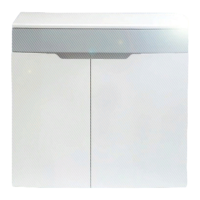
5. Remove the 2 existing tool magazine inserts and
replace them with 2 new ones.
FIG. 35 – NEW TOOL MAGAZINE INSERTS (RIGHT,
WITHOUT TOOL POSITIONS) REPLACE OLD INSERTS
(LEFT, WITH TOOL POSITIONS)
6. Put the cover back onto the tool magazine and
screw it down.
7. Insert the supplied drill bit for tool posi-
tions into the spindle and start the
drilling process by clicking the flowing
button PrograMill CNC.
Updating the software and firmware
Updating the manufacturing software and the firmware
is an interdependent procedure.
Be sure to read all information in this chapter.
NOTICE
Damaging of the control unit when a firmware update
is interrupted
If the firmware update is interrupted, the control unit of
the machine may become permanently damaged.
Only update the firmware if a permanent electrical
supply of the machine and the computer is guar-
anteed.
Only update the firmware if the computer's oper-
ating system is stable and is free of malware.
Only update the firmware if the connection
between the computer and the machine is stable.
Always use a wired connection during the update.
Do not disconnect the machine or the computer
from the electrical source nor switch off the
machine or computer during a firmware update.
Do not close PrograMill CNC during a firmware
update.
Updating the manufacturing software
PrograMill CAM and PrograMill CNC are updated regu-
larly.
Ask your service partner for the latest installation
package.
To update PrograMill CAM and PrograMill CNC, fol-
low the instructions in the documentation for the
manufacturing software.
1. Change to PrograMill CNC on the CNC computer.
2. Start PrograMill CNC
Updating the firmware of the machine
The firmware is the internal control software of your
machine. New versions may introduce new functions
and improve existing ones. New firmware versions
come as part of new versions of PrograMill CNC.
Operating Instructions:PrograMill Dry
Version: 11/19/2020
PrograMill Dry – Maintenance and do-it-yourself
EN 36


 To Next Page