76
GridVis
®
Collector www.janitza.de www.janitza.de GridVis
®
Collector
6. 7 Windows firewall
Since the GridVis
®
Collector sends the data to the data-
base of the GridVis software, the communication port
must be enabled in both directions. This means that an
active Windows firewall blocks communication.
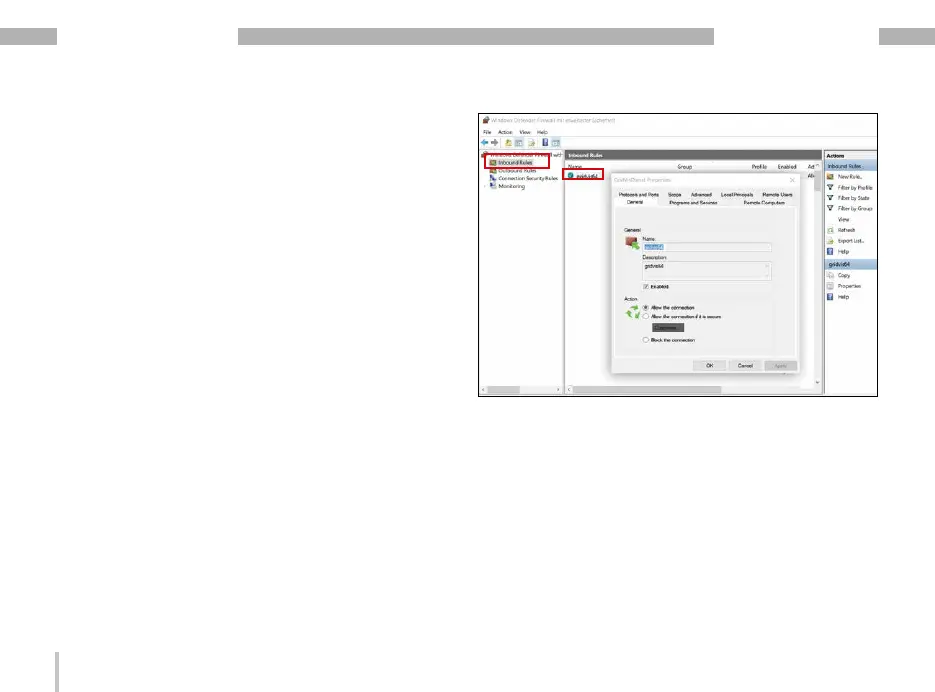
In the "Windows Firewall with Advanced Security"
window, configure an incoming rule for the connection
to the GridVis software (gridvis64).
· In the "Properties of gridvis64" dialog window
select the tab "Protocol and Ports".
· On the "Protocol and Ports" tab, configure your
port that is enabled for communication.
In the MS Windows operating system you can access
the "Windows Firewall with Advanced Security"
window via:
· Control Panel > Windows Firewall > Advanced
Settings
· Then click the "Incoming Rules" button.
· The list of incoming rules appears.
· Right-click on the entry "gridvis64" and select
"Properties" from the context menu that appears.
· The "Properties of gridvis64" dialog window
appears.


 To Next Page