9
USERS:
Delivery of a drink that you have previously
stored
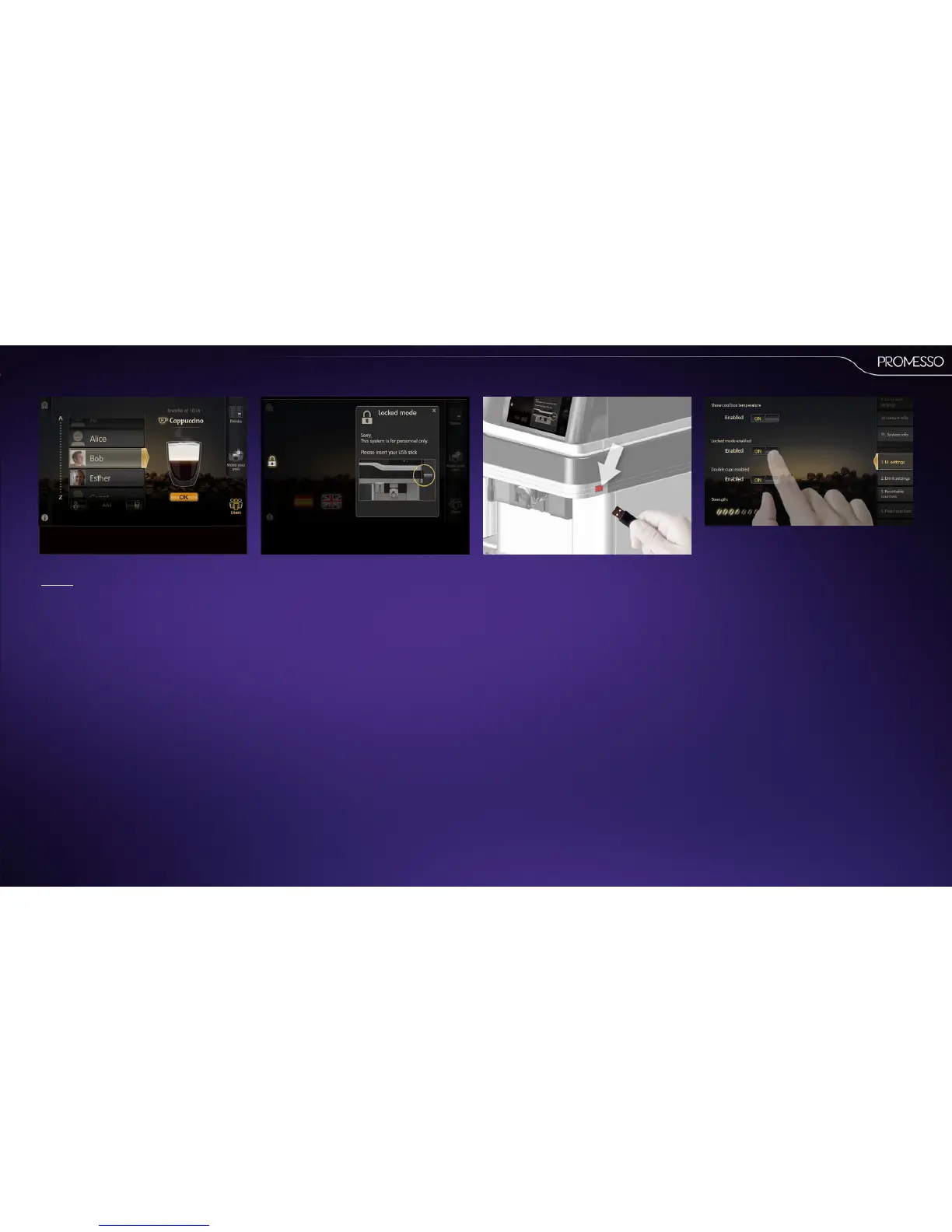
• Scroll the list to select your prole name
• Enter the password if you have set one.
The display shows the drink that you have
selected for that specic period of the day.
It is possible to change the drink(s) that you
have previously selected:
(See 4.3: How to edit / add a drink to my
prole)
• Press start tostart delivery.
• Press the stopbuon (shown in the display)
to cancel delivery.
Toacvatethelockmode:
• Insert the operator USB key.
• Scroll down in the UIsengsmenu to enable
the lock mode
• Slide the buon to ON.
• Remove the operator key. The lock mode is now
acve.
Tode-acvatethelockmode:
• Insert the operator USB key.
• Scroll down in the UI sengs menu to the item
‘lock mode enabled’.
• Slide the buon to OFF. The lock mode is
disabled when the operator key is removed.
4.2 HOWTOLOCKMACHINEACCESS
It is possible to lock access / block drink delivery for
non-authorized persons. (a lock icon is visible in the
le hand side of the display)
The dispenser can in the lock mode only be used by
inserng the ‘nurse’ USB key.
When the key is removed, the dispenser is once
more locked.



 To Next Page