15
The dispenser has an operator menu in which you
can change machine sengs and funcons
(NOTE: some funcons or sengs can be enabled/
disabled in this menu by a service technician)
Accessandbasicoperaon
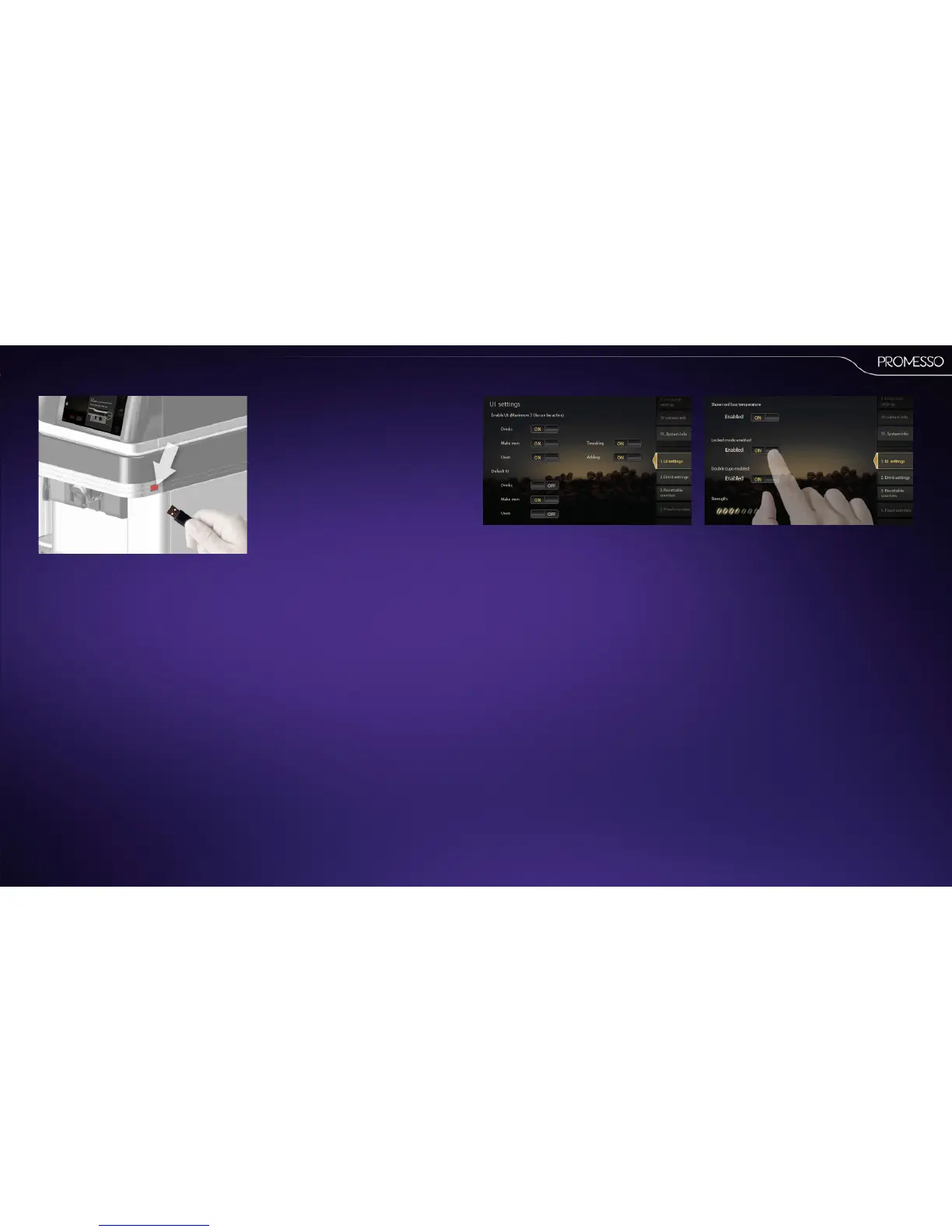
• To access the operator programming mode,
insert the included operator USB key;
• Browse the list to select the desired sub-menu
/ items.
• Changes are saved when you remove the USB
key.
1.UIsengs
This menu allows you to :
• enable / disable the drink modes; drinks / make
own / users (Enable UI)
• enable / disable the possibility to tweak the
drink (make own mode)
• enable / disable the possibility to add user
proles (users mode)
• enable / disable highlight for drink modes in
the start screen
• Use your nger to scroll down. The following set-
ngs will be shown in the screen:
• Show cooling box temperature (Show the actual
cooling temperature in the display of the ma-
chine)
• Locked mode enabled
• Double cups enabled (The user can also select
double drinks delivery)
• Strength (the user can change the coee
strength by selecng more or less coee bean
icons in the upper right corner of the screen -
you can set here the default)
6. USER PROGRAMMING
Thefollowingsub-menusareavailable;
1. Userinterface(UI)sengs(enable/disable
drinkmodes)
2. Drinksengs(adjustvolumeandstrength)
3. Reseablecounters
4. Fixedcounters
5. Machinesengs(changeLEDbarcolor/start
descalingorcleaning)
6. Date/me
7. Cleaning day
8. ECO sengs (energy save mode)
9. Language sengs
10. Contact info (enter operator name and phone
number)
11. System info



 To Next Page