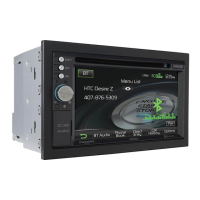
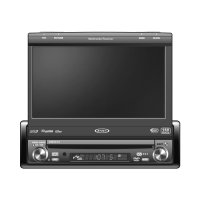
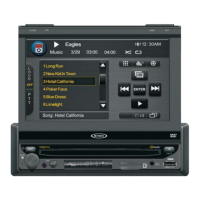
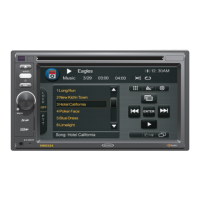
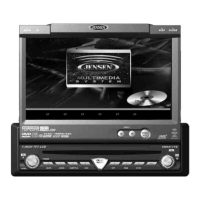
VM9213
~
NOTE:
Not
all
phones
allow
access to missed,
received
or
dialed
calls
and
some
will
not
allow
uploading
of
your
phone's
address
book.
Menu
List
The menu list appears
on
the left side
of
the screen and can
be accessed from other modes by touching the MENU button
on the right side
of
the screen.
Call
Transfer
While talking, to transfer audio from the head unit back to the
mobile phone, touch the
('J
button (6). The TFT will display
"Transfer".
You
can only transfer a call after it has been
answered.
Missed
Calls
The Missed Calls list retrieves the list
of
Missed numbers
from your phone. The last missed number is the first number
on the list. Touch the Missed Calls menu option
to
view the
list.
To
make a call from the Missed Calls list, touch the
number and then touch the
~
button. The TFT will display
"Cannot get missed record" when the feature is not available.
Exit
Clear
#
3
6
9
2
8
5
o
button
to
open the direct dial screen.
00000
DDDoa
7
4
1
*
Touch the
1.
2.
Use the 0-9,
*,
and # buttons
to
input the phone number.
* Touch the CLEAR button
to
clear the last digit.
• Touch the
-=-
button to clear the entire number and
start over.
3.
After entering the phone number, press the r button to
dial the call. The direct dial screen will close once your
call
is
connected.
To
end the conversation, press the
'G
button.
Managing
Incoming
Calls
When connected
to
a Bluetooth phone, the unit will mute
audio output, pause CD play, and change to the Bluetooth
screen when a call is received. An incoming phone number
will appear at the top
of
the screen.
Answering
an
Incoming
Call
To
answer the call, touch the
~
button (11).
Each time the
~
button is pressed, the head unit will
automatically reconnect with the mobile phone once (only if
the mobile phone was previously paired with the head unit).
NOTE: The TALK
button
on
the BTM10 can be
used
to
answer
calls
or
hang
up.
Making
an
Outgoing
Call
NOTE: Press the
~
button
from the
main
Bluetooth
screen to
automatically
dial
the
last
call
received.
For best reception, speak loudly and clearly.
To
end the conversation, press the
'G
button (12). The
screen will display the call duration for 3 seconds, and then
return
to
the previous mode.
Rejecting an
Incoming
Call
Touch the
~
button to reject an incoming call. The call will
revert
to
your phone and can be answered directly or left for
voice mail.
Volume
Control
To
increase or decrease the volume level, turn the rotary
encoder (5) on the front panel or press the VOL+I VOL-
buttons
on
the remote control (15, 16).
Microphone
Mute
To
mute the microphone, touch the
~
button (10). Touch
again to resume microphone functionality.
the telephone source. However, depending
on
your phone,
the connection may be made using HSP (Head Set Profile),
making some functions unavailable. This
is
a limitation
of
your phone, not the VM9213.
Since there are a number
of
Bluetooth mobile phone
implementations available
on
the market, operations with
your Bluetooth mobile phone using this unit vary greatly.
Please refer to the instruction manual that came with your
Bluetooth mobile phone along with this manual while
operating your phone with this unit.
1.
Press the
((::£
button (7) to initiate the pairing process.
Keep the mobile phone within 2 meters
of
the head unit
when pairing.
(To
terminate the pairing process, press
the
(()~
button again.)
2.
Select the Bluetooth setup option
on
the mobile phone
to
be
paired (please refer to the phone's instruction
manual to learn how to enter Bluetooth setup, turn
Bluetooth on/off, and perform pairing).
Pairing
the
Bluetooth
System
with
Your
Mobile
Phone
and
Head
Unit
NOTE: Some
phones
require a
"pass
key"
or
pairing
code
to connect.
If
your
phone
requires a
pass
key
or
pairing
code,
you
will
need
to
enter
this
number
in the
Pairing Code
field
under
the
Bluetooth
SETUP menu. The
default
pairing
code
for
many
phones
is "0000". The
default
code
for
the VM9213 is "1234". See
"Bluetooth
Sub-menu
Features"
on
page 10
for
instructions
on
entering
the
pairing
code.
3.
Select "VM9213" from the pairing list on the mobile
phone.
If pairing is successful, the TFT will display the paired
mobile phone model number or name (as specified
in
your phone's Bluetooth Setup menu).
Ifpairing fails, "Phone Pairing Fail"
is
displayed at the
bottom
of
the screen.
Recon
necti
ng
Once the Bluetooth device has been paired, you can touch
the connect
if
button (9) to reconnect.
NOTE: You can
only
connect
to a
phone
using
the
buttons
on
the
on-screen
Phone interface.
20



 To Next Page