EasyManua.ls Logo

JVC CA-S200 - Music Scan

JVC CA-S200
27 pages
Print Icon
To Next Page IconTo Next Page
To Previous Page IconTo Previous Page
Loading...
Finding
the
place
you
want:
Music
Scan
Scan
Back
Scan
Forward
More
Useful
Things
to
Know:
eReverse
Mode
Continuous
Play
Dolby
Advantages
in
connecting
a
VCR
or
optional
equipment
For
the
other
models
Fast
Left
and
Fast
Right
QO)
While
the
tape
is
stopped,
press
«#4
and
the
tape
will
wind
rapidly
onto
the
left
side
of
the
cassette
without
playing.
QO)
While
the
tape
is
stopped,
press
®®
and
the
tape
will
wind
rapidly
onto
the
right
side
of
the
cassette
without
playing.
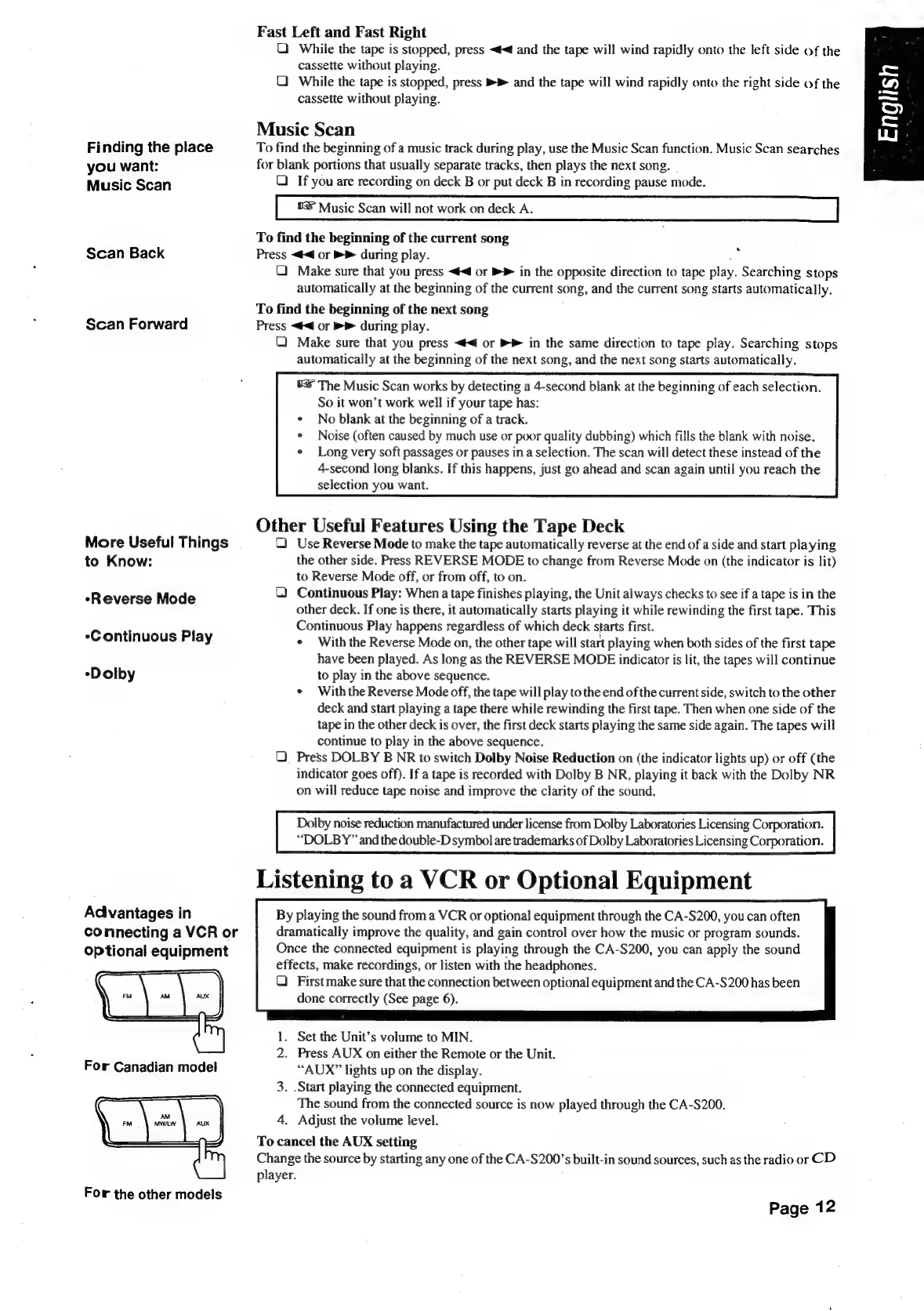
Music
Scan
To
find
the
beginning
of
a
music
track
during
play,
use
the
Music
Scan
function.
Music
Scan
searches
for
blank
portions
that
usually
separate
tracks,
then
plays
the
next
song.
Q)
If
you
are
recording
on
deck
B
or
put
deck
B
in
recording
pause
mode.
&&
Music
Scan
will
not
work
on
deck
A.
To
find
the
beginning
of
the
current
song
Press
<4
or
>>
during
play.
a
Q)
Make
sure
that
you
press
<<
or
®*
in
the
opposite
direction
to
tape
play.
Searching
stops
automatically
at
the
beginning
of
the
current
song,
and
the
current
song
starts
automatically.
To
find
the
beginning
of
the
next
song
Press
<4
or
®>
during
play.
Q)
Make
sure
that
you
press
<4
or
>
in
the
same
direction
to
tape
play.
Searching
stops
automatically
at
the
beginning
of
the
next
song,
and
the
next
song
starts
automatically.
©
The
Music
Scan
works
by
detecting
a
4-second
blank
at
the
beginning
of
each
selection.
So
it
won’t
work
well
if
your
tape
has:
¢
No
blank
at
the
beginning
of
a
track.
*
Noise
(often
caused
by
much
use
or
poor
quality
dubbing)
which
fills
the
blank
with
noise.
*
Long
very
soft
passages
or
pauses
in
a
selection.
The
scan
will
detect
these
instead
of
the
4-second
long
blanks.
If
this
happens,
just
go
ahead
and
scan
again
until
you
reach
the
selection
you
want.
Other
Useful
Features
Using
the
Tape
Deck
Q)
Use
Reverse
Mode
to
make
the
tape
automatically
reverse
at
the
end
of
a
side
and
start
playing
the
other
side.
Press
REVERSE
MODE
to
change
from
Reverse
Mode
on
(the
indicator
is
lit)
to
Reverse
Mode
off,
or
from
off,
to
on.
&)
Continuous
Play:
When
a
tape
finishes
playing,
the
Unit
always
checks
to
see
if
a
tape
is
in
the
other
deck.
If
one
is
there,
it
automatically
starts
playing
it
while
rewinding
the
first
tape.
This
Continuous
Play
happens
regardless
of
which
deck
starts
first.
*
With
the
Reverse
Mode
on,
the
other
tape
will
start
playing
when
both
sides
of
the
first
tape
have
been
played.
As
long
as
the
REVERSE
MODE
indicator
is
lit,
the
tapes
will
continue
to
play
in
the
above
sequence.
e
With
the
Reverse
Mode
off,
the
tape
will
play
to
the
end
of
the
current
side,
switch
to
the
other
deck
and
start
playing
a
tape
there
while
rewinding
the
first
tape.
Then
when
one
side
of
the
tape
in
the
other
deck
is
over,
the
first
deck
starts
playing
the
same
side
again.
The
tapes
will
continue
to
play
in
the
above
sequence.
Q)
Press
DOLBY
B
NR
to
switch
Dolby
Noise
Reduction
on
(the
indicator
lights
up)
or
off
(the
indicator
goes
off).
If
a
tape
is
recorded
with
Dolby
B
NR,
playing
it
back
with
the
Dolby
NR
on
will
reduce
tape
noise
and
improve
the
clarity
of
the
sound.
By
playing
the
sound
from
a
VCR
or
optional
equipment
through
the
CA-S200,
you
can
often
dramatically
improve
the
quality,
and
gain
control
over
how
the
music
or
program
sounds.
Once
the
connected
equipment
is
playing
through
the
CA-S200,
you
can
apply
the
sound
effects,
make
recordings,
or
listen
with
the
headphones.
Q)
First
make
sure
that
the
connection
between
optional
equipment
and
the
CA-S200
has
been
done
correctly
(See
page
6).
1.
Set
the
Unit’s
volume
to
MIN.
2.
Press
AUX
on
either
the
Remote
or
the
Unit.
“AUX”
lights
up
on
the
display.
3.
.Start
playing
the
connected
equipment.
The
sound
from
the
connected
source
is
now
played
through
the
CA-S200.
4.
Adjust
the
volume
level.
To
cancel
the
AUX
setting
Change
the
source
by
starting
any
one
of
the
CA-S200’s
built-in
sound
sources,
such
as
the
radio
or
CD
player.
Page
12

Table of Contents

Related product manuals