EasyManua.ls Logo

JVC CA-S200 - Page 19

JVC CA-S200
27 pages
Print Icon
To Next Page IconTo Next Page
To Previous Page IconTo Previous Page
Loading...
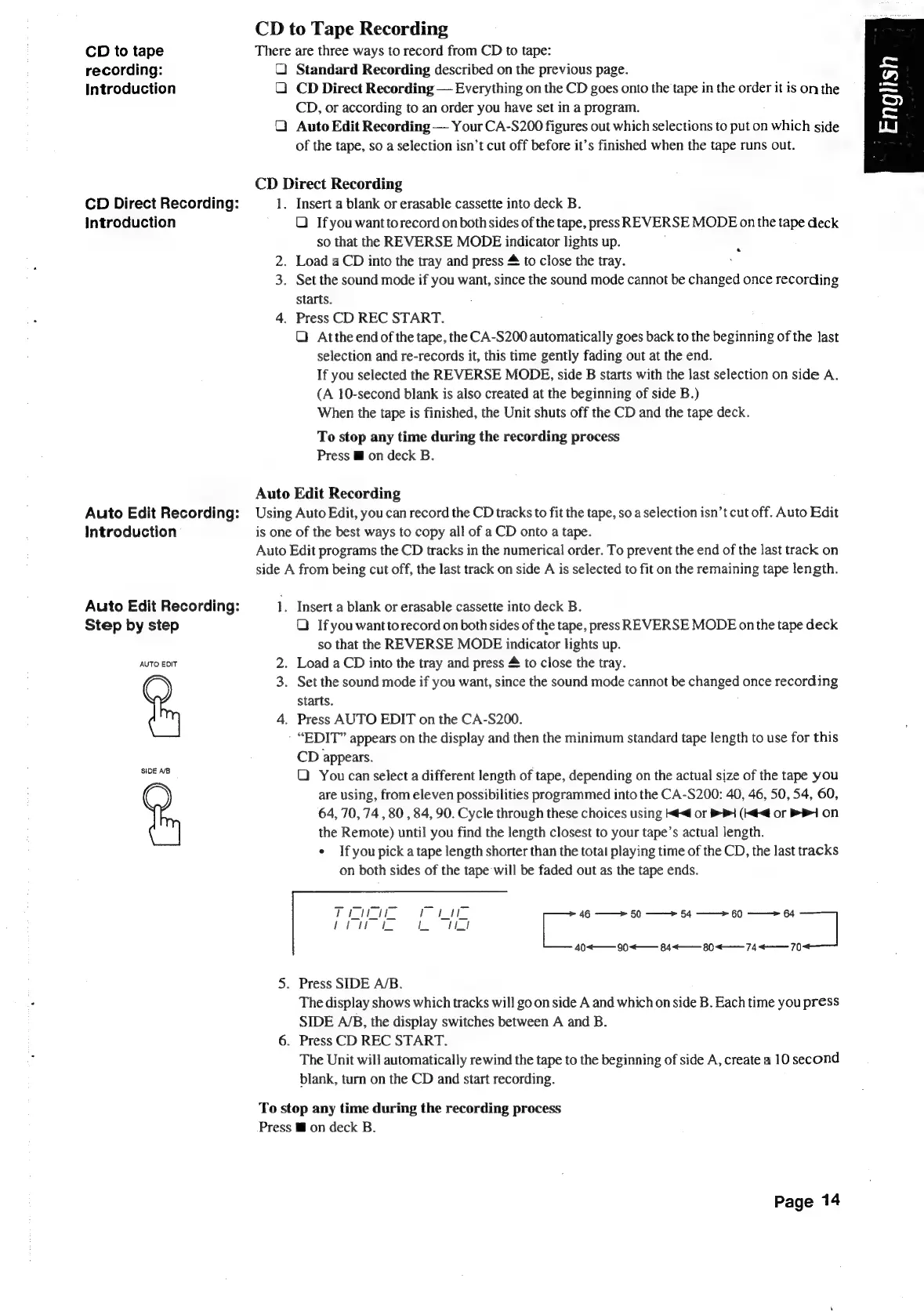
CD
to
Tape
Recording
CD
to
tape
There
are
three
ways
to
record
from
CD
to
tape:
recording:
QC
Standard
Recording
described
on
the
previous
page.
Introduction
Q
CD
Direct
Recording
Everything
on
the
CD
goes
onto
the
tape
in
the
order
it
is
on
the
CD,
or
according
to
an
order
you
have
set
in
a
program.
Q
Auto
Edit
Recording
Your
CA-S200
figures
out
which
selections
to
put
on
which
side
of
the
tape,
so
a
selection
isn’t
cut
off
before
it’s
finished
when
the
tape
runs
out.
CD
Direct
Recording
CD
Direct
Recording:
1,
Insert
a
blank
or
erasable
cassette
into
deck
B.
Introduction
QO
Ifyou
wanttorecord
on
both
sides
of
the
tape,
press
REVERSE
MODE
on
the
tape
deck
so
that
the
REVERSE
MODE
indicator
lights
up.
2.
Load
a
CD
into
the
tray
and
press
to
close
the
tray.
3.
Set
the
sound
mode
if
you
want,
since
the
sound
mode
cannot
be
changed
once
recording
starts.
4.
Press
CD
REC
START.
QO
Atthe
end
of
the
tape,
the
CA-S200
automatically
goes
back
to
the
beginning
of
the
last
selection
and
re-records
it,
this
time
gently
fading
out
at
the
end.
If
you
selected
the
REVERSE
MODE,
side
B
starts
with
the
last
selection
on
side
A.
(A
10-second
blank
is
also
created
at
the
beginning
of
side
B.)
When
the
tape
is
finished,
the
Unit
shuts
off
the
CD
and
the
tape
deck.
*
To
stop
any
time
during
the
recording
process
Press
@
on
deck
B.
Auto
Edit
Recording
Auto
Edit
Recording:
Using
Auto
Edit,
you
can
record
the
CD
tracks
to
fit
the
tape,
so
a
selection
isn’t
cut
off.
Auto
Edit
Introduction
is
one
of
the
best
ways
to
copy
all
of
a
CD
onto
a
tape.
Auto
Edit
programs
the
CD
tracks
in
the
numerical
order.
To
prevent
the
end
of
the
last
track
on
side
A
from
being
cut
off,
the
last
track
on
side
A
is
selected
to
fit
on
the
remaining
tape
length.
Auto
Edit
Recording:
1.
Insert
a
blank
or
erasable
cassette
into
deck
B.
Step
by
step
Q)
Ifyou
wantto
record
on
both
sides
of
the
tape,
press
REVERSE
MODE
on
the
tape
deck
so
that
the
REVERSE
MODE
indicator
lights
up.
AUTO
EDIT
2.
Load
a
CD
into
the
tray
and
press
&
to
close
the
tray.
3.
Set
the
sound
mode
if
you
want,
since
the
sound
mode
cannot
be
changed
once
recording
starts.
4.
Press
AUTO
EDIT
on
the
CA-S200.
“EDIT”
appears
on
the
display
and
then
the
minimum
standard
tape
length
to
use
for
this
CD
appears.
QO)
You
can
select
a
different
length
of
tape,
depending
on
the
actual
size
of
the
tape
you
are
using,
from
eleven
possibilities
programmed
into
the
CA-S200:
40,
46,
50,
54,
60,
64, 70,
74
,
80
,
84,
90.
Cycle
through
these
choices
using
Ké<
or
>
(<4
or
1
on
the
Remote)
until
you
find
the
length
closest
to
your
tape’s
actual
length.
*
Ifyou
pick
a
tape
length
shorter
than
the
total
playing
time
of
the
CD,
the
last
tracks
on
both
sides
of
the
tape
will
be
faded
out
as
the
tape
ends.
i
——>
50
——>
54
——>
60
———>
64
|]
40<——
90<——
84 80
«
—_74<«—
70
5.
Press
SIDE
A/B.
The
display
shows
which
tracks
will
go
on
side
A
and
which
on
side
B.
Each
time
you
press
SIDE
A/B,
the
display
switches
between
A
and
B.
6.
Press
CD
REC
START.
The
Unit
will
automatically
rewind
the
tape
to
the
beginning
of
side
A,
create
a
10
second
blank,
turn
on
the
CD
and
start
recording.
SIDE
AB
To
stop
any
time
during
the
recording
process
Press
i
on
deck
B.
Page
14

Table of Contents

Related product manuals