EasyManua.ls Logo

JVC GY-HD200U - User Manual

JVC GY-HD200U
114 pages
Print Icon
To Next Page IconTo Next Page
Loading...
INTRODUCTION
CONTROLS,
INDICATORS AND
CONNECTORS
PREPARATIONS
PREPARATIONS
FOR OPERATION
SETTING AND
ADJUSTMENTS
BEFORE SHOOTING
SHOOTING
OPERATION
PLAYBACK MODE
USING EXTERNAL
COMPONENTS
MENU SCREENS
FEATURES OF THE
CAMERA SECTION
OTHERS
HD CAMERA RECORDER
INSTRUCTIONS
(B)
GY-HD200U/CHU
GY-HD200E/CHE
GY-HD201E/CHE
Thank you for purchasing this JVC product. Before operating this
device, please read the instructions carefully to ensure the best
possible performance.
For Customer Use:
Enter below the Serial No. which is located on the body.
Retain this information for future reference.
Model No.
Serial No.
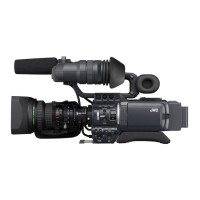
* The illustration shows the GY-HD200U/
GY-HD200E/GY-HD201E HD CAMERA
RECORDER with the provided lens,
viewfinder and microphone attached.
© 2008 Victor Company of Japan, Limited
E
GY-HD200/GY-HD201
HD CAMERA RECORDER
LST0512-001BLST0512-001B
e_hd200_cover_7.fm Page 1 Friday, February 1, 2008 4:06 PM

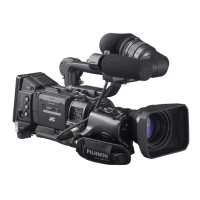
Table of Contents

Questions and Answers

  • I
    Isaiah OrtizAug 20, 2025
    What to do if JVC Camcorder power cannot be switched on?
    • D
      Dominique PachecoAug 20, 2025
      If your JVC Camcorder cannot be switched ON, check the following: * Ensure the power supply is correctly connected. * Verify the battery pack is recharged. * If the power was just turned OFF, wait at least 5 seconds before turning it ON again.
  • J
    Jeffrey BarrAug 22, 2025
    How to display time code on JVC GY-HD200U?
    • M
      Mrs. Renee Smith MDAug 22, 2025
      If the time code or user's bits data is not displayed on your JVC Camcorder, check the TC/UB item in the LCD/VF[3/4] menu. If it's set to OFF, change the setting to ON.
  • J
    Jennifer IrwinAug 25, 2025
    Why audio level control doesn't work on JVC Camcorder?
    • N
      Nicole CervantesAug 25, 2025
      If the front section’s audio level control on your JVC Camcorder isn’t working, check whether the CH-1/CH-2 AUDIO SELECT switch is set to “AUTO” or the FULL AUTO switch is set to “ON”.
  • V
    Vincent DaughertyAug 26, 2025
    How to display date and time on JVC GY-HD200U Camcorder?
    • L
      lhuffAug 27, 2025
      If the date and time are not displayed or recorded on your JVC Camcorder, first ensure that the DISPLAY item in the TIME/DATE menu is set to ON. This enables the display and recording of the date and time. Also, verify that the date and time settings have been properly configured.
  • R
    Raymond RodriguezAug 28, 2025
    Why is JVC GY-HD200U Camcorder image dark or blurred?
    • D
      Debra RobinsonAug 28, 2025
      If the image on the LCD monitor or in the viewfinder of your JVC Camcorder appears dark or blurred, try the following: * Adjust the brightness of the LCD monitor or viewfinder screen. * Check if the ND filter knob is set to 2. * Verify if the iris is closed. * Check if the shutter speed is too fast. * Ensure the viewfinder cable is correctly connected.
  • B
    Beth MitchellAug 30, 2025
    How to fix sound not outputting during JVC Camcorder playback?
    • J
      Joshua CoxAug 30, 2025
      If your JVC Camcorder is not outputting sound during playback, verify that the AUDIO SELECT item in the AUDIO menu is not set to CH3/4. To output the sound of the recording, set it to CH1/2.
  • J
    Joshua GriffithSep 1, 2025
    What to do if JVC Camcorder playback does not start?
    • A
      Austin AllenSep 1, 2025
      If your JVC Camcorder is not playing back when you press the play button, and you are in Camera mode, ensure that “STOP” is indicated as the VTR operation mode indicator. If “STBY” is indicated, press the STOP button to display “STOP”.
  • L
    Lisa WhiteSep 3, 2025
    Why is JVC GY-HD200U Camcorder not recording?
    • T
      timreeseSep 3, 2025
      If your JVC Camcorder is not recording, make sure of the following: * The REC LOCK switch on the handle is not set to ON. * The switch on the cassette is set to “REC”, not “SAVE”. * The Camera mode is selected (the CAM indicator is lit, not the VTR indicator).
  • C
    Carol AdamsSep 5, 2025
    Why JVC GY-HD200U cannot play back?
    • D
      Darrell ShieldsSep 5, 2025
      If your JVC Camcorder cannot play back, check if the PB TAPE item on the VIDEO FORMAT menu screen is set to AUTO. If it's set to something else, and it doesn't match the tape format, the tape will not play back.
  • O
    Oscar ReyesSep 7, 2025
    Why JVC Camcorder cannot input HDV/DV signal?
    • S
      Shannon OrtegaSep 7, 2025
      If your JVC Camcorder is not inputting an HDV/DV signal, verify that the device is in VTR mode (the VTR indicator is lit) and that the IEEE1394 switch is set correctly.

Summary

Important Safeguards

Safety Precautions

Accessories and Main Features

Key Camera Features Overview

Highlights recording formats, 24p mode, camera section design, and shooting functions.

Introduction to Device Operation

Proper Use and Safety Precautions

Essential guidelines for safe and optimal device operation, including environmental limits.

Controls, Indicators, and Connectors

Preparations for Device Setup

AC Operation and Battery Management

How to operate the device using AC power and manage battery charging and usage.

Preparations for Operation

Powering the Device On and Off

Step-by-step guide for turning the camera power on and off, including mode switching.

Cassette Loading and Unloading Procedures

Instructions for inserting and removing videocassettes, including important precautions.

Time Code Presetting and Synchronization

Procedures for presetting time codes, user bits, and synchronizing via IEEE1394.

Screen and Viewfinder Adjustments

How to adjust LCD monitor direction, angle, brightness, and viewfinder settings.

Back Focus Adjustment Procedure

Step-by-step guide for adjusting back focus using a Siemens star chart for optimal focus.

Setting and Adjustments Before Shooting

Video Format and Frame Rate Configuration

How to set the video format, frame rate, and reboot the system.

White Balance and Shading Adjustments

Methods for performing manual and full auto white balance and white shading adjustments.

Audio Input and Monitoring Setup

Selecting audio inputs, adjusting levels, and monitoring audio during recording.

Shooting Operation Guide

Basic Recording Operation Steps

Step-by-step guide to start recording, including tally lamps and quick start mode.

Record-Standby Mode and Tape Protection

Managing record-standby mode, tape protection, and checking recorded content.

HEADER REC Function Configuration

Configuration and execution of the HEADER REC function for pre-roll recording.

Playback Mode Operations

Playback Procedure and Controls

Steps to load tape, enter VTR mode, start playback, and use fast forward/rewind.

Audio Output During Playback

How to select audio channels and output modes for monitoring during playback.

Using External Components

HDV;DV Dubbing Procedures

Connecting and dubbing digital signals using IEEE1394 for high-quality audio/video transfer.

Backup Recording via IEEE1394

Recording camera image/sound for backup on an IEEE1394-equipped component.

Remote Control Unit Connection and Usage

Connecting and operating the remote control unit for accessing camera functions.

Menu Screens Guide

Video Format Settings (1;2)

Configure video format, frame rate, and 1080i camera settings.

Features of the Camera Section

Others and Troubleshooting

Troubleshooting Common Issues

Provides solutions for common problems like power issues, recording failure, and display problems.

JVC GY-HD200U Specifications

General IconGeneral
Sensor Type3CCD
Sensor Size1/3 inch
Sensor Resolution1280 x 720
Recording MediaMiniDV tape
HD Format720p
Filter Diameter72 mm
ViewfinderColor LCD
LCD Screen3.5 inch
Microphone InputYes
Headphone JackYes
HDMI OutputNo
Component OutputYes
Composite OutputYes
USBNo
Battery TypeLithium-ion
Camera TypeShoulder-Mount
Recording FormatHDV
Frame Rates24p, 30p, 60i
LensInterchangeable
Maximum Aperturef/1.6
Audio Recording16-bit PCM
Audio InputXLR
ND FilterBuilt-in
FireWireYes
Weight2.5 kg

Related product manuals