Copying Files by Date
Videos or still images are sorted and copied according to the date on which
they were recorded.
0
*The following is a screen of the model with the built-in memory.
1
Select video or still image mode.
2
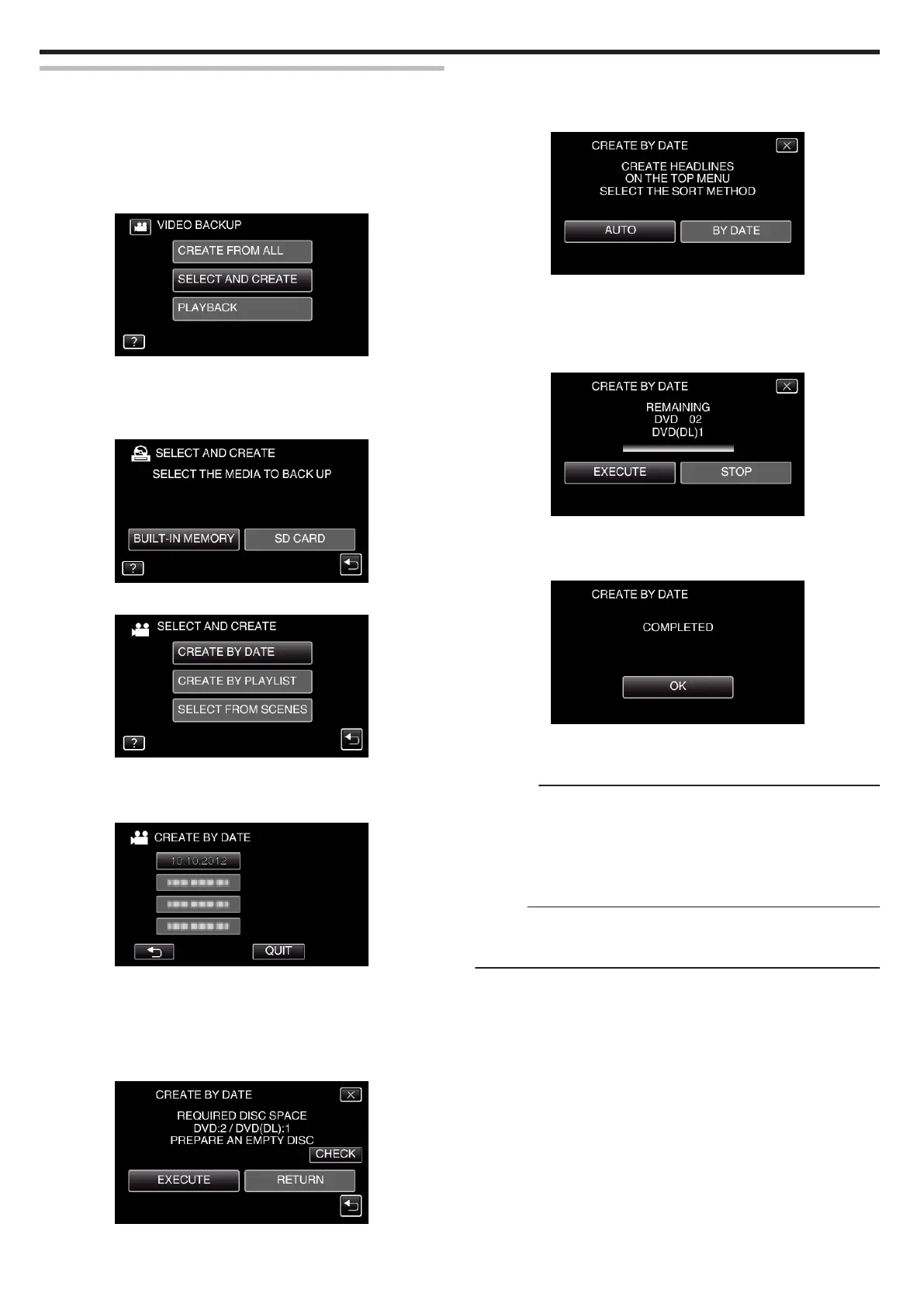
Tap “SELECT AND CREATE” (video) or “SELECT AND SAVE” (still
image).
.
0
While the video mode is shown in the image, the same operations
apply for the still image mode.
0
Tap A to switch between the video and still image modes.
3
Tap the media you would like to make a backup.
.
4
Tap “CREATE BY DATE” (video) or “SAVE BY DATE” (still image).
.
0
While the video mode is shown in the image, the same operations
apply for the still image mode.
5
Tap to select a recording date.
.
0
You cannot select more than one recording date for copying.
To copy files from multiple recording dates, it is recommended to copy
by creating a playlist.
“Creating Playlists from the Recorded Videos” (A p. 89)
“Copying Selected Playlists” (A p. 107)
6
Tap “EXECUTE”.
.
0
The number of discs required to copy the files is displayed.
Prepare the discs accordingly.
0
Tap “CHECK” to check the content.
7
Tap “AUTO” or “BY DATE”. (A mode only)
.
0
When “AUTO” is selected, videos with similar recording dates are
displayed in groups.
0
When “BY DATE” is selected, videos are displayed according to
recording dates.
8
Tap “EXECUTE”.
.
0
When “INSERT THE NEXT DISC TO CREATE OR PRESS STOP TO
EXIT” appears, change the disc.
9
Tap “OK” when “COMPLETED” is displayed.
.
10
Press and hold the M button for 2 seconds or more to turn off this unit
and disconnect the USB cable.
Caution :
0
Do not turn off the power or remove the USB cable until copying is
complete.
0
Files that are not on the index screen during playback cannot be copied.
Special files cannot be copied either.
0
All DVDs will be finalized automatically.
Files cannot be added to the DVD-R/DVD-RW later.
Memo :
0
To check the created disc, refer to ““Playing Back with a DVD Writer”
(A p. 109) ”.
“Playing Back with a DVD Writer” (A p. 109)
Copying
106


 To Next Page