12
• Group: All currently defined video wall groups will be listed under the “Group”
heading. Clicking on a group’s icon will display a simplified graphical representation
of the video wall on the right side of the page in the Group View.
• Transmitter: All sources will be listed under the “Transmitter” heading. To assign a
source to a video wall group, drag the transmitter to the preferred group.
Note: Dragging a source to a previously inactive video wall group will automatically activate the
video wall on all associated displays.
• Group View: Shows a simplified graphical representation of the currently selected
video wall group. If the video wall is active the windows will be green and display a
faded video thumbnail of the currently selected source. If one or more of the displays
in the group is not currently active, those windows will be blue.
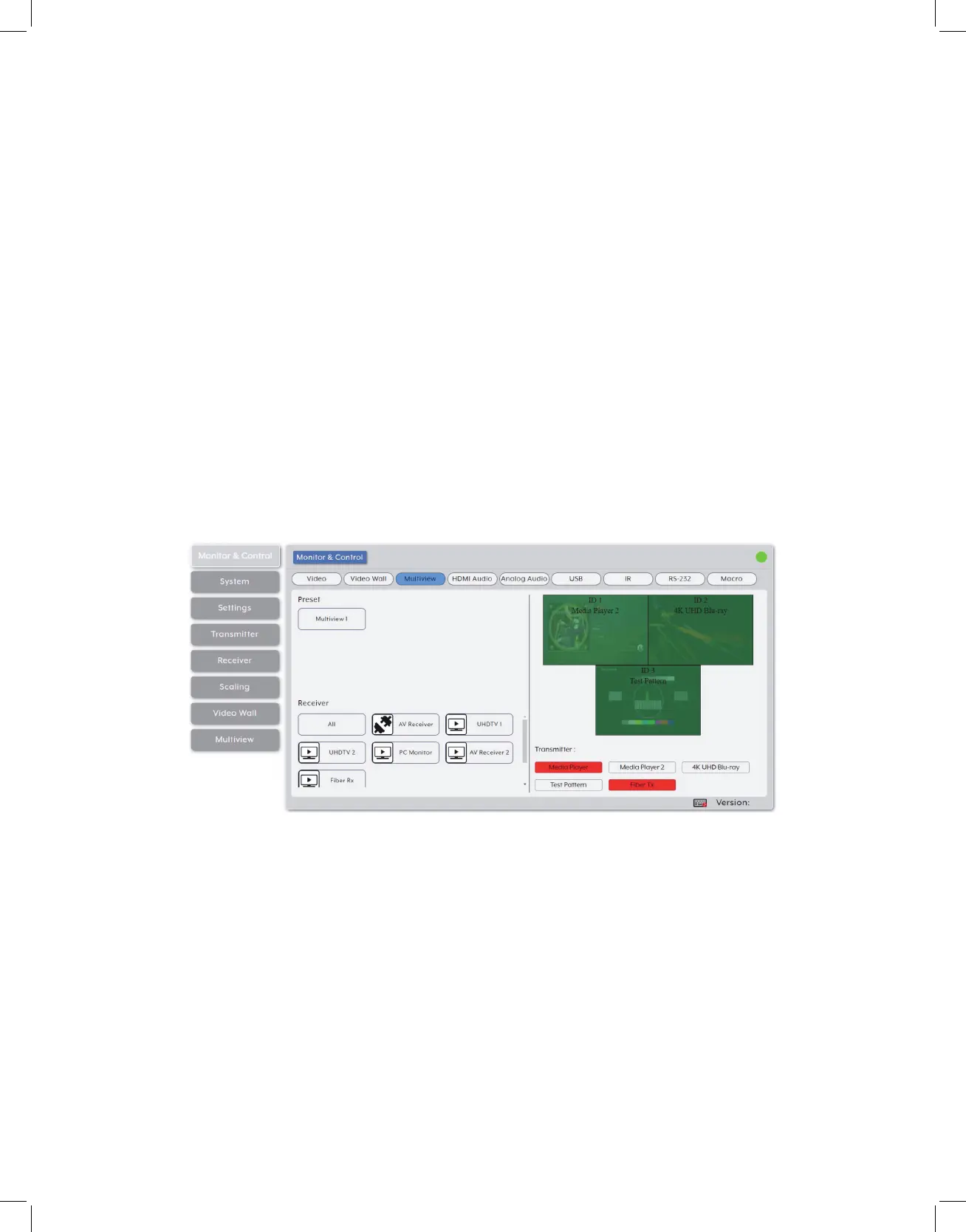
2. Multiview Selection: Provides drag-and-drop output selection and window source
selection for pre-defined multiviewer presets.
Note: Multiviewer presets are defined within the Multiviewer tab, please see section 6.6.8 for more
information.
• Preset: All currently defined multiviewer presets will be listed under the “Preset”
heading. To display a multiviewer preset on a specific output, drag the preset onto
the preferred receiver.
• Receiver: All displays will be listed under the “Receiver” heading. Clicking on a
display that currently has a multiviewer preset assigned to it will display a simplified
graphical representation of the preset on the right side of the page in the Multiviewer
View.
• Multiviewer View: Shows a simplified graphical representation of the currently
selected multiviewer preset. If the preset is active the windows will be green and


 To Next Page