13
display a faded video thumbnail of each window’s currently selected source.
• Transmitter: All sources are listed here with any currently unavailable sources
displayed in red. To assign a new source to an existing Multiview layout’s window,
drag the source to the preferred window within the Multiviewer View.
Note: A single source cannot be simultaneously displayed in differently sized windows or in
multiple presets at different output resolutions.
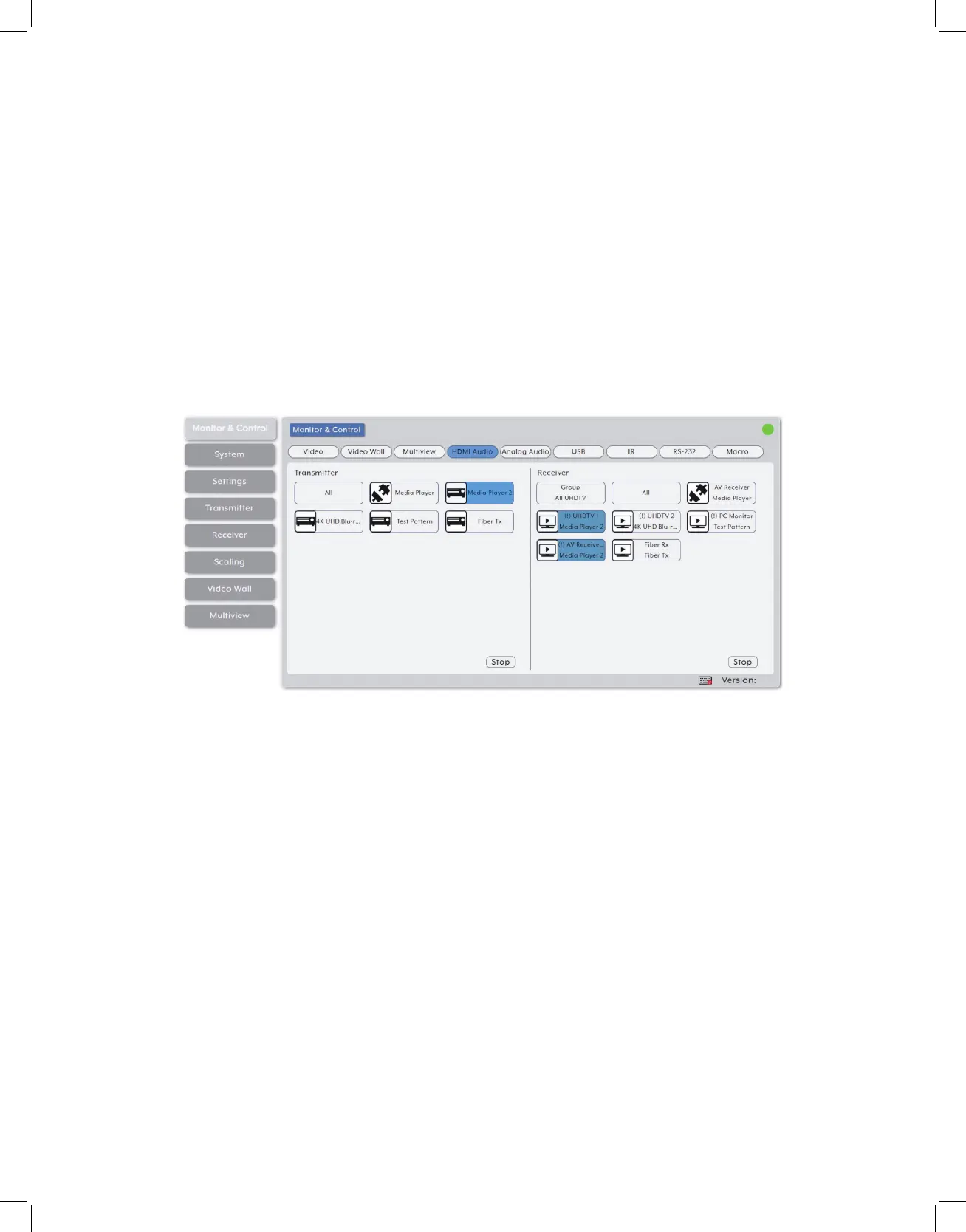
3. HDMI Audio Routing: Provides drag-and-drop control over the independent HDMI
audio routing of all detected transmitters and receivers.
Note: Bitstream audio is only supported when the receiver’s HDMI audio device setting is set to
“HDMI Audio (Follow Video in Genlock Mode)”.
• HDMI Audio Transmitter: This section provides drag-and-drop buttons for all
transmitters detected by the system as well as a button target to stop one or all
independent HDMI audio streams from being transmitted.
• Source to Single Receiver Routing: To route an HDMI audio source to a receiver,
click and drag the source’s button on the left to the preferred display on the right
side, then release the mouse button. If the routing was completed successfully, the
newly routed source’s name will appear below the display’s name within the button.
Clicking on any source button will change the color of itself, and all currently routed
displays.
Note: Receivers may also be drag and dropped onto sources to activate a new route.


 To Next Page