Audio Record/Playback (USB Memory)
10. Saving the dubbed le
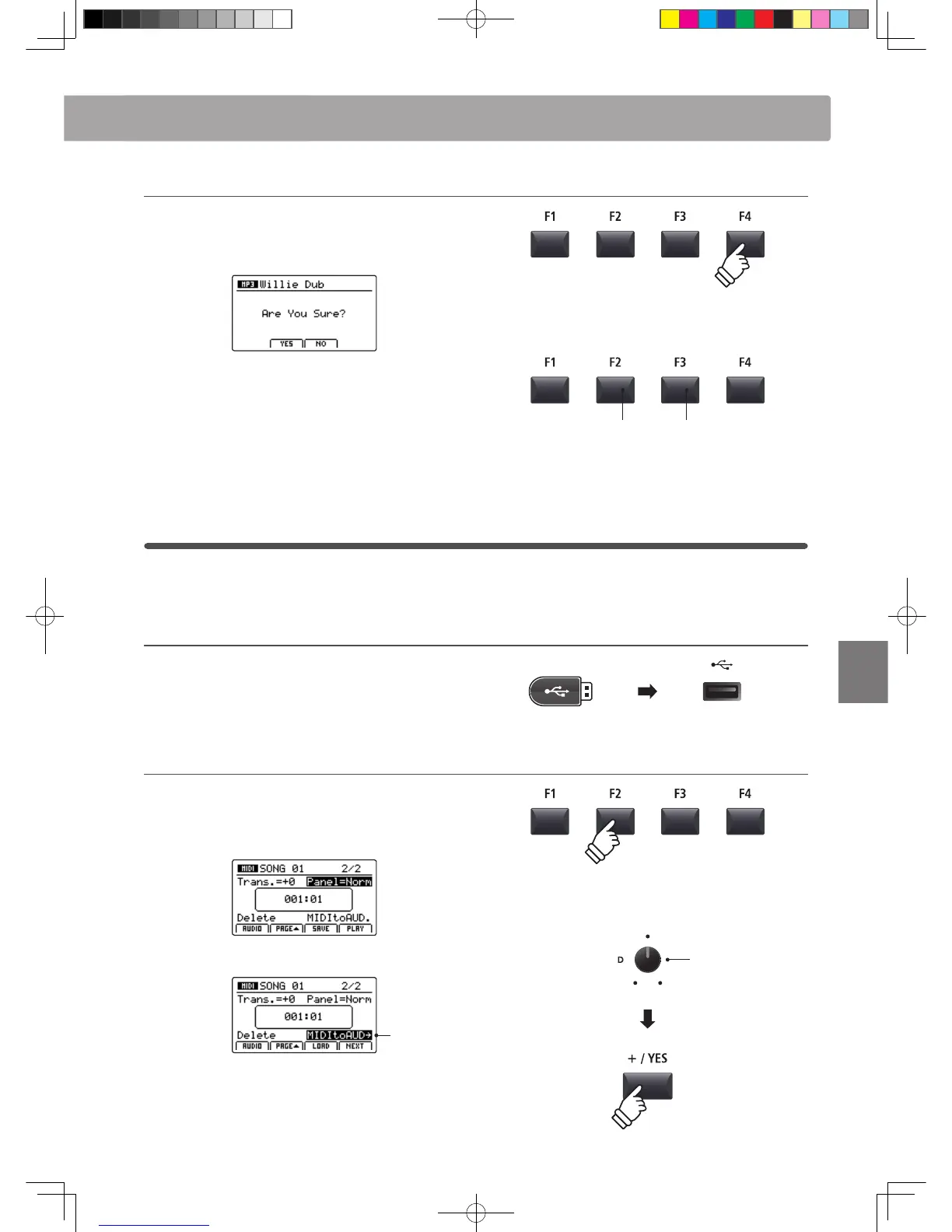
Press the F4 function button (EXEC).
The save audio conrmation screen will be shown in the LCD
display.
Press the F2 button (YES) to conrm the save audio operation,
or the F3 button (NO) to return to the previous screen.
* The +/YES and –/NO buttons can also be used to conrm or cancel the
save operation.
* To prevent data loss, avoid turning the power OFF while the MP11 is saving
les to USB memory.
4
Converting a recorder song to an audio le
This function allows recorder songs stored in internal memory to be played back and saved (converted) as an audio
le to a USB device in either MP3 or WAV format.
1. Connecting a USB memory device
Connect the USB memory device to the USB to Device port.
* USB devices should be formatted to use the ‘FAT’ or ‘FAT32’ lesystems.
The USB device will be scanned.
2. Selecting the MIDI to Audio function
After selecting the MIDI recorder and recording a song:
Press the F2 function button (PAGE) to show the additional
MIDI recorder functions.
Turn control knob D to highlight the MIDI to Audio function.
MIDI to AUDIO
highlighted
* The CURSOR buttons can also be used to move the selection cursor.
Press the +/YES button to select the MIDI to Audio function.
The MIDI to Audio screen will be shown in the LCD display.
F3 button:
NO: Cancel
F2 button:
YES: Conrm
MIDI to AUDIO
function


 To Next Page