72
11. USB Button
11.2.2b Saving SOUND data
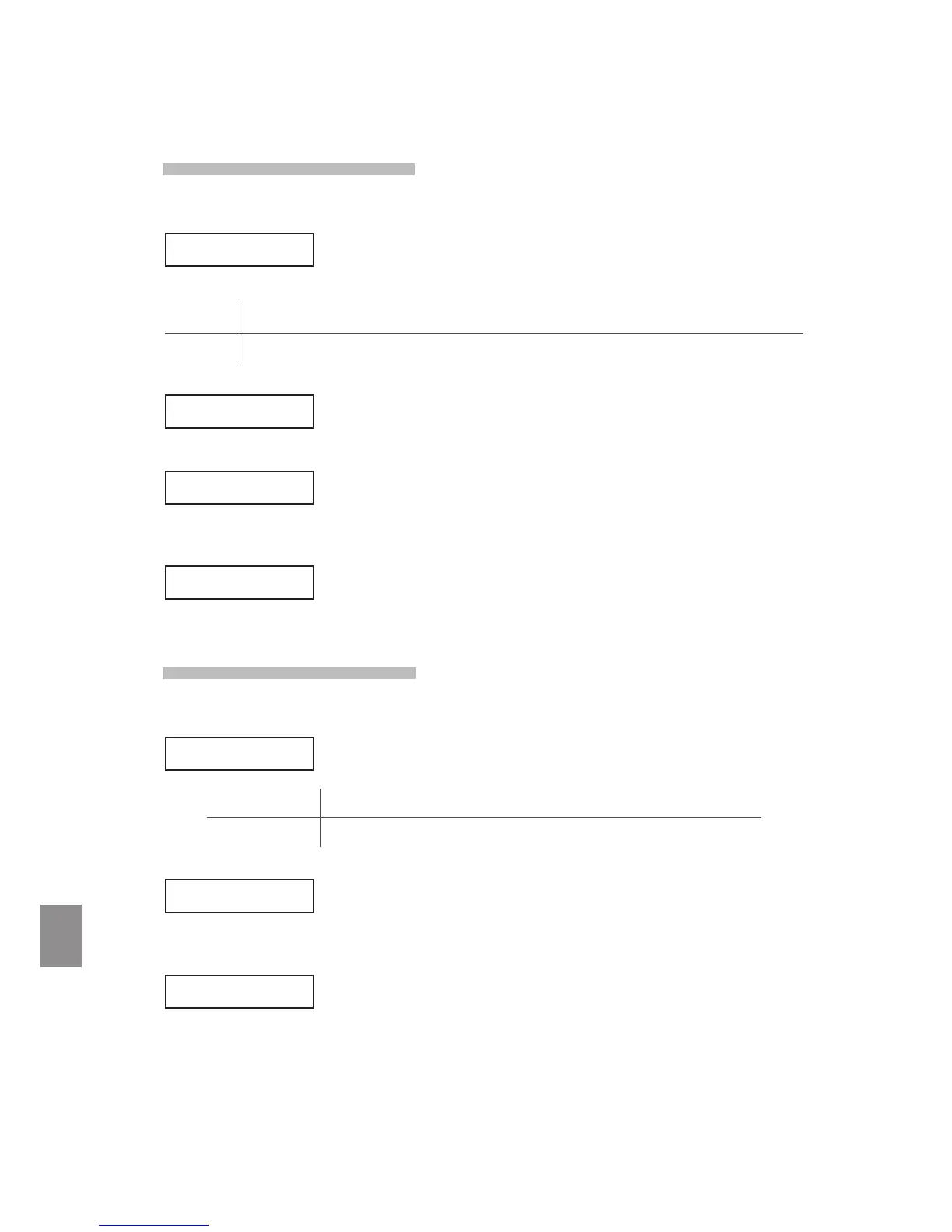
Upon selecting the Save SOUND function:
The USB Save SOUND menu will be shown in the LCD display.
Press the MENU c or VALUE c buttons to select the desired USB Save SOUND
function.
All Save a le containing all 256 SOUNDs to a USB memory device.
One Save a le containing a single SOUNDs to a USB memory device.
When saving One SOUND, a select SOUND prompt will be shown in the LCD display.
Press the VALUE c or VALUE d buttons or sound select buttons to select the
SOUND to save, then press the MENU c button to continue.
The le save screen will be shown in the LCD display.
Press the MENU c or MENU d buttons to move the selection arrow, and the
VALUE c or VALUE d buttons to change the character, then press the STORE
button to continue.
A conrmation screen will be shown in the LCD display.
Press the VALUE c button again to conrm the save operation.
11.2.2c Saving SYSTEM data
Upon selecting the Save SYSTEM function:
The USB Save SYSTEM menu will be shown in the LCD display.
Press the MENU buttons to select the desired USB Save SYSTEM function.
Allbackup Save all SETUP, SOUND, and SYSTEM data to a USB memory device.
SystemSettings Save System Settings to a USB memory device.
The le save screen will be shown in the LCD display.
Press the MENU c or MENU d buttons to move the selection arrow, and the
VALUE c VALUE d buttons to change the character, then press the STORE
button to continue.
A conrmation screen will be shown in the LCD display.
Press the VALUE c button again to conrm the save operation.
<All One>
>Concert Grand
Press MENU UP
Name ≥[STORE]
=Concert Grand
Concert Grand
Sure?
<Allbackup
<SystemSettings
Name ≥[STORE]
=ALBckup003
ALBckup003
Sure?


 To Next Page