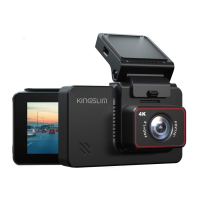
ensure continuous recording. To change the video length, simply access the loop
recording settings screen to select your desired loop recording time.
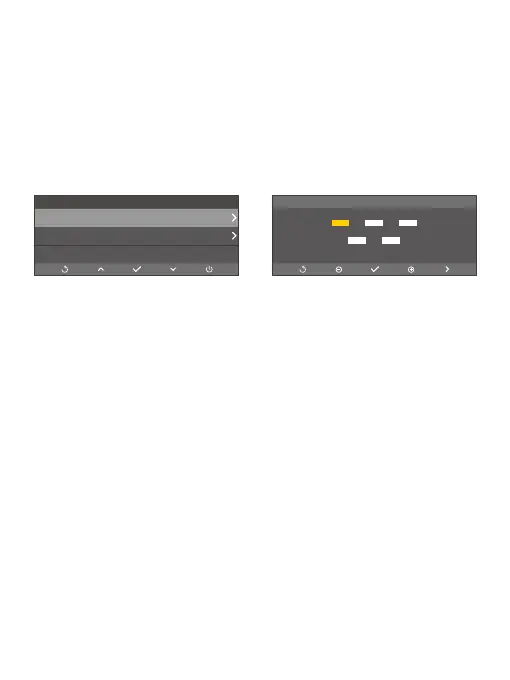
(11) Time Setting
Please manually set the camera’s date and time per your time zone. The dash cam
will then display the correct date and time.
Note: To stamp the date and time when the accident happened, it’s of great
importance to set the correct date and time of your dash cam before using it.
(12) Time Zone Setting
You can choose the time zone manually. The dash cam will then display the time
of the selected time zone.
Options: UTC/GMT-OFF (default), UTC/GMT-+12, UTC/GMT-+11, UTC/GMT-+10,
UTC/GMT-+9, UTC/GMT-+8, UTC/GMT-+7, UTC/GMT-+6, UTC/GMT-+5,
UTC/GMT-+4: 30, UTC/GMT-+4, UTC/GMT-+3: 30, UTC/GMT-+3, UTC/GMT-+2,
UTC/GMT-+1, UTC/GMT+0
(13) Time Format: 12H/24H (default)
You have the option to set the camera’s time system to either 12 hours or 24 hours.
(14) Language: English (default)/中文简体/ Français/日語/Русский/Español/-
Deutsch/Italiano/한국어
You can set the system language for your dash cam.
(15) Voice Ctrl: On/Off (default)
Voice Ctrl (Voice Control) enables you to conveniently control your dash cam
through supported voice commands, allowing for hands-free capture. The camera
Settings
Timesetting
UTC/GMT-OFF
24H
TimeZone Setting
Timeformat
Time setting
2023 / 06 / 26
17 : 06


 To Next Page