To Next Page

N
ncastilloSep 7, 2025
How to fix Condition Code 10001 on Kodak Printer?
- CChristian GardnerSep 7, 2025
To resolve Condition Code 10001 on the Kodak Printer: 1. Shut down the imager, then start the imager. 2. If the error persists, call for service.

How to fix Condition Code 10001 on Kodak Printer?
To resolve Condition Code 10001 on the Kodak Printer: 1. Shut down the imager, then start the imager. 2. If the error persists, call for service.
Why is my Kodak Dryview 5850 offline?
The Kodak Printer is offline because it has been disabled and does not have a network connection.
How to fix Condition Code 21145 or 23145 on Kodak Printer?
To address Condition Code 21145 or 23145 on your Kodak Printer: 1. The imager has not been configured to use this film type. 2. Try a different film type or reconfigure the imager. 3. If the error persists, call for service.
What to do if Kodak Printer says 'Film Covered'?
The Kodak Printer indicates 'Film Covered' because either the film bag or film saver is still on and must be removed before the film tray can be used.
What does 'Unlock Pending' mean on Kodak Printer?
The Kodak Printer displays 'Unlock Pending' because an “Unlock” has been requested but has not started because films are still moving through the imager.
How to fix Condition Code 06400 on Kodak Dryview 5850?
To resolve Condition Code 06400 on the Kodak Printer: 1. Delete jobs in the 'Unprintable jobs' queue. 2. Resend the print job from the image source. 3. If the error persists, call for service.
How to fix Condition Code 04200 on Kodak Printer?
To resolve Condition Code 04200 on the Kodak Printer: 1. Delete jobs in the 'Unprintable jobs' queue. 2. Load requested film type for jobs in the 'Waiting for media' queue. 3. If the error persists, call for service.
What does 'Any Film Supply Open' mean on Kodak Dryview 5850?
The Kodak Printer shows 'Any Film Supply Open' because at least one of the film trays is not inserted and latched into place.
What to do if my Kodak Dryview 5850 says 'Door Open'?
The Kodak Printer displays 'Door Open' because the imager hood is open or one of the side panels may be off.
What does 'Unprintable jobs queued' mean on my Kodak Dryview 5850?
The Kodak Printer has queued jobs that can never be printed and should be deleted by the user.
Introduction to the KODAK DRYVIEW 5800 and CARESTREAM DRYVIEW 5850 Laser Imagers.
Specifies the intended applications and medical modalities for the imagers.
Explains the imager's network connection, image processing, and print queue functionality.
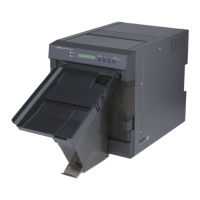
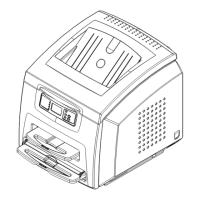
Identifies and describes the key physical parts and modules of the laser imager.
Details the step-by-step process the imager follows to print an image.
Explains the AIQC process and parameters for automatic image quality adjustment.
Refers to the Safety Manual for agency compliance information.
Explains the meaning of notes, cautions, dangers, and warnings used in the guide.
Overview of operator responsibilities and minimal control required during normal operation.
Instructions for powering the imager on and off, and behavior during power interruptions.
Describes the physical layout and functions of the imager's local control panel.
Explains the meaning of various icons displayed on the imager's local screen.
Details the icons used when navigating the imager's menu system.
Introduces the web interface for managing imager functions and viewing status.
Defines the four security levels for accessing imager functions via the web portal.
Provides step-by-step instructions to connect to and log into the imager's web portal.
Detailed procedure for removing and inserting the imager's film trays.
Instructions on using the film saver and handling film trays during loading.
Steps to clear jobs that cannot be printed from the unprintable jobs queue.
Explains the purpose and usage of calibration prints for image quality.
Procedures to initiate a calibration print from the local panel or web portal.
Discusses causes, indications, and handling of imager calibration failures.
Describes using test prints for quality assurance and mammography quality control.
Steps to request a test print using the imager's local panel.
Steps to request a test print using the imager's web portal interface.
General section covering maintenance tasks for the imager.
Step-by-step guide to replacing the imager's charcoal filter.
Explains how errors and alarms are reported via condition codes and messages.
Lists DICOM printer status messages and their meanings.
Details how printer status is indicated on the local panel and web portal.
Describes status messages related to the imager's film trays.
Explains status messages related to the imager's job manager.
Lists condition codes, their web portal messages, and recommended user actions.
General instructions and diagram for clearing film jams from the imager.
Specific steps to clear film jams indicated by code 2x-116.
Specific steps to clear film jams indicated by code 2x126.
Specific steps to clear film jams indicated by code 26325.
Specific steps to clear film jams indicated by codes 26326 or 26543.
Specific steps to clear film jams indicated by code 26544.
Information to have ready when calling technical support for assistance.
Overview of the characteristics of laser imaging film.
Details the film's sensitivity to infrared light and handling requirements.
Describes the diagnostic quality, contrast, and gray levels of the images produced.
Discusses environmental regulations and disposal of laser imaging film.
Guidelines for proper storage and handling of unprocessed film.
Recommendations for handling and storing processed film.
Information on long-term storage and archiving of developed films.
Details how moisture affects image quality and film integrity.
Explains odor reduction during processing and filter maintenance.
Describes the heat output of the laser imager and its impact.
Information on film recycling procedures and materials.
Table detailing the physical dimensions and weight of the imager (unpacked/packed).
Diagrams and measurements for required clearance around the imager for operation.
Factors to consider when choosing an imager location, including safety precautions.
Specifies temperature, humidity, altitude, and surface conditions for operation.
Details heat dissipation and acoustical noise levels of the imager.
Technical details of the imager's laser system, including wavelength and power.
Information on electrical power needs, voltage, frequency, and power sources.
Details network connectivity requirements and cable types for the imager.
Lists the types of KODAK DRYVIEW film supported by the laser imager.
Lists the available film dimensions supported by the imager.
Guidelines for proper storage conditions of laser imaging film.
 General
| Print Technology | Laser |
|---|---|
| Type | Laser Imager |
| Media/Film Size | 14" x 17" |
| Film Types | DryView Laser Imaging Film |
| Connectivity | Ethernet |
| Weight | 136 kg |
| Power Requirements | 100-240 VAC, 50/60 Hz |