EasyManua.ls Logo

Kodak DX3600 - User Manual

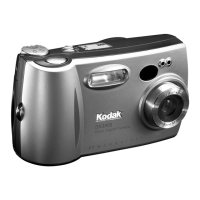
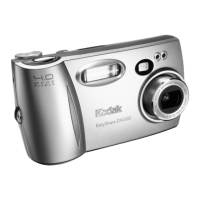
Kodak DX3600
106 pages
Print Icon
To Next Page IconTo Next Page
Loading...
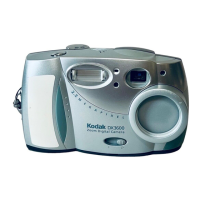
KODAK DX3600 Zoom
Digital Camera
User’s Guide
Visit Kodak on the World Wide Web at www.kodak.com

Table of Contents

Questions and Answers

  • G
    Gwendolyn CummingsSep 15, 2025
    Why Kodak Digital Camera stopped recording video even though the shutter button is still held down?
    • J
      John GallegosSep 16, 2025
      If your Kodak Digital Camera stopped recording video even though the shutter button is still held down, the video length time is set, and the shutter button was held down longer than the timed setting. Change the Video Length setting to Unlimited.
  • A
    Amanda RoblesAug 25, 2025
    How to fix 'Memory card requires formatting' on Kodak DX3600?
    • B
      Brian SmithAug 25, 2025
      If your Kodak Digital Camera displays 'Memory Card requires formatting', it means the picture card is corrupted or formatted for another digital camera. To resolve this, insert a new picture card or format the existing card.
  • M
    michaelrobinsonAug 25, 2025
    Why my Kodak DX3600 does not turn on?
    • J
      Jill ShannonAug 26, 2025
      If your Kodak Digital Camera is not turning on, it could be due to a battery issue. Ensure the battery is properly installed by removing and reinstalling it. If that doesn't work, the battery might not be charged, so try replacing or recharging the batteries.
  • M
    Michelle GriffithAug 26, 2025
    Why Kodak Digital Camera does not recognize Picture Card?
    • M
      Matthew HartAug 27, 2025
      If your Kodak Digital Camera is not recognizing the picture card, it could be due to a few reasons. First, ensure that the picture card is CompactFlash certified. If it is, the card might be corrupt, requiring you to reformat it. Keep in mind that formatting will erase all pictures and videos from the card. Finally, check that the picture card is properly inserted into the card slot, pushing it in to seat the connector.
  • R
    Rhonda PerkinsSep 16, 2025
    How to fix 'Unrecognized File Format' error on Kodak DX3600?
    • P
      Pamela SpencerSep 17, 2025
      If your Kodak Digital Camera displays 'Unrecognized File Format', it means the camera cannot read the picture format. Transfer the unreadable picture to the computer, or delete the picture.
  • H
    herrerasusanSep 23, 2025
    What does it mean if light blinks red on Kodak DX3600 Digital Camera Dock?
    • N
      Nicholas SellersSep 23, 2025
      If the light blinks red on your Kodak Digital Camera Dock, the battery pack may be installed incorrectly, so reinstall the battery pack. Also, check for damage to the battery pack or connector pins. Finally, the camera and battery pack may have been exposed to very high or low temperatures, so slowly return the camera and battery pack to room temperature.
  • E
    Emily HarrisSep 8, 2025
    Why viewfinder light does not turn on and camera does not work on Kodak DX3600 Digital Camera?
    • D
      Daniel MillsSep 8, 2025
      If the viewfinder light does not turn on and the camera does not work on your Kodak Digital Camera, first, ensure that the camera is turned on. If it still doesn't work, the batteries may be exhausted, so replace or recharge them. Also, if the power switch was on when batteries were reloaded, turn the camera off, then back on.
  • N
    Nathan HartmanSep 9, 2025
    Why can't I see picture in Review mode on my Kodak DX3600?
    • D
      Debbie DavisSep 9, 2025
      If, in Review mode, you do not see a picture on the LCD or do not see the picture you expected on your Kodak Digital Camera, the camera may not be accessing the correct storage location. Check the picture storage location setting.
  • A
    Anna WilliamsSep 2, 2025
    What to do if Kodak DX3600 displays 'No memory card, Files not copied'?
    • L
      Lori SimmonsSep 2, 2025
      If your Kodak Digital Camera displays 'No memory card, Files not copied', it indicates that there is no picture card in the camera. Insert a picture card to resolve this issue.
  • L
    Lisa HarveyAug 31, 2025
    What does steady red viewfinder light mean on Kodak Digital Camera?
    • W
      William JonesAug 31, 2025
      If the viewfinder light glows steady red on your Kodak Digital Camera, it typically indicates that the camera’s internal memory or picture card is full. To resolve this, transfer pictures to your computer, delete pictures from the camera, switch storage locations, or insert a card with available memory. Alternatively, if the camera is recording video with Self Timer on, this is normal operation. A steady red light can also mean that your picture card is not able to record video at Best Quality, so change the Video Quality setting to Good, change your storage location to internal memory, or use a different picture card.

Summary

Getting Started

What Can I Do With My KODAK DX3600 Zoom Digital Camera?

An overview of the camera's capabilities and modes like Video, Still, Review, Setup.

What Can I Do With My Digital Pictures?

Details how to use the included software for transferring, sharing, and editing photos.

Camera Package Contents

Lists all items included in the KODAK DX3600 Zoom Digital Camera package.

Attaching the Wrist Strap

Step-by-step instructions for securely attaching the camera's wrist strap.

Loading the Batteries

Guide on how to properly insert AA batteries into the camera.

Inserting a Picture Card

Instructions for correctly inserting a CompactFlash Picture Card into the camera.

Turning the Camera On and Off

Explains how to power the camera on and off, and the lens cover operation.

Automatic Powerdown Saves Batteries

Explains the camera's power-saving features and auto-off timers.

Setting the Clock

Guide on setting the camera's date and time for imprinting on pictures.

Checking the Battery Level

How to monitor the camera's battery power level via the LCD display.

Mode Dial-Settings and Menus

Overview of the mode dial functions and accessing camera menus.

Navigating Through the Menus

Explains the general method for navigating camera menus and options.

Checking Current Camera Status

How to view active camera settings and icons on the status bar.

Choosing Internal Memory or Picture Card

Explains the two storage options for pictures and videos.

Changing Your Storage Location Setting

Steps to select where pictures and videos are saved.

Checking Your Storage Location Icon

How to interpret the icon indicating the current storage location.

Taking Still Pictures

Taking a Picture

Step-by-step guide to capturing still photographs with the camera.

Displaying;Deleting the Picture Just Taken

How to use the QuickView feature to review and delete recently taken photos.

Previewing Your Picture

Instructions for using the LCD for live image preview before taking a picture.

Taking Close-up Pictures

Guide to using the Close-up setting for sharp, detailed images at close range.

Using Zoom for Still Pictures

Explains how to use optical and digital zoom to get closer to subjects.

Using the Flash for Still Pictures

Details on when and how to use the camera's flash for better photos.

Putting Yourself in the Picture

How to use the Self Timer for capturing photos with the photographer included.

Setting Picture Quality

Guide to selecting resolution (Best/Good) for picture quality and file size.

Placing the Date on Pictures

How to use the Date Stamp feature to imprint dates on photos.

Taking Videos

Taking a Video

Step-by-step instructions for recording video clips with the camera.

Reviewing;Deleting the Video Just Taken

How to review and delete videos immediately after recording.

Previewing Your Video

Guide to using the LCD for live image preview before recording video.

Taking Close-up Videos

Instructions for recording sharp videos at close range.

Putting Yourself in the Video

How to use the Self Timer for recording videos with the photographer included.

Setting Video Quality

Guide to selecting resolution (Best/Good) for video quality and file size.

Displaying the Date;Time on Videos

How to show capture date and time on video playback.

Setting Video Length

Options to set specific recording limits for videos.

Reviewing Pictures and Videos

Navigating Through Pictures and Videos

How to browse and move between stored pictures and videos.

Playing a Video

Instructions for playing recorded video clips on the camera.

Deleting Pictures and Videos

Steps to delete unwanted pictures or videos from memory.

Protecting Pictures and Videos From Deletion

How to prevent accidental deletion of important files.

Copying Pictures and Videos

Guide on copying files between internal memory and Picture Card.

Magnifying Still Pictures

How to zoom in on pictures for detailed viewing.

Selecting Pictures for Automatic Printing

Using Print Order to choose pictures for automated printing.

Printing Your Order

Instructions for printing selected pictures via a Kodak Personal Picture Maker.

Running a Slide Show

How to display pictures and videos sequentially as a slideshow.

Connecting to a Television or Other External Device

Guide on displaying camera content on external screens.

Viewing Picture or Video Information

How to display file details like name, date, and quality.

Customizing Your Camera Settings

Adjusting LCD Screen Brightness

How to change the LCD display brightness for better visibility.

Setting Video Out

Configure video signal standards (NTSC/PAL) for external displays.

Selecting a Language

How to change the camera's menu and display language.

Viewing Camera Information

Accessing camera model and firmware version details.

Formatting Memory or Picture Card

Instructions for erasing and reformatting memory or Picture Cards.

Installing the Software

Software Included With Your Camera

Overview of software provided on the KODAK Picture Software CD.

Computer System Requirements

Minimum system requirements for installing and using the camera software.

Transferring Pictures and Videos

Before You Transfer Files to the Computer

Prerequisites before transferring data from camera to PC.

Connecting to the Computer

How to connect the camera to a computer using USB or Camera Dock.

Connecting With the KODAK Camera Dock

Steps to connect the camera using the optional Kodak Camera Dock.

Transferring Your Pictures and Videos

Using Kodak Picture Transfer Software to move files to PC.

Working With Your Pictures and Videos

Capabilities of Kodak Picture Software for editing and sharing transferred files.

Transferring Your Pictures and Videos Manually

Using Kodak Camera Connection Software for direct file management.

Printing Your Pictures

Various methods for printing digital photos from the camera.

Using the KODAK Camera Dock

Camera Dock Package Contents

Lists the items included with the Kodak Camera Dock accessory.

Installing the Dock Insert

Guide to fitting the camera into the Camera Dock using an insert.

Connecting the Camera Dock

Steps to connect the Camera Dock to power and a computer.

Installing the Battery Pack in the Camera

How to insert the rechargeable battery pack into the camera.

Docking the Camera

Procedure for placing the camera into the Camera Dock for transfer or charging.

Charging the Battery Pack

Instructions on how to charge the camera's battery pack using the dock.

Transferring Pictures

Steps to transfer photos to a computer using the Camera Dock.

When Using a Tripod

Advice on connecting a tripod directly to the camera, not through the dock.

Troubleshooting Problems

Troubleshooting-Camera

Solutions for common camera problems related to picture cards, communication, and LCD messages.

Troubleshooting-Camera Dock

Solutions for issues with transferring files or camera dock indicator lights.

Getting Help

Software Help

How to access help for the camera's software applications.

Kodak Online Services

Information on Kodak's website for support and product details.

Kodak Fax Support

Contact numbers for obtaining Kodak product information via fax.

Telephone Customer Support

Guidelines and numbers for contacting Kodak customer support.

Appendix

DX3600 Camera Specifications

Technical details and specifications for the Kodak DX3600 camera.

Camera Dock Specifications

Technical details and specifications for the Kodak Camera Dock.

Original Factory Settings-Camera

Lists the default settings configured at the factory.

Using Your Batteries

Information on battery types, life, and performance.

Tips, Safety, Maintenance

General advice on camera care, safety precautions, and cleaning.

Camera Accessories

Overview of optional accessories to enhance camera functionality.

Picture;Video Storage Capacities

Table showing how many pictures/videos fit on various storage media.

Locating Files on a Picture Card

Explains the file structure on a Picture Card for easier access.

File Naming Conventions

How pictures and videos are named and numbered by the camera.

Regulatory Information

FCC and Canadian DOC compliance statements for the device.

Kodak DX3600 Specifications

General IconGeneral
Image Sensor TypeCCD
TypeCompact
Optical Zoom3x
Digital Zoom2x
LCD Screen Size1.8 inches
Battery TypeAA
Storage MediaCompactFlash
Optical Sensor Resolution2.2 Megapixels

Related product manuals