Chapter 2 Employee Mode Transactions
50
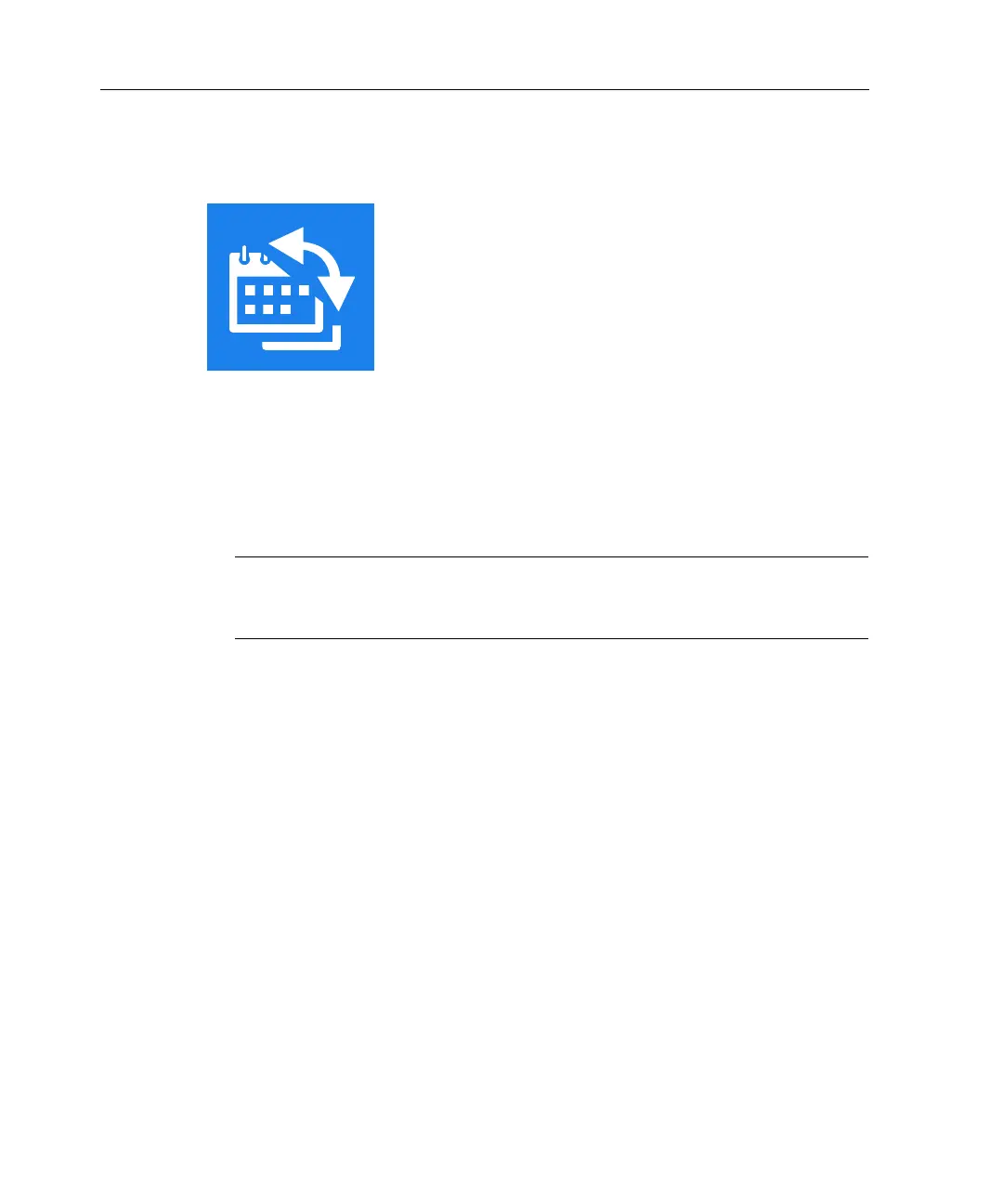
Request Shift Swap (Smart View)
This transaction allows you to exchange one of your shifts for the shift of another
employee.
1. Tap Request Shift Swap.
2. Tap the Offered Shift field to view your shifts. Select the shift that you are
offering to swap, and tap Select. The information icon reveals shift details.
Note: If the Respond to Swap Request button appears, another employee has
submitted a request to swap a shift with you. See “Review Punches” on page
41.
3. Tap the Requested Shifts field to view the available shifts. Tap one or more
shifts and tap Select.
4. Tap Submit.
5. (Optional) On the confirmation page, you can request time-off or view
pending requests by tapping the appropriate button.


 To Next Page