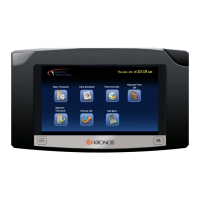
Launch Quick Setup
95
By default, you are required to create a strong password to access maintenance
mode. Strong passwords require at least eight characters, including one uppercase
letter, one lowercase letter, one digit, and one special character (, . / \ + -). If strong
passwords are required, but a user creates a password that does not meet the
criteria, the system rejects it.
This setting also applies to the passwords required to remotely access the
timeclock using a VNC viewer or SSH viewer.
1. Enter the Password.
2. Select the Password Strength:
–Strong
–Weak
3. To require users to enter this password when they swipe a Maintenance badge,
enable Require Password with Badge.
4. Tap Next, Add Device ID.
Step 3: Add Device ID
1. Enter the ID.
2. Enter the Password.
3. Tap Next, Connect to Local Network.
Step 4: Select Network
Ethernet
1. Tap Ethernet.
2. Do one of the following:
–Tap Static IP. Go to the next step.
–Tap DHCP. Go to step 4.


 To Next Page