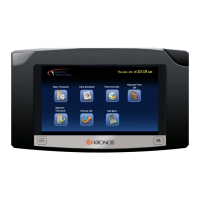
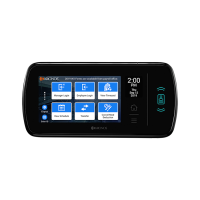
Biometric transactions: Kronos Touch ID Plus
65
Enroll or Re-Enroll Employee
Administrators: When an employee places a finger on the sensor, the
timeclock displays a live image of the fingertip. The image helps the
employee position the fingertip on the sensor to achieve a Good enrollment.
You can, however, disable this feature and substitute a static image of a finger
by using free-form XML. Access the Device Configuration page, and select
General Settings > XML. For details, see the device configuration online
help.
1. To enroll or re-enroll an employee for biometric validation, tap Enroll
Employee.
2. To select the employee, use one of the following methods:
– Swipe the employee’s badge.
– Enter the employee’s badge ID.
– Search by employee name.
– Browse the employee list.
Note: If you select an employee who is already enrolled, the enrollment
summary page opens.
The system directs the employee through the process.
Managers: If the employee is already enrolled, the system offers you the
option of re-enrolling the employee’s primary or secondary finger.


 To Next Page