EasyManua.ls Logo

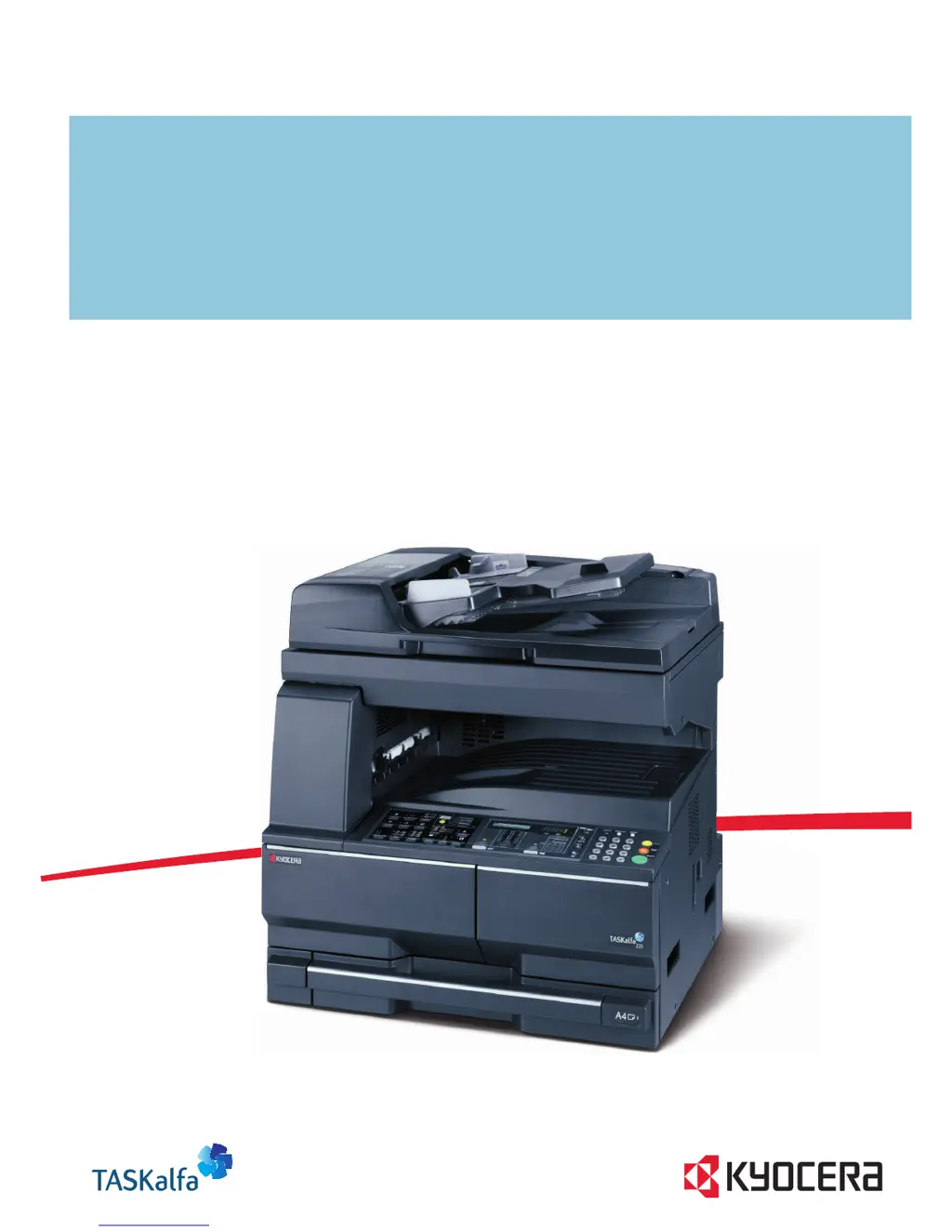
Kyocera TASKalfa 220 - User Manual

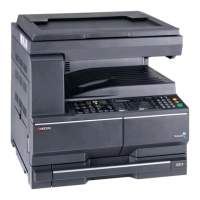
Kyocera TASKalfa 220
109 pages
Print Icon
To Next Page IconTo Next Page
Loading...
OPERATION GUIDE
F S -110 0
FS-1300D
870CKGB20008
*870CKGB20008*
TASKalfa 180/220

Table of Contents

Other manuals for Kyocera TASKalfa 220

Questions and Answers

  • A
    Ashley ShortSep 19, 2025
    Why is Kyocera Software not discovering the printing system?
    • R
      Rodney OwensSep 19, 2025
      The printing system might be turned off, so turn it on and try again. It could also be removed from the network, so ensure it's connected. If the system is currently printing, wait until it's finished and then try searching again. It is also possible that the TCP/IP settings on your PC are not configured properly, in that case contact your network administrator. Depending on the network router configuration, a printing system may be undetectable. In some rare cases, heavy network traffic may prevent this application from detecting the printing systems, so try again later or contact your network administrator.
  • J
    Jacob YoungAug 25, 2025
    How to fix light printouts on Kyocera TASKalfa 220 All in One Printer?
    • J
      Jorge RodriguezAug 25, 2025
      If your Kyocera All in One Printer's printouts are too light, and the machine is in Auto Density mode, set the correct density level. If the machine is in Manual Density mode, use the Image Quality key to set the correct density level. Make sure the toner is distributed evenly within the toner container by shaking it from side to side several times. Replace the toner container if there's a message indicating the need for toner. Replace damp paper with new paper. Clean the electrical charge section using the Cleaning Rod after opening the front cover. Also, disable EcoPrint mode.
  • A
    Adam RodriguezAug 25, 2025
    Why are the printouts from my Kyocera All in One Printer dirty?
    • D
      denise21Aug 26, 2025
      If your Kyocera All in One Printer's printouts are dirty, the platen or the original cover might be dirty. Clean the platen or the original cover. Also, the transfer roller might be dirty, so brush the transfer roller clean.
  • R
    Rachel NewmanAug 26, 2025
    What to do when Kyocera All in One Printer says 'Add toner'?
    • E
      eric86Aug 27, 2025
      If your Kyocera All in One Printer indicates 'Add toner', replace the toner container with a new one.
  • J
    Jorge CervantesSep 23, 2025
    What to do if Kyocera Software application does not start?
    • V
      Valerie TorresSep 23, 2025
      If the Kyocera Software application doesn't start, it could be due to several reasons. First, your PC might not meet the necessary system requirements; in this case, consider upgrading your PC. Another possibility is low memory; try closing any unnecessary applications. Also, ensure that you are not trying to run two instances of the application simultaneously, as this is not supported.
  • B
    Bobby MorenoNov 26, 2025
    What to do if Kyocera TASKalfa 220 All in One Printer network connection fails?
    • M
      melody26Nov 26, 2025
      If a network connection fails, for example, indicated by a Send Error, try the following: * Connect the network cable and properly set up TCP/IP. * Check folder sharing and access permissions in the Folder Properties dialog box. * Enable the SMB protocol setting. * Verify the host name of the destination computer and the name of the shared folder. * Confirm the domain name and domain user name are correct. * Ensure the login password is correct. * If the domain name specified in [Host Name] differs from the one specified in [Login User Name], delete the domain name and a \\ from the name entered in [Login User Name]. * Also, ensure the time setting is the same between the machine, PC, and the domain server. * To configure Windows Firewall, open Control Panel from the Sta...
  • M
    mmortonSep 12, 2025
    How to fix vertical lines on Kyocera TASKalfa 220 copies?
    • B
      Barbara SmithSep 12, 2025
      If black or white vertical lines appear on copies from your Kyocera All in One Printer, the electrical charge section might be dirty. Open the front cover and use the charger cleaner rod to clean it.
  • J
    Jennifer LawsonSep 12, 2025
    Why are my Kyocera All in One Printer copies blank?
    • K
      Kathryn SnyderSep 12, 2025
      If your Kyocera All in One Printer copies come out blank, ensure the originals are set correctly. When using the platen, place them face-down along the original size indicator plates. If using the document processor, set them face-up.
  • J
    Jordan BeckerSep 4, 2025
    Why are my Kyocera All in One Printer copies too light?
    • A
      Anthony JosephSep 4, 2025
      If your Kyocera All in One Printer copies are too light, several factors could be the cause: * The auto density adjustment mode might be enabled. To resolve this, perform the auto density adjustment procedure. * If the manual density mode is set, use the Lighter or Darker key to adjust the density. * The toner may not be evenly distributed. Shake the toner container horizontally about 10 times. * EcoPrint mode might be activated; disable it. * The copy paper might be wet; replace it with new paper. * The electrical charge section could be dirty; open the front cover and clean it with the charger cleaner rod.
  • M
    Mrs. Lauren HaneySep 2, 2025
    Why are my Kyocera TASKalfa 220 printouts wrinkled?
    • J
      jefferybrownSep 2, 2025
      If your Kyocera All in One Printer produces wrinkled printouts, the paper separator of the paper feed unit might be dirty; clean the paper separator. Also, if the paper is damp, replace it with new paper.

Kyocera TASKalfa 220 Specifications

General IconGeneral
FunctionsPrint, Copy, Scan, Fax
Print Speed (Black/A4)22 ppm
Warm-up Time30 seconds or less
Print Resolution600 x 600 dpi
Memory (Standard)256 MB
Standard Paper Capacity250 sheets
Copy Speed22 cpm
Copy Resolution600 x 600 dpi
Fax Modem Speed33.6 kbps
Hard DriveOptional
Operating Systems SupportedWindows, macOS, Linux
Monthly Duty Cycle30, 000 pages
First Print Time8.5 seconds or less
Paper SizesA4, A5, B5, Letter, Legal
Paper Output Capacity100 sheets
Scan FeaturesScan to Email, Scan to Folder
Fax CompatibilityOptional
Fax Transmission Speed3 seconds per page
Fax Resolution200 x 200 dpi
InterfaceUSB 2.0, Ethernet
DisplayLCD Display

Related product manuals