System Installation
PHOTON
+
System Guide 15
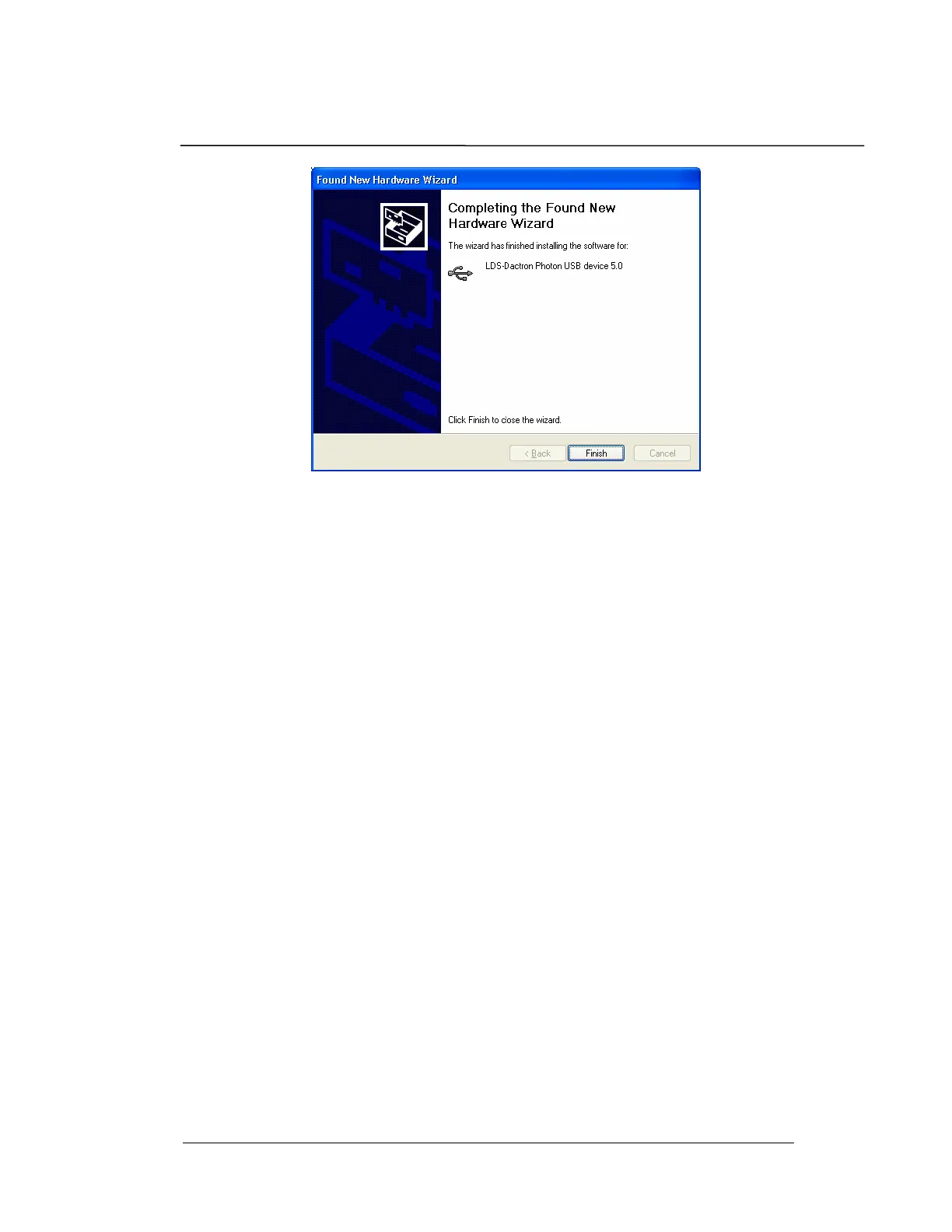
The driver installation should now be complete. Press “Finish”
The driver is now installed and the PHOTON
+
should be auto-
detected every time it is plugged into the USB cable on this USB
port. If a different USB port on the same PC is used, the driver
will need to also be installed again for this second USB port.
Step 2: Installing Application Software on the PC
Application software, such as the RT Pro Dynamic Signal
Analysis Series, is installed on the host PC. Refer to the “RT
Pro Dynamic Signal Analysis Series” User Guide, “Installation
and Setup Procedure”, for complete details on installation of
application software.
The
PHOTON
+
is now ready to run. Start the LDS-Dactron
application software from the host PC then you will be ready to
use the application software.
Step 3: Running the RT Pro Software
When the PHOTON
+
is combined with RT Pro Dynamic Signal
Analysis Software, the result is a full featured dynamic signal
analyzer.
1. If your
PHOTON
+
is not already connected to the PC’s USB
connector, please do so now. Then, start the application
software by either double-clicking on the RT Pro icon on the
Windows desktop, or by selecting RT Pro from the Windows
Start menu.


 To Next Page