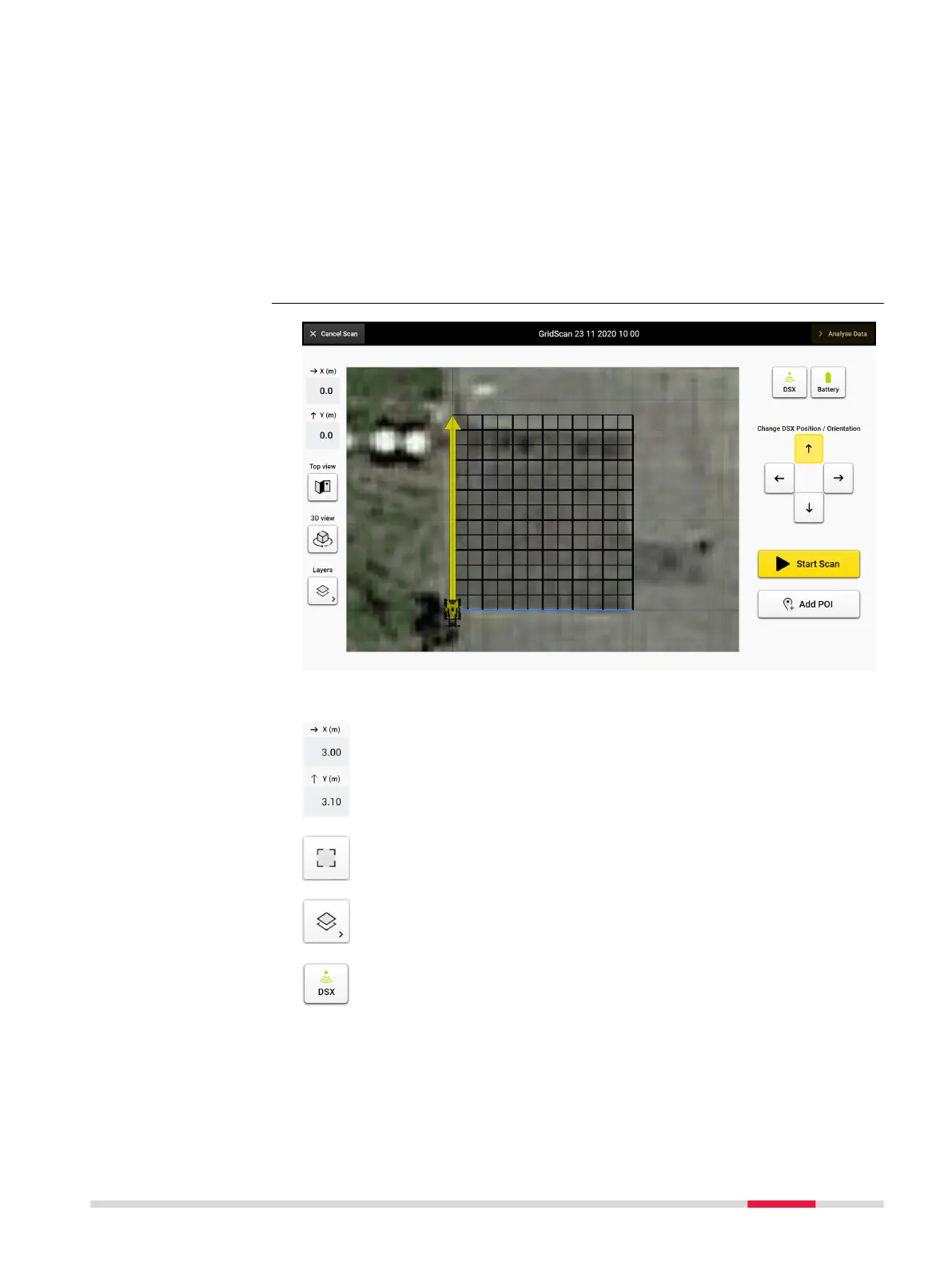
From the project summary, tap Go to Acquisition to get to the Acquisition
screen. Refer to 6 Procedures for Working with the DSX for details.
There are two ways to get to the project summary:
•
Open a draft:
Open a draft by selecting from the right column of Home screen or
searching from drive with Load Project button. Tap Go to Acquisition at
the bottom right.
•
Set up a project from scratch:
Tap the Grid Scan button in the center column of Home screen --> go
through project setup wizard until the project summary screen. Tap Go to
Acquisition at the bottom right.
Description of the menu
These values indicate the cart position in the grid.
Zoom to and center on grid.
Show/hide the layers and grid lines.
Indicates the connection status to the DSX utility detection system.
This icon should be green throughout the entire acquisition. Refer
to Button DSX active for details.
Acquisition screen
DXplore Software 29


 To Next Page