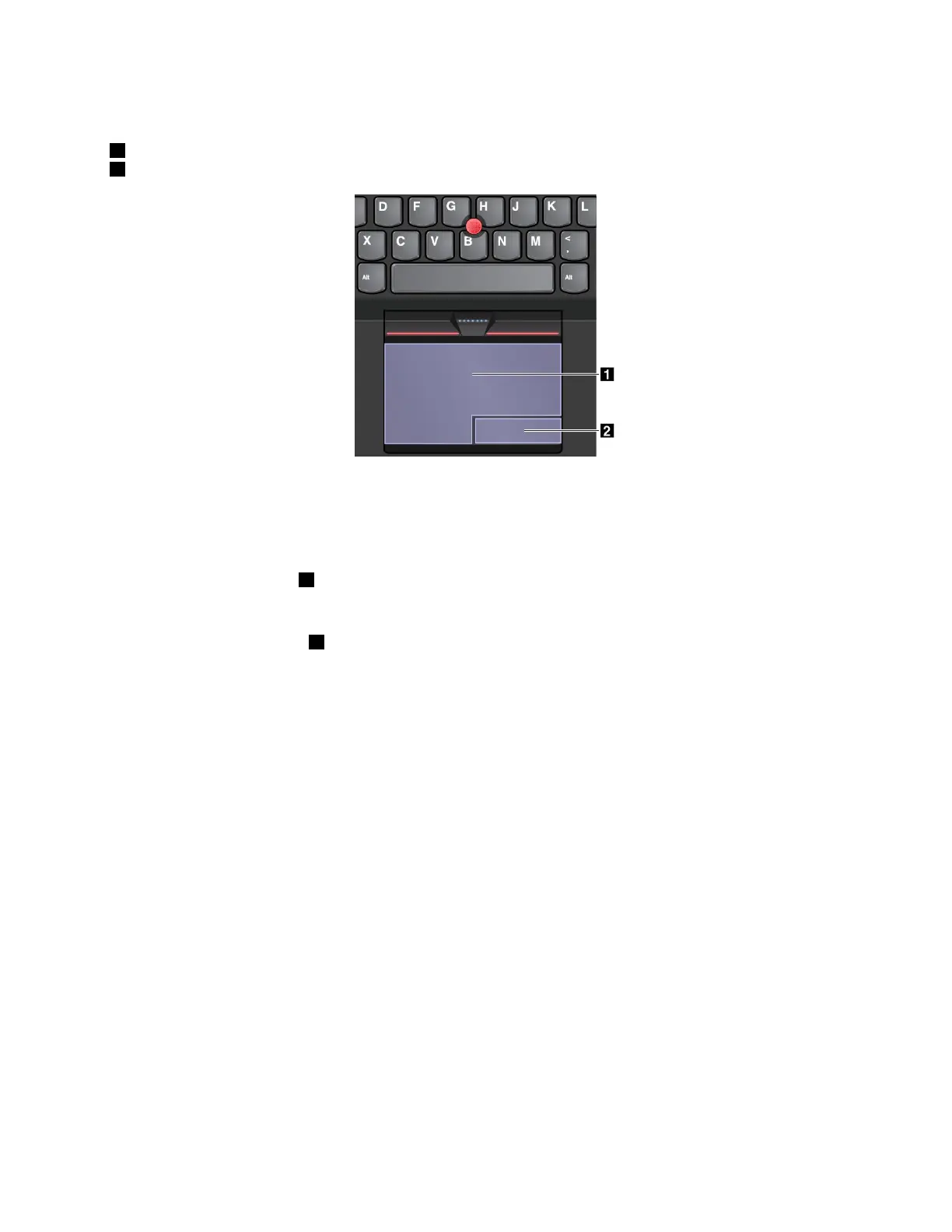
Thetrackpadcanbedividedintotwozonesbyitsfunction:
1Left-clickzone(primary-clickzone)
2Right-clickzone(secondary-clickzone)
Tousethetrackpad,refertothefollowinginstructions:
•Point
Slideonefingeracrossthesurfaceofthetrackpadtomovethepointeraccordingly.
•Left-click
Presstheleft-clickzone
1toselectoropenanitem.
Youalsocantapanywhereonthesurfaceofthetrackpadwithonefingertoperformtheleft-clickaction.
•Right-click
Presstheright-clickzone2todisplayashortcutmenu.
Youalsocantapanywhereonthesurfaceofthetrackpadwithtwofingerstoperformtheright-clickaction.
•Scroll
Puttwofingersonthetrackpadandmovethemintheverticalorhorizontaldirection.Thisactionenables
youtoscrollthroughthedocument,Website,orapps.Ensurethatyoupositionyourtwofingersslightly
apartfromeachother.
Withthetrackpad,youalsocanperformavarietyoftouchgestures.Forinformationaboutusingthetouch
gestures,see“Trackpadtouchgestures”onpage23
.
Trackpadtouchgestures
Theentiretrackpadsurfaceissensitivetofingertouchandmovement.Youcanusethetrackpadtoperform
thesamepointandclickactionsasyouwouldusingatraditionalmouse.Youalsocanusethetrackpad
toperformavarietyoftouchgestures.
Thefollowingsectionintroducessomefrequentlyusedtouchgesturessuchastapping,dragging,and
scrolling.Formoregestures,seethehelpinformationsystemoftheThinkPadpointingdevice.
Notes:
•Whenusingtwoormorefingers,ensurethatyoupositionyourfingersslightlyapart.
•SomegesturesarenotavailableifthelastactionwasdonefromtheTrackPointpointingdevice.
•Somegesturesareonlyavailablewhenyouareusingcertainapps.
Chapter2.Usingyourcomputer23














 To Next Page