2.IfaDiskEncryptionharddiskdriveisinstalledinyourcomputer,besuretoprotectthecontentsofyour
computermemoryfromunauthorizedaccessbyuseofdriveencryptionsoftware.
3.Beforeyoudisposeof,sell,orhandoveryourcomputer,makesuretodeletedatastoredonit.Referto
“Noticeondeletingdatafromyourharddiskdrive”onpage67.
Note:TheharddiskdrivebuiltintoyourcomputercanbeprotectedbyUEFIBIOS:
DiskEncryptionharddiskdrive
SomemodelscontaintheDiskEncryptionharddiskdrive.Thisfeaturehelpstoprotectyourcomputeragainst
securityattacksonmedia,NANDashordevicecontrollersbyuseofahardwareencryptionchip.Forthe
efcientuseoftheencryptionfeature,besuretosetaHarddiskpasswordsfortheinternalstoragedevice.
Usingangerprintreader
Yourcomputermayhaveanintegratedngerprintreader.Fingerprintauthenticationcanreplacepasswords
andenablesimpleandsecureuseraccess.ByenrollingyourngerprintandassociatingitwithaWindows
passwordyoucanlogontothecomputerbyswipingyourngeroverthereader,withouttypingpasswords.
Enrollingyourngerprint
Tousetheintegratedngerprintreader,beginbyenrollingyourngerprintasfollows:
1.Turnonyourcomputer.
2.TostartLenovoFingerprintsoftware,referto“FingerprintSoftware”onpage22.
3.Followtheinstructionsonthescreentoenrollyourngerprint.Fordetails,refertotheHelpforthe
program.
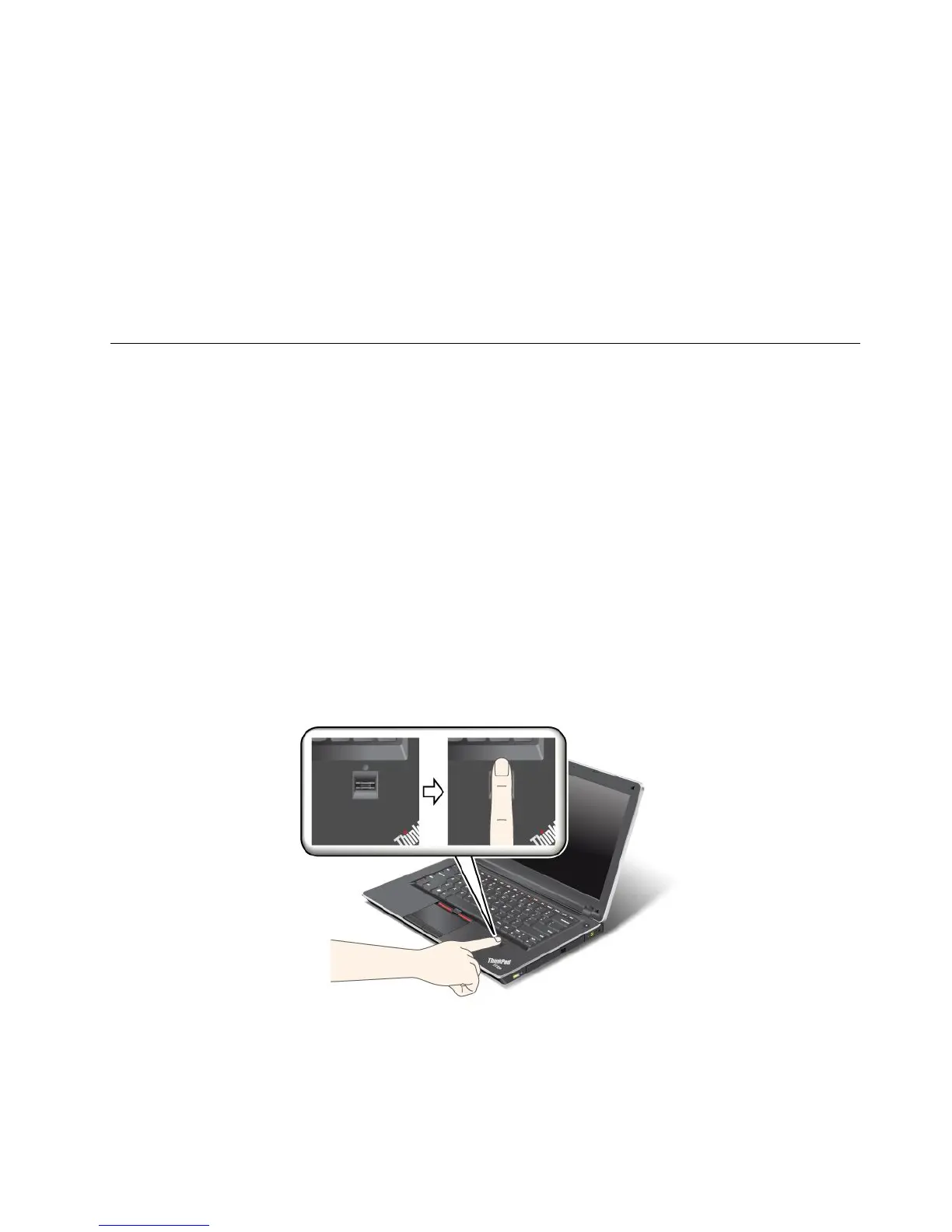
Swipingyourngeroverthereader
Toswipeyourngeroverthereader,doasfollows:
1.Placetheballofyournger—thatis,thecentralpartofthengerprint—onthesmallcircleabovethe
reader.Makesurethattheentiretopjointofthengerisonthereader.
Note:Yourcomputerkeyboardmightlookdifferentfromtheillustrationabove.
Chapter4.Security65













 To Next Page