•“Installinganewoperatingsystem”onpage89
•“Computerstopsresponding”onpage113
•“Powerproblems”onpage127
Specialkeys
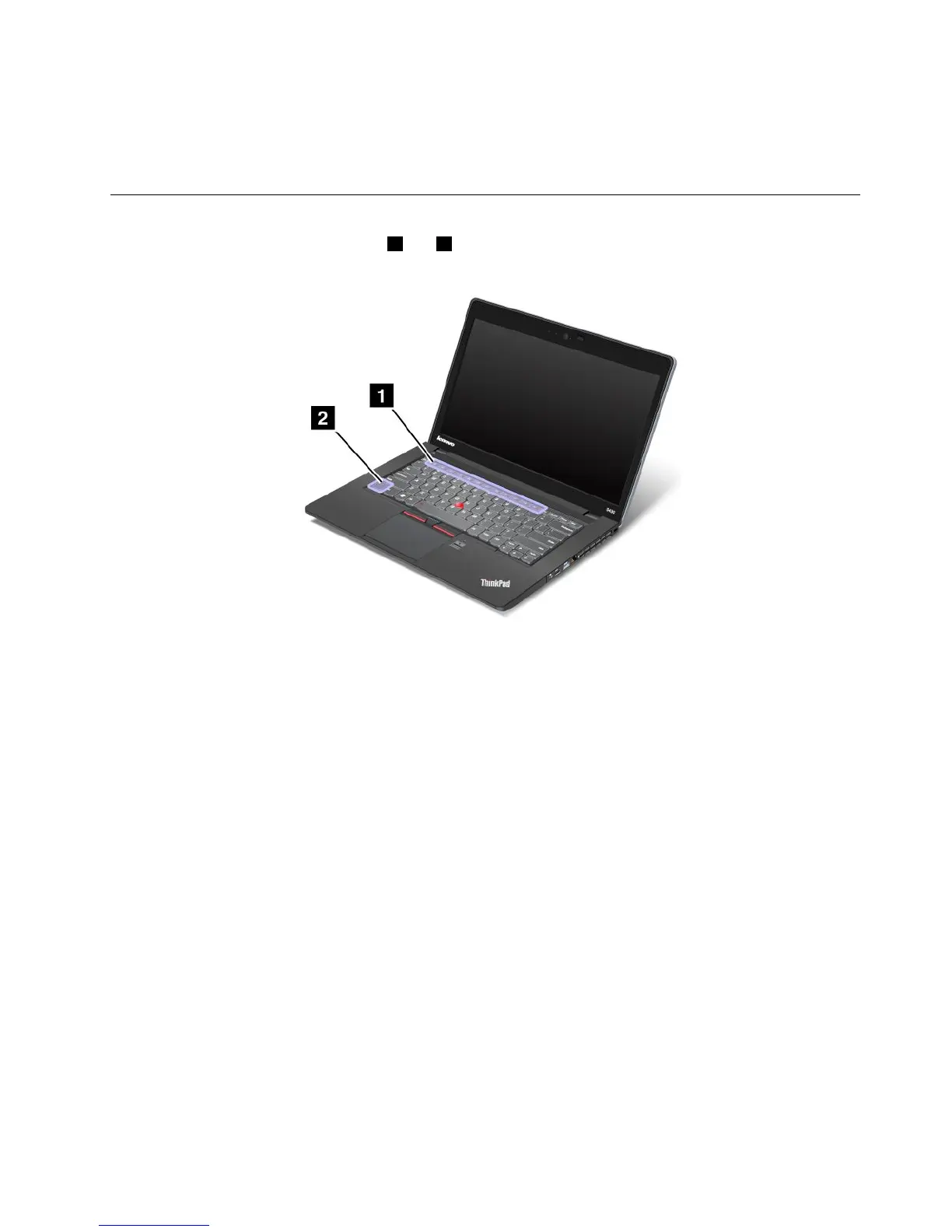
Yourcomputerhasseveralspecialkeys1and2tohelpyouworkmoreeasilyandeffectively.Thefollowing
gureshowsthelocationsofthespecialkeys.
YoucantoggletheF1-F12keyfunctionalitytousethekeysindefaultmodeorinlegacymode.Indefault
mode,youcaninitiatethespecialfunctionsillustratedoneachkeybypressingthecorrespondingkey
directly.Inlegacymode,toinitiatethespecialfunctionsillustratedoneachkey,pressandholdtheFnkey
andthenpressthedesiredfunctionkey,thenreleasebothkeys.
TotoggletheF1-F12keyfunctionalityintheWindowsenvironment,dothefollowing:
1.OpentheThinkPadKeyboardPropertieswindowbydoingoneofthefollowing:
•OpenControlPanel.
•PressingFnforfourseconds.
2.ClicktheThinkPadF1-F12keystab.
3.Conguresettingsasdesiredfollowingtheinstructionsonthescreen.
TotoggletheF1-F12keyfunctionalitythroughtheThinkPadSetupprogram,dothefollowing:
1.Startthecomputer.WhentheThinkPadlogoscreenisdisplayed,pressF1.TheThinkPadSetup
programmainmenuopens.
2.SelectCong➙Keyboard/Mouse➙ChangetoF1-F12keys.
3.Conguresettingsasdesiredfollowingtheinstructionsonthescreen.
4.Savechangesandexit.
Thefollowingisabriefintroductiontothespecialkeys.
Chapter2.Usingyourcomputer23










 To Next Page