55
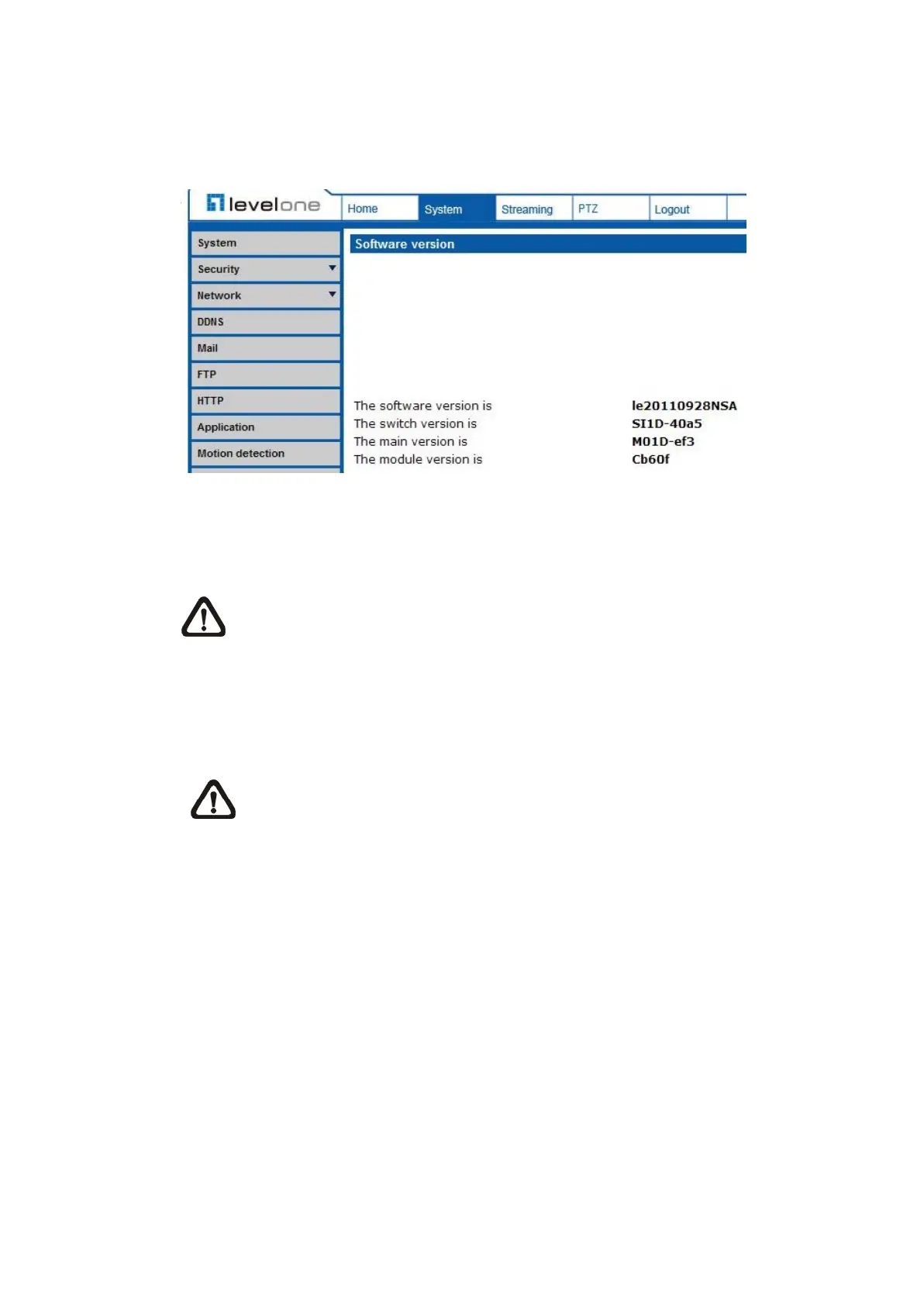
7.2.18 Software Version
The Software Version can be found under this path: System> Software
Version.
The current software version is displayed in the software version page.
7.2.19 Software Upgrade
The Software Upgrade setting can be found under this path: System> Software
Upgrade.
NOTE: Make sure the upgrade software file is available before carrying
out software upgrade.
The procedure of software upgrade is as below:
Step 1: Click on <Browse> and select the binary file to be uploaded, ex.
userland.img.
NOTE: Do not change the upgrade file name, or the system will fail to
find the file.
Step 2: Pull down the upgrade binary file list and select the file you want to
upgrade; in this case, select “userland.img.”
Step 3: Click on the <Upgrade> button. The system will check whether the
upgrade file exists or not, and then begin to upload the upgrade file.
Subsequently, the upgrade status bar will be displayed on the page.
When it runs to 100%, the upgrade process is finished.
After the upgrade process is finished, the viewer will return to Home
page.
Step 4: Close the video browser.
Step 5: Go to <Start>, activate <Control Panel>, and then double click on
<Add or Remove Programs>. In the <Currently install programs>





 To Next Page