Diagnostic aids 3-35
4061-xx0
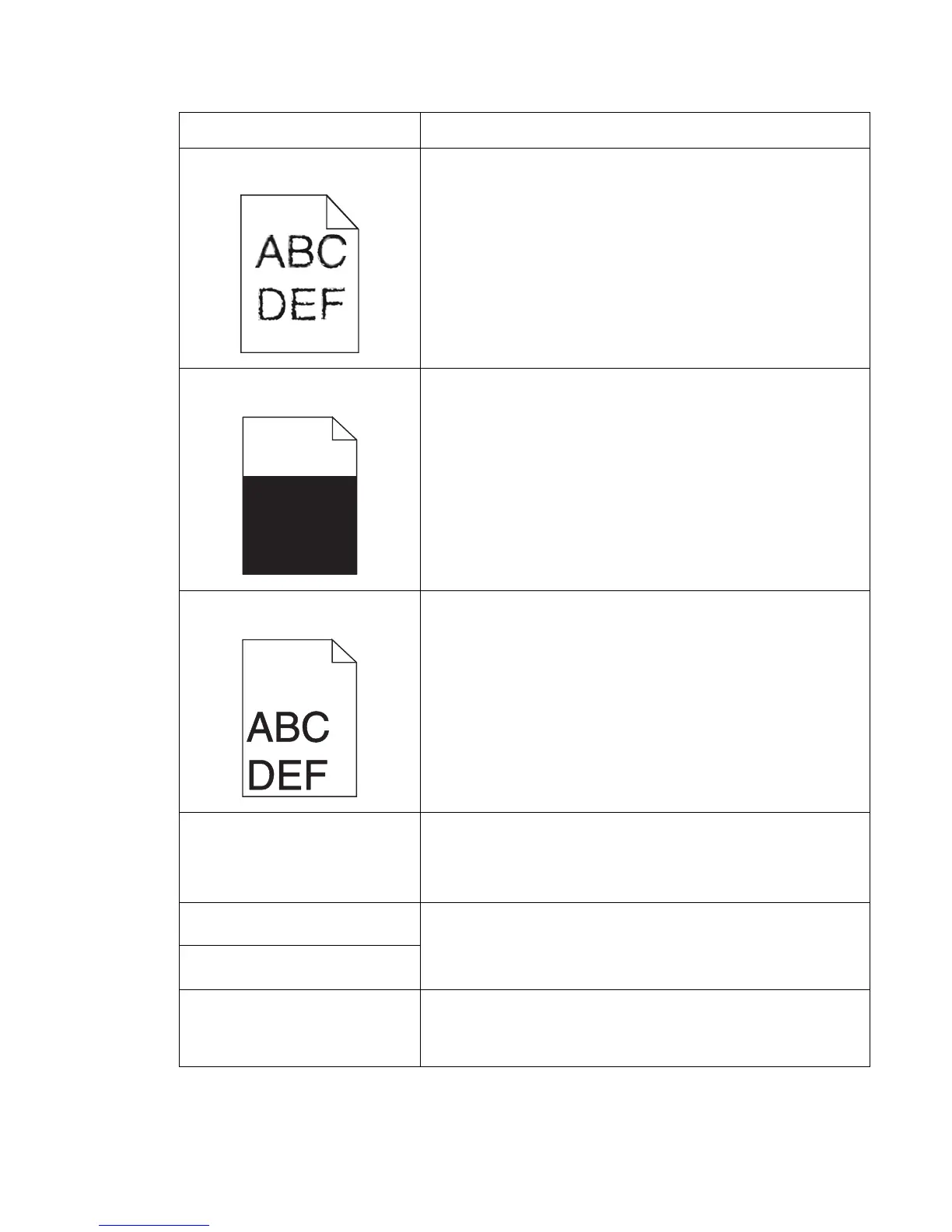
Characters have jagged or uneven
edges.
• Change the Print Resolution setting in the Quality menu to 600
dpi, 1200 Image Q, 1200 dpi, or 2400 Image Q.
• Enable Enhance Fine Lines.
See the tables on page “Quality menu operator panel options” on
page 3-36 for more settings information.
• If you are using downloaded fonts, verify the fonts are supported
by the printer, the host computer, and the software application.
• Verify the print media type and print tray type settings match.
• Verify you are using the correct printer drivers.
Part or all of the page is printed in
black.
Check the print cartridge to see if it is installed correctly.
The job prints, but the top and side
margins are incorrect.
• Make sure the Paper Size setting in the Paper menu is correct.
• Make sure the margins are set correctly in your software
application.
Ghost images appear. • Make sure the Paper Type setting in the Paper menu is correct.
• Replace the charge rolls.
• Replace the print cartridge.
• Replace the photoconductor kit.
Some of the print is cut off on the
sides, top, or bottom of the media.
Move the guides in the tray to the proper positions for the size loaded.
Print is skewed or inappropriately
slanted.
Transparency print quality is poor. • Use only transparencies recommended by the printer
manufacturer.
• Make sure the Paper Type setting in the Paper menu is set to
Transparency.
Problem Action



 To Next Page