110
3-4. Setup
Touch to edit the favorites list.
“Add New”: Select to register favor-
ites list entries. (P.110)
“Delete All”: Select to delete all
favorite list entries.
1 Press the button on the Remote
Touch, and then select “Add New”.
2 Select the desired item to search
for the location. (P.91)
3 Select “OK” when the editing
favorites list screen appears.
(P.110)
● Up to 100 favorites list entries can be
registered.
The icon, name, location and/or phone
number of a registered favorites list
entry can be edited.
1 Select the desired favorites list
entry.
Each time a star icon is selected, its
color will change. Colored star
icons indicate that the favorite is
registered to the corresponding
preset destination button. Up to 2
entries can be registered as quick
favorite destinations. (P.97)
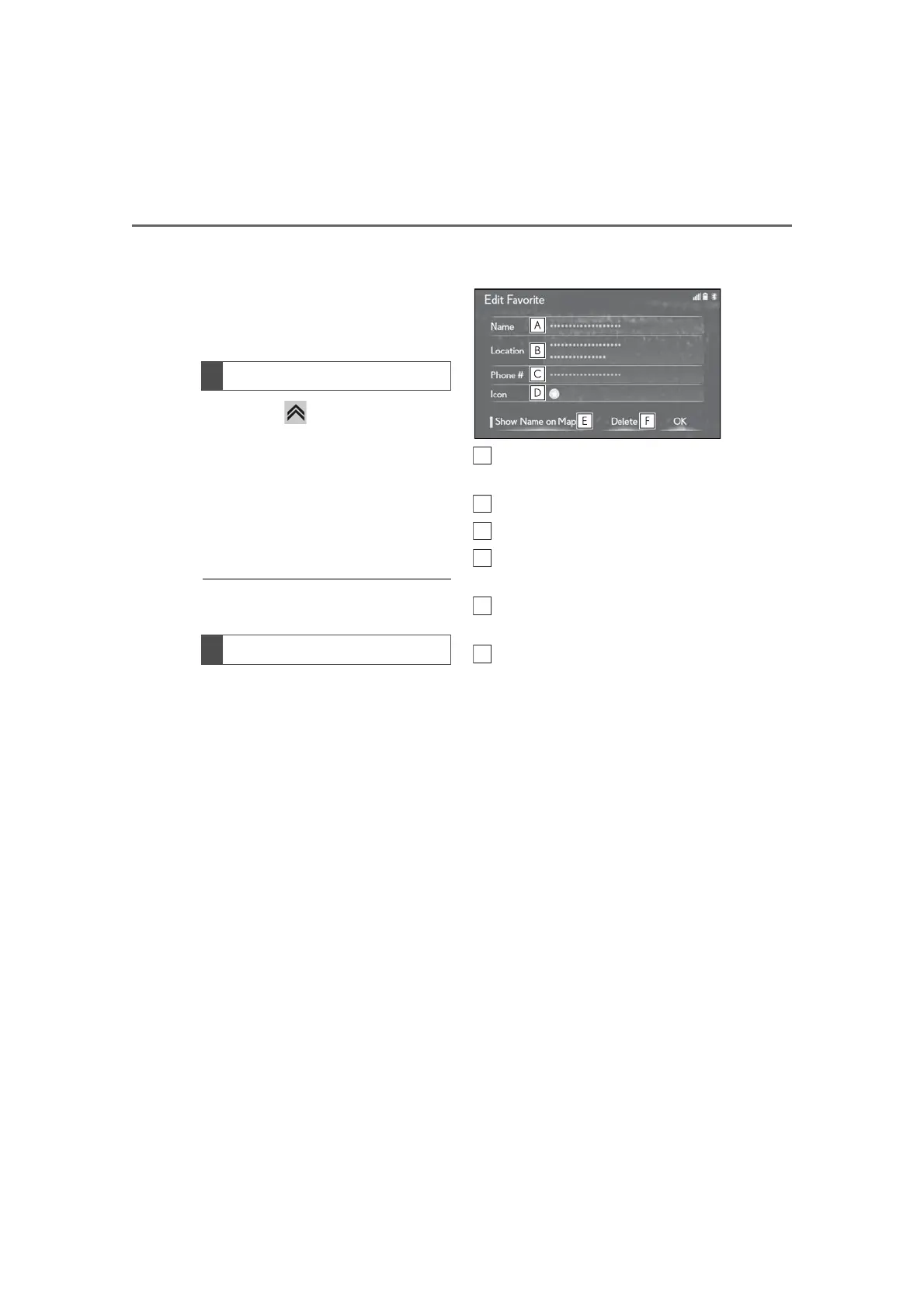
2 Select the desired item to be
edited.
Select to edit the favorites list entry
name.
Select to edit location information.
Select to edit the phone number.
Select to change the icon to be dis-
played on the map screen. (P.111)
Select to set display of the favorites
list entry name on/off.
Select to delete favorites list
entries.
3 Select “OK”.
Registering favorites list entries
Editing favorites list entries



 To Next Page