37
ENTERTAINMENT
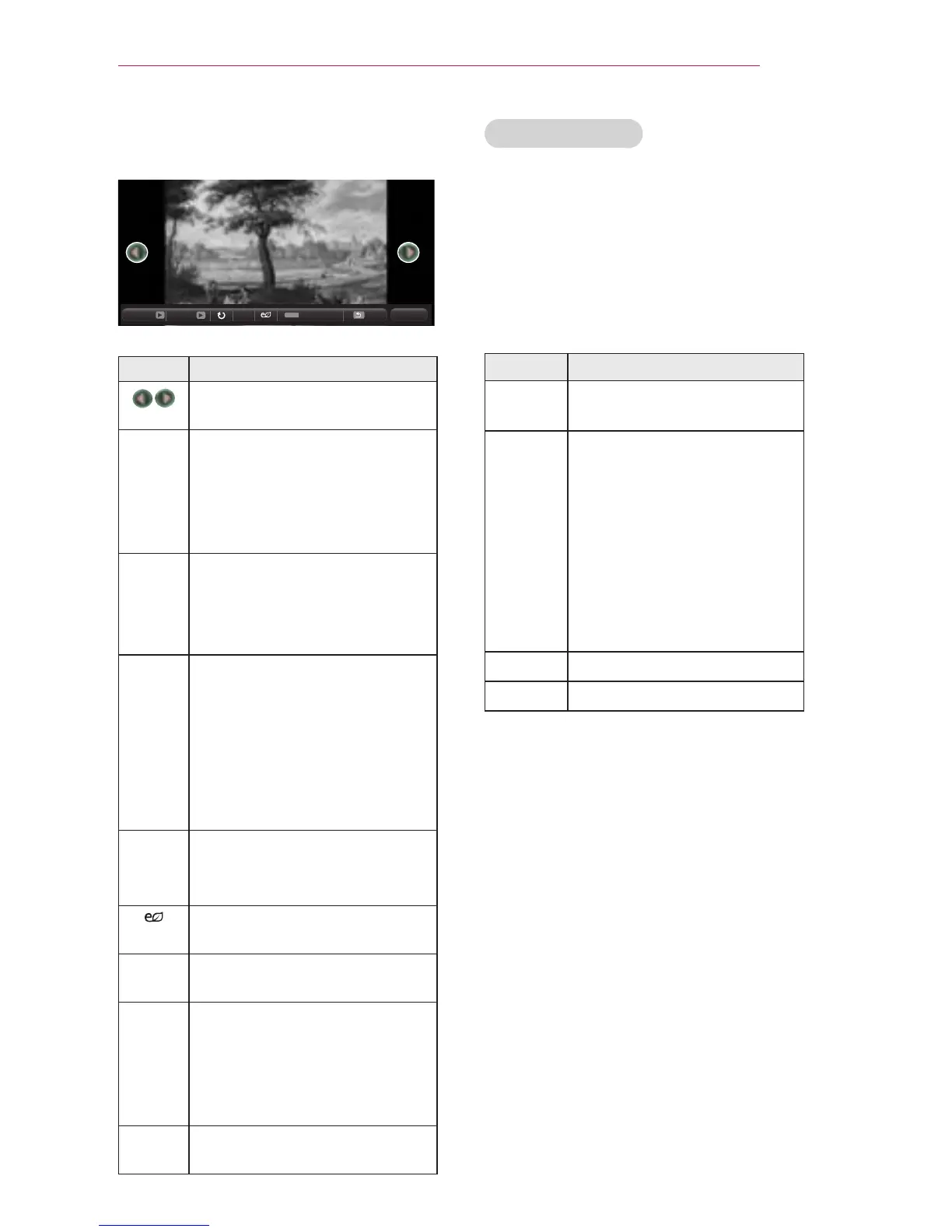
5 Use the following buttons to control
playback:
01_a.jpg
2008/12/10
1920 x 1080
479 KB
[1/4]
Q.MENU
ꔦ
Option
Slideshow
BGM
Hide Exit
Item Description
Selects the previous or next
photo.
Slide
show
Displays all photos in a slide
show.
y
Set Slide Speed in the
Option → Set Photo
View. menu.
BGM Listen to background music
while viewing full-size photos.
y
Set BGM in the Option →
Set Photo View. menu.
�
Rotates photos.
y
Rotates a photo 90°, 180°,
270°, 360° clockwise.
y
Photos cannot be rotated
if the width is greater than
the height of the maximum
supported resolution.
ꔦ
Enlarges or reduces the photo.
Press the blue button to en-
large the image.
You can use Energy Saving
mode.
Option A settings pop-up window
appears.
Hide Hides the menu on the full-
size screen.
y
To view the menu again,
press the OK button on the
remote control.
Exit Exit from full-screen photo
view.
Setting Options
1 Press the Q.Menu button.
2 Use the or button to move to
a desired option, then press the OK
button.
3 Use the , , , or button to set
up each item.
Set Photo View.
Item Description
Slide
Speed
Selects a slide show
transition speed.
BGM Selects a music folder for
background music.
y
You cannot change the
music folder while back-
ground music is playing.
y
For background music,
you can only select a
folder from the same
device.
Repeat Selects repeat.
Random Selects random play.
Set Video.
You can change video settings.
(Refer to "PICTURE Settings" on 43
page.)
Set Audio.
You can change audio settings.
(Refer to "Audio Settings" on 47 page.)



 To Next Page