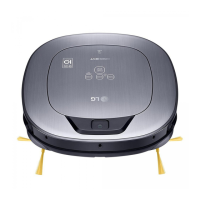
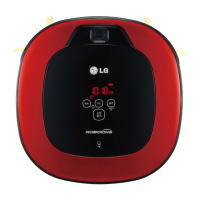
10
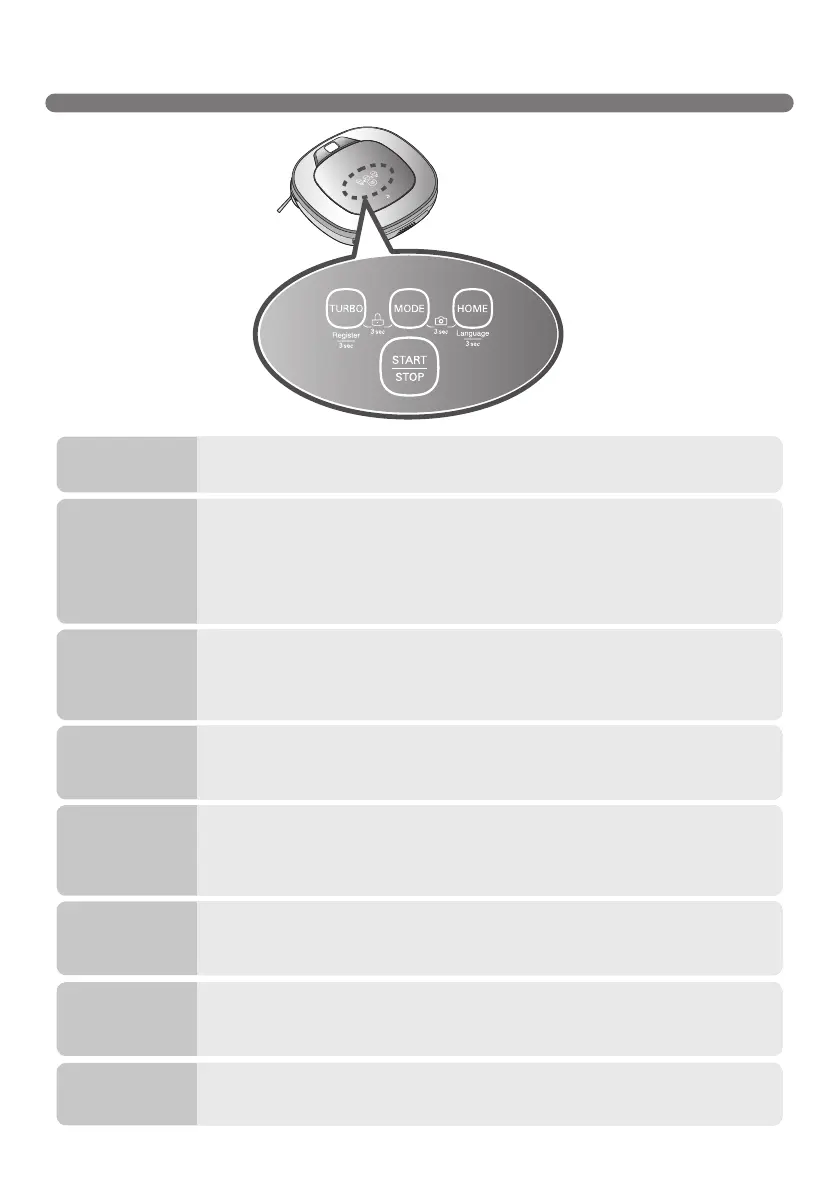
BUTTON FUNCTIONS – ROBOT CLEANER
• If the button is pressed, ‘Turbo Mode’ will be set with a voice confirmation.
• If the button is pressed whilst in ‘Turbo Mode’, it will be canceled.
• Used to change the clean mode setting.
• If the machine is at the Home Station, ‘Spot Clean’ option is not available.
• The 'My Space' mode can only be selected by remote control (when the Robot
Cleaner is not on the home station).
• Used to return the Robot Cleaner back to the home station for charging.
• If cleaning is finished or the battery is low, the Robot Cleaner will return to the
Home Station by itself to recharge its battery.
• Pressing the ‘Turbo' and 'Mode' button for 3 seconds will activate or deactivate
the Lock function.
• If 'Lock' is ON, a voice announcement "Key lock has already been set" will be
heard each time a button is pressed.
• Used to turn the power on from Standby, start or stop cleaning.
• If the button is pressed whilst the unit is powered ON, it will start cleaning.
• If button is pressed during the cleaning, it will stop the cleaning.
• If the button is pressed for about 2 sec. whilst the power is ON, the power will be
returned to Standby.
• If the button is pressed in 'Smart Diagnosis' mode, it will end the diagnosis.
TURBO
MODE
HOME
BUTTON LOCK
On/Off
START/STOP
• Pressing the ‘HOME’ button for 3 seconds will change the language for the voice
message.
• You cannot use this function with the button on the remote controller.
• Press and hold down the Turbo button for 3 seconds to activate the registration
mode with a voice message.
• This mode is for registering the product to Robot Cleaner over Wi-Fi.
Language
Change
Product
registration
(Wi-Fi)
• Press and hold down the MODE and CHARGE buttons for 3 seconds to activate
or deactivate the front camera.
• Home Guard and Home View will not be available with the front camera disabled.
Front camera
On/OFF


 To Next Page