25
SCHEDULED CLEANING
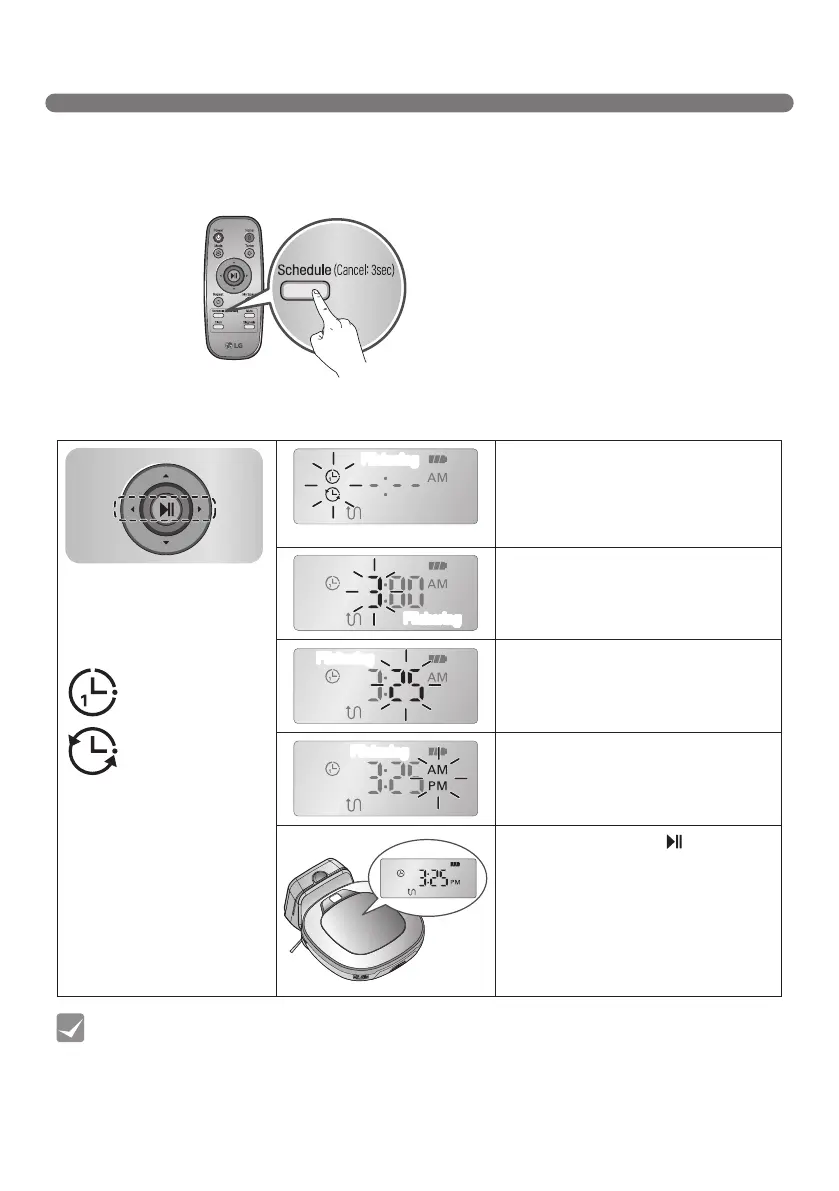
You can schedule cleaning so that the Robot Cleaner starts cleaning at a scheduled time.
Pressing 'Schedule' button on Remote Controller, only when the Robot Cleaner is recharging,
will start the scheduled cleaning setting.
• When the scheduled time comes up, Robot Cleaner will start cleaning by itself.
• Scheduled cleaning can only be set when the Robot Cleaner is recharging.
• While recharging, by pressing the 'Schedule' button on the Remote Controller for
3 seconds will cancel the set schedule.
• If there is no input when setting the schedule time within 10 seconds, the setting is canceled.
Tip
Setting/Cancelling the schedule cleaning is only possible when the unit is recharging on the home station
Select a setting by using
'◄►'buttonsonRemote
Controller.
‘Once reservation’
‘Daily reservation’
Flickering
Select ‘Once reservation’ or ‘Daily
reservation’optionbyusing‘▲▼’
buttons on Remote Controller.
A voice message will confirm the
schedule.
Flickering
Setthehourbyusingthe‘▲▼’buttons
on Remote Controller.
Flickering
Settheminutesbyusingthe‘▲▼’
buttons on Remote Controller.
Flickering
SettheAM/PMusingthe‘▲▼’buttons
on Remote Controller.
Pressing ‘Schedule’ or ‘ ’ button on
Remote Controller will then complete
the scheduling process.


 To Next Page