EasyManua.ls Logo

Lightware DVI-HDCP-TPS-TX210 - User Manual

Lightware DVI-HDCP-TPS-TX210
159 pages
Print Icon
To Next Page IconTo Next Page
Loading...
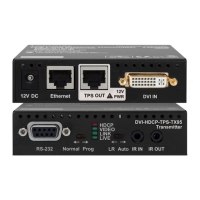
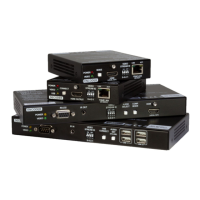
HDMI-TPS-TX210, HDMI-TPS-TX220
HDMI-TPS-TX226
DVI-HDCP-TPS-TX210, DVI-HDCP-TPS-TX220
DP-TPS-TX210, DP-TPS-TX220
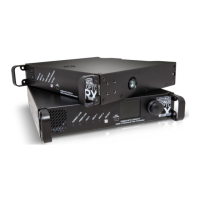
SW4-TPS-TX240, SW4-TPS-TX240-Plus
User’s Manual
HDBaseT
TM
Multimedia Extender
v3.2

Table of Contents

Other manuals for Lightware DVI-HDCP-TPS-TX210

Questions and Answers

  • D
    David RomeroAug 19, 2025
    Why is there no picture on my Lightware DVI-HDCP-TPS-TX210 Extender's video output?
    • R
      raymondfloresAug 19, 2025
      Several factors can cause a missing picture on the video output: * The devices might not be powered correctly. Ensure all extenders and connected devices are properly powered, and try unplugging and reconnecting them. * There may be a cable connection issue. Verify that all video and TPS cables are securely connected. * There could be a problem with the TPS mode. Check the current TPS mode and the selected modes on the extenders. * The input or output port might be muted. Verify the mute state of both input and output ports. * The display may not support the current video format. Check the emulated EDID and try selecting a different one, such as emulating the display's EDID on the input port. * HDCP might be disabled. Enable HDCP on both the input and output ports.
  • M
    Matthew McbrideAug 21, 2025
    What to do if there is no audio on the Lightware DVI-HDCP-TPS-TX210 Extender output?
    • W
      wgonzalezAug 21, 2025
      If there's no audio on the output, consider these potential causes: * The source audio volume may be too low or muted. Check the audio settings of the source. * The audio input port could be muted. Check the audio input port properties. * The audio output port might be muted. Verify the output port properties.
  • D
    Daniel MirandaAug 23, 2025
    What to do if the Lightware DVI-HDCP-TPS-TX210 displays the wrong picture?
    • O
      oramirezAug 23, 2025
      If the video output displays an incorrect picture, it might be due to: * The video output being set to a static test pattern (no sync screen). Check the test pattern settings in the properties of the output ports. * The video output being set to a test pattern (no sync screen) because there is no picture on the video source. Check the video settings of the source.
  • H
    heathercooperAug 26, 2025
    Why can't I establish a LAN connection with my Lightware DVI-HDCP-TPS-TX210?
    • C
      Christopher WoodAug 26, 2025
      If you're unable to establish a LAN connection, it could be due to: * An incorrect static IP address. Try using a dynamic IP address by enabling the DHCP option. * If that doesn't work, restore the factory default settings (with a fixed IP address).
  • T
    Tina GonzalesAug 27, 2025
    Why does my Lightware DVI-HDCP-TPS-TX210 Extender HDMI output signal have no audio?
    • G
      gschaeferAug 27, 2025
      If the HDMI output signal lacks audio, it could be because: * The HDMI mode was set to DVI. Check the output port properties and set the signal type to HDMI or Auto. * A DVI EDID is being emulated. Check the EDID settings and select an HDMI EDID to emulate.
  • C
    caseyrachelAug 29, 2025
    What to do if my Lightware DVI-HDCP-TPS-TX210 Extender connected serial device does not respond?
    • E
      eric01Aug 29, 2025
      If a connected serial device isn't responding, consider the following: * There may be a cable connection problem. Check the connectors to ensure a secure fit and verify the wiring of the plugs. * The RS-232 settings might be different. Check the port settings of the transmitter and the connected serial device(s). * The RS-232 mode might be incorrect. Check the RS-232 mode settings (control, command injection, or disconnected).
  • R
    rossbrendaAug 31, 2025
    What to do if my Lightware DVI-HDCP-TPS-TX210 receives error messages continuously?
    • K
      kimberlygraySep 1, 2025
      If you're receiving continuous error messages, it might be due to a different protocol being set. Check the port protocol settings (LW2 / LW3) and use the proper protocol commands.
  • Z
    zparkerSep 3, 2025
    How to make Lightware DVI-HDCP-TPS-TX210 Extender read out the EDID again?
    • T
      Todd RodriguezSep 3, 2025
      You need to restart your source to make it read out the EDID again.
  • G
    gloriaandersonSep 7, 2025
    What to do if there is no audio output from Lightware Transmitter?
    • J
      jrogersSep 7, 2025
      If there's no audio present on the output of your Lightware Transmitter, consider the following: * **Crosspoint Settings:** Verify the audio layer crosspoint settings to ensure the correct audio port is switched to the output. * **Source Volume:** Check the audio settings of the source device to ensure the volume is not low or muted. * **Output Port Mute:** Review the output port properties to confirm it is not muted. * **Analog Audio Volume:** If using analog audio, check the Analog audio input port settings and ensure the volume is not set too low.
  • L
    Lydia FisherSep 9, 2025
    Why does my Lightware Transmitter HDMI output have no audio?
    • L
      Lisa CaldwellSep 9, 2025
      If your Lightware Transmitter's HDMI output signal contains no audio, check the following: * **HDMI Mode:** Verify the properties of the output port and ensure it is set to HDMI or Auto, not DVI. * **EDID Emulation:** Check the EDID settings and select an HDMI EDID to emulate, rather than a DVI EDID.

Summary

Important Safety Instructions

Ventilation

Ensure adequate free space around the appliance for proper ventilation and to prevent overheating.

Symbol Legend

WARNING! Safety-related information

Highlights critical safety information that must be read and understood for safe operation.

1. Introduction

1.5. Features

Lists and explains the various features of the devices, categorized alphabetically for clarity.

2. Product Overview

2.5. Front Panel Buttons

Details the function and operation of each button located on the front panel of the devices.

3. Installation

3.2. Electrical Connections

Explains the types and pinouts of various connectors, including RJ45, DVI-I, HDMI, DisplayPort, and audio.

4. Device Concept

4.3. TPS Interface

Details the TPS interface, its working modes, and how transmitter and receiver settings determine the transmission mode.

4.11. The Event Manager Feature

Describes how the Event Manager allows devices to react to pre-defined conditions by performing actions.

4.13. Basic IT Security

Details entry-level network security improvements like Cleartext Login, IP Port Block, and MAC Filtering.

5. Software Control - Lightware Device Controller

5.3. Establishing the Connection

Guides users through connecting the device to a computer via Ethernet or RS-232 using the LDC software.

5.10. Event Manager

Explains how to create and manage events using conditions, actions, and delays within the LDC software.

5.13. Configuration Cloning (Backup Tab)

Describes the process of backing up and restoring device configurations for easy deployment and management.

7. LW3 Programmers Reference

7.6. Video Port Settings

Covers video port settings, including input/output status, crosspoint settings, and autoselect configurations.

7.7. Audio Port Settings

Details audio port settings, including input/output status, crosspoint, autoselect, and priority configurations.

7.8. Event Manager Basics

Explains the fundamentals of arranging events, setting conditions, actions, and linking them for complex automation.

8. Firmware Update

8.4. The Updating Steps

Provides a step-by-step guide for updating firmware, including creating backups and restoring settings.

8.8. If the Update is not successful

Offers troubleshooting steps and advice if the firmware update process encounters issues or fails.

10. Technologies

EDID Management

Explains EDID data structure, communication, and common problems, along with advanced management features.

HDCP Management

Details HDCP management, including handling protected and unprotected content and disabling encryption.

Lightware DVI-HDCP-TPS-TX210 Specifications

General IconGeneral
BrandLightware
ModelDVI-HDCP-TPS-TX210
CategoryExtender
LanguageEnglish

Related product manuals