Macros
DEFINITION: #macro
Important Notes about Macros
▪ The macros are stored in device presets.
▪ The commands of a macro are executed sequentially (even if error happens at a command).
▪ Macros allow long commands that is suitable for e.g. infra code sending.
▪ Macros cannot be edited in the device.
▪ Macros are not saved when backup is created. See the Saving the Macros section.
Macro File Structure
<preset_name>
<macro_name>: each Macro must have a unique name.
<LW3_commands>
ATTENTION! If you use the same name for a new macro, the existing one will be deleted.
Uploading New Macros into a New Preset
you have to add new macros or change any of them, use the dedicated preset. The uploading steps are the
following:
Step 1. Create the le
Step 2. Navigate to the Settings/Backup submenu.
Step 3. preset at the bottom of the page.
Step 4. Press the Upload Open.
ATTENTION! The preset and the macros of the selected slot will be erased. If there is a macro with the
same name already in the device, it will be removed and the new one will be available.
;myDeviceMacros
;Begin myMacro1
CALL /MEDIA/VIDEO/XP:unmuteSource(I3)
CALL /MEDIA/VIDEO/XP:switch(I3:O1;I3:O2)
;End myMacro1
;Begin myMacro2
CALL /MEDIA/VIDEO/XP:unmuteSource(I4)
CALL /MEDIA/VIDEO/XP:switch(I4:O1;I4:O2)
;End myMacro2
;<preset_name>
;Begin <macro1_name>
<LW3_commands>
;End <macro1_name>
;Begin <macro2_name>
<LW3_commands>
;End <macro2_name>
Format: Example:
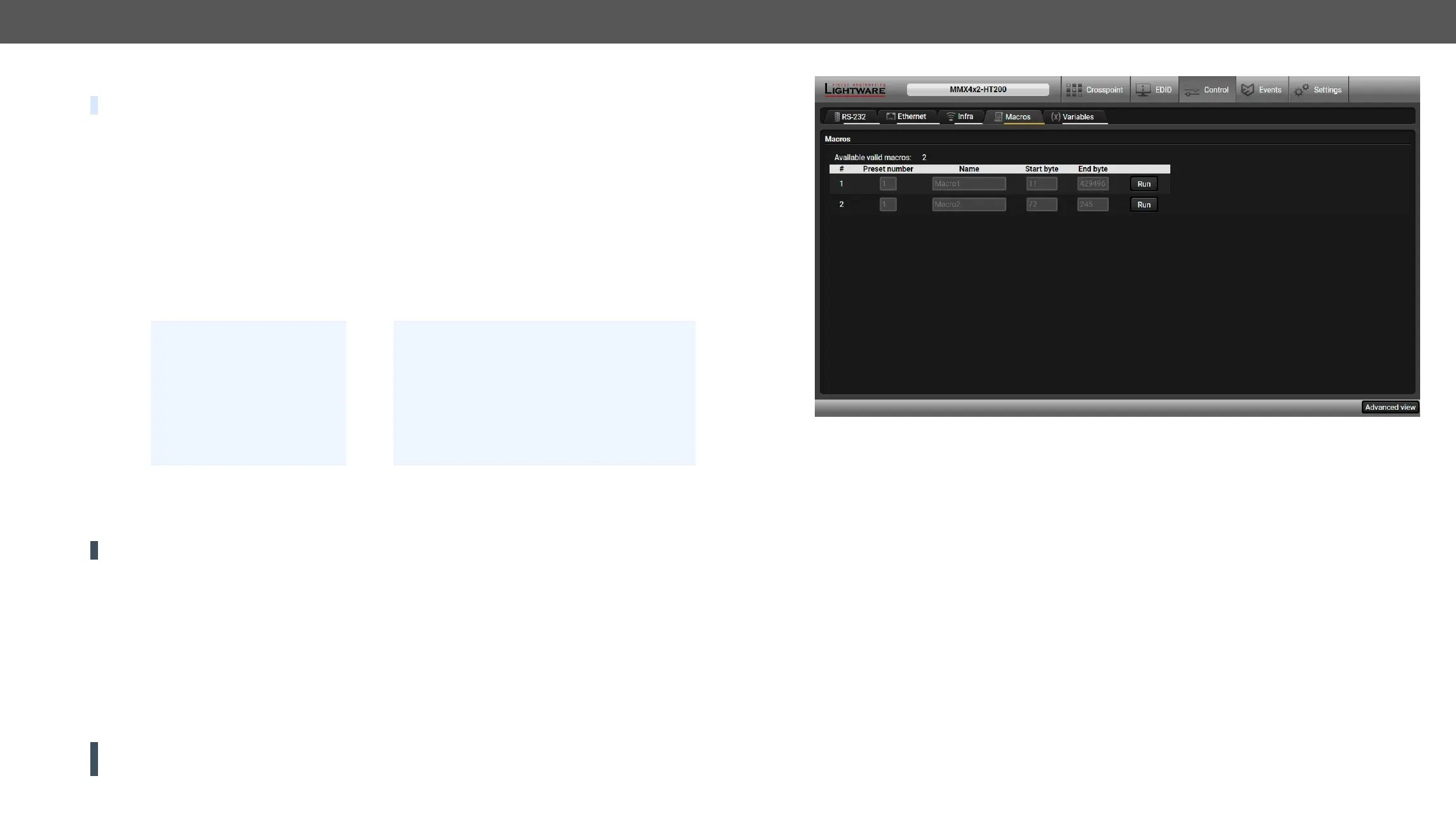
Discovered Macros in the device shown under Control/Macros submenu
Adding Macros to an Existing Preset
Step 1. Navigate to the Settings/Backup submenu.
Step 2. preset at the bottom of the page.
Step 3. Press the Download button and click on Save in the pop-up window.
Step 4. Open the le with a simple text editor and add the desired macros to the bottom of the commands
between the ;Begin <macro_name> and ;End <macro_name> labels.
Step 5. Settings/Backup submenu.
Step 6. preset as selected in Step 2.
Step 7. Press the Upload Open.
If you follow the steps above, the existing macros of the selected preset will be preserved. But if there is a
macro with the same name already in the device, it will be removed and the new will be available.
Saving the Macros
Step 1. Navigate to the Settings/Backup submenu.
Step 2. preset that is used for the macros at the bottom of the page.
Step 3. Press the Download button and click on Save in the pop-up window.










 To Next Page