EasyManua.ls Logo

Lightware MMX4x2-HDMI - Configuration Cloning (Backup Tab)

Lightware MMX4x2-HDMI
172 pages
Print Icon
To Next Page IconTo Next Page
To Previous Page IconTo Previous Page
Loading...
 MMX4x2 series – User's Manual 68





those settings to the others, thus saving time and resources. #backup #congurationcloning
ATTENTION! 
slot, download it separately and upload it in the target device.
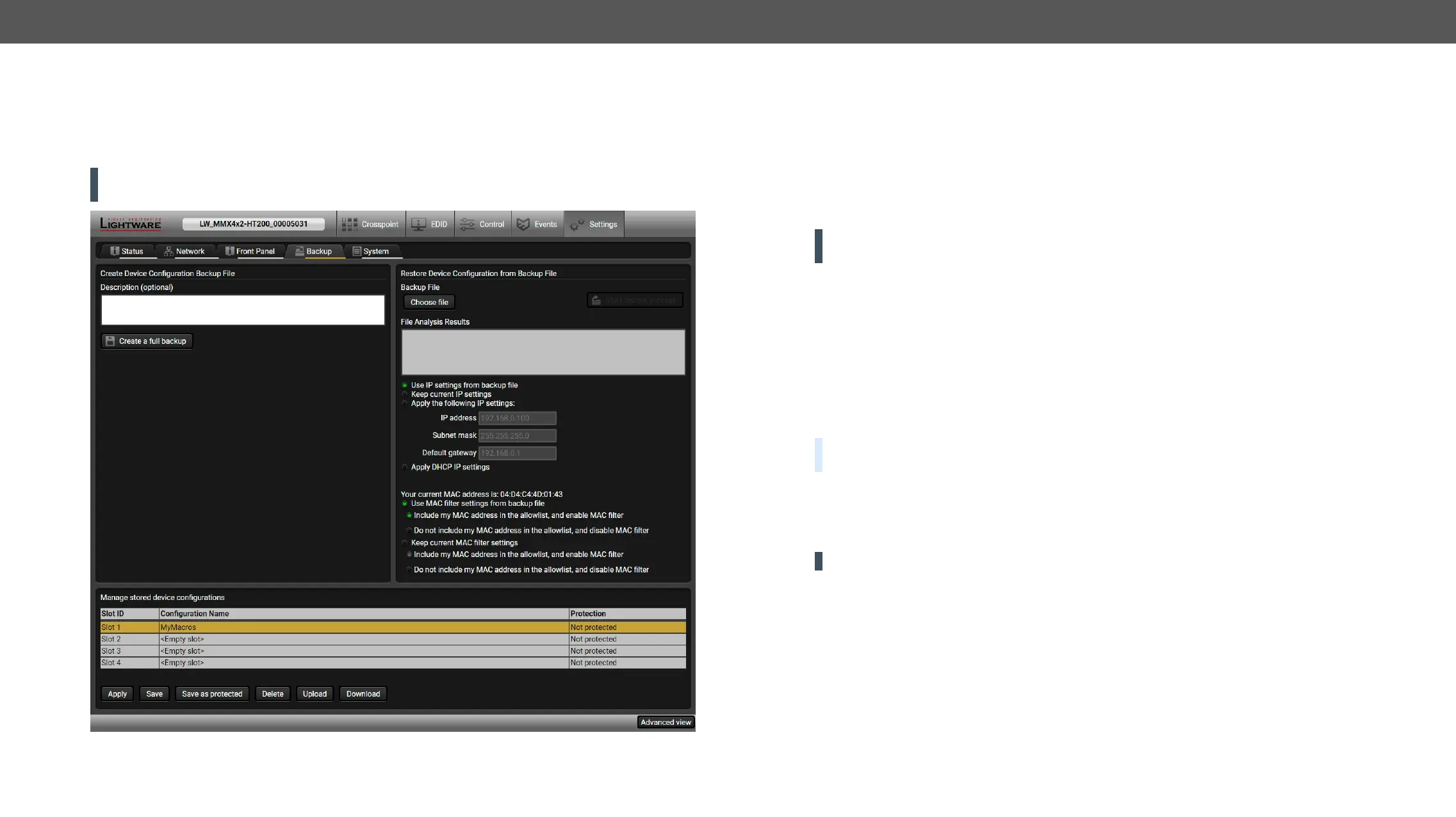
Backup tab
Cloning Steps in a Nutshell

Step 1. 
Step 2. 
Step 3. 
modifying the static IP address is needed when DHCP is not used.
Step 4. 
Step 5. 
ATTENTION! 
slot, download it separately and upload it in the target device.
Save the Settings of the Device (Backup)
Step 1. Apply the desired settings in the transmitter (port parameters, crosspoint, etc.)
Step 2. Select the SettingsBackup tab from the menu.
Step 3. description in the text box on the left (optional).
Step 4. Press the Create a full backup

BACKUP_<DEVICE TYPE>_SN<SERIAL NUMBER>.LW3
Step 5. Set the desired le name, select the folder and save
TIPS AND TRICKS: 
usage more comfortable.
About the Backup File



ATTENTION! Editing the command lines is recommended for expert users only.
See the entire list of saved data in the Content of Backup File section.


Table of Contents