EasyManua.ls Logo

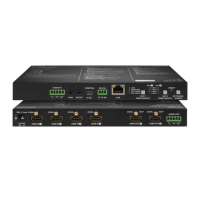
Lightware MMX4x2-HT200 - User Manual

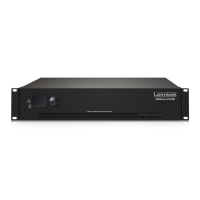
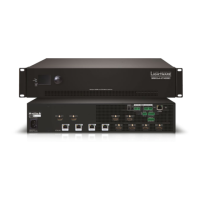
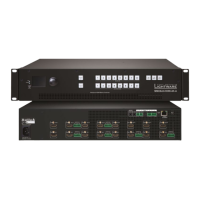
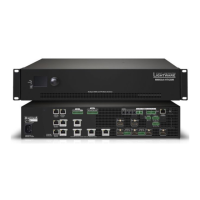
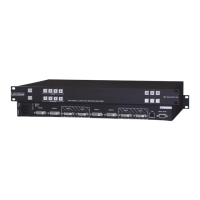
Lightware MMX4x2-HT200
172 pages
Print Icon
To Next Page IconTo Next Page
Loading...
MMX4x2-HDMI
MMX4x2-HT200
MMX4x2-HDMI-USB20-L
User’s Manual
Standalone Multimedia Matrix Switcher
v3.2 22-03-2022

Table of Contents

Other manuals for Lightware MMX4x2-HT200

Questions and Answers

  • R
    Rebecca AyalaAug 14, 2025
    How to fix no picture on Lightware MMX4x2-HT200 Matrix Switcher video output?
    • L
      Lawrence SmithAug 14, 2025
      If there's no picture on the video output of your Lightware Matrix Switcher, here are a few things to check: * Ensure all devices, including the matrix, are properly powered. Try unplugging and reconnecting them. * Verify all cable connections (video and TPS cables) are secure and fit well. * Check if the SIGNAL LED of the input port is lit. If not, there may be no incoming signal. Inspect the source device(s) and HDMI/CATx cable(s). * Confirm the correct video port is active by checking the video crosspoint settings. * Examine the TPS mode and ensure it matches the selected modes of the devices. * Check the mute state of the output port. Also, verify the emulated EDID; try selecting another one (for example, emulate the EDID of the display on the input port).
  • R
    rreynoldsAug 18, 2025
    Why is there no audio output from my Lightware Matrix Switcher?
    • S
      Stephanie HallAug 18, 2025
      If you're not getting any audio from your Lightware Matrix Switcher, consider these potential causes and solutions: * Ensure the source audio volume isn't too low or muted. Check the audio settings of the source. * Verify the correct audio port is active by checking the input port properties and the audio crosspoint settings. * Confirm that neither the input nor the output port is muted by checking their respective properties. * If using analog audio, check the Analog audio output port settings (volume). * If HDMI mode was set to DVI, check the properties of the output port and set to HDMI or Auto.
  • P
    Patricia RowlandAug 21, 2025
    What to do if Lightware MMX4x2-HT200 Matrix Switcher cannot establish LAN connection?
    • J
      James KingAug 21, 2025
      If you're having trouble establishing a LAN connection with your Lightware Matrix Switcher, here are some troubleshooting steps: * Ensure that an incorrect IP address is not set. Try using a dynamic IP address by enabling the DHCP option or restore the factory default settings (with fix IP). * Check for IP address conflicts with other devices on the network. * If TCP/IP or UDP messaging via LAN port isn't working, verify the TCP/IP / UDP messaging rules.
  • M
    Matthew RangelAug 25, 2025
    Why Lightware MMX4x2-HT200 displays wrong picture on the video output?
    • M
      Michael EdwardsAug 25, 2025
      If the video output on your Lightware Matrix Switcher is not displaying the desired picture, it might be due to: * The video output being statically set to a test pattern (resulting in a no sync screen). Check the Test Pattern settings in the HDMI output properties. * The video output being set to a test pattern because there is no picture on the video source. Check the video settings of the source.
  • J
    Jonathan AlvarezAug 27, 2025
    How to troubleshoot a non-responding serial device connected to Lightware Matrix Switcher?
    • P
      pagepeterAug 27, 2025
      If a serial device connected to your Lightware Matrix Switcher isn't responding, try these steps: * Check the cable connections to ensure they fit well, and verify the wiring of the plugs. Also, check the port settings of the transmitter, the matrix, and the connected serial device(s), paying attention to Link and/or Local ports. * Confirm that the RS-232 mode settings are correct (control, command injection, or disconnected). * If messaging via the serial port isn't working, check the serial messaging rules and/or apply escaping in the message.
  • D
    Dustin JohnsonAug 31, 2025
    Why are the front panel buttons not working on my Lightware Matrix Switcher?
    • J
      Julia SchmidtAug 31, 2025
      If the front panel buttons on your Lightware Matrix Switcher are not working, it is possible that the buttons are locked. To solve this, disable control lock.
  • G
    Gloria PattersonSep 3, 2025
    What does it mean if I'm constantly receiving error messages from Lightware MMX4x2-HT200?
    • M
      michaelgardnerSep 3, 2025
      If you're constantly receiving error messages from your Lightware Matrix Switcher, it might be due to a different protocol being set. Check the protocol settings (LW2 / LW3) and use the proper protocol commands.
  • T
    Thomas AlvarezSep 7, 2025
    Why is CEC message sending not working on my Lightware Matrix Switcher?
    • J
      Jessica ReynoldsSep 7, 2025
      If CEC message sending isn't working on your Lightware Matrix Switcher, the CEC feature may not be enabled in the connected (third-party) device. Check the device and/or its documentation to enable the feature.
  • S
    Sonia HunterSep 10, 2025
    What to do if Lightware MMX4x2-HT200 DVI EDID is emulated?
    • J
      Jacob Clark MDSep 10, 2025
      Check the EDID and select and HDMI EDID to emulate.

Summary

MMX4 x2 Series Users Manual

Important Safety Instructions

WARNING

Critical safety advice to prevent injury, including secure attachment and avoiding liquids.

1. Introduction

1.1. Description

1.6. Features

1.6.1. List of Features (in alphabetical order)

Provides an alphabetical list and description of all product features.

2. Product Overview

2.6. Front Panel Buttons

2.6.4. Reset to Factory Default Settings

Details the procedure to restore the device to its original factory default settings.

3. Installation

Electrical Connections

Details power, HDMI, audio, and network port connections with pin assignments.

4. Device Concept

The Event Manager Feature

Explains how to create events to automate device actions based on conditions.

5. Software Control - Lightware Device Controller

Install and Update

Details system requirements and installation procedures for LDU2 software.

Establishing the Connection

Guides on connecting the device to a computer via Ethernet, Serial, or USB for control.

Crosspoint Menu

Explains the interface for managing audio/video routing, presets, and port settings.

Port Properties Windows

Details settings and status information for various port types (TPS, HDMI Input/Output).

Control Menu

Details configuration options for RS-232, Ethernet, GPIO, Infra, and Variable Management.

Event Manager

Explains creating and managing events for automating device actions and sequences.

Settings Menu

Covers device configuration settings including status, network, front panel, backup, and system.

Configuration Cloning (Backup Tab)

Details methods for backing up, restoring, and cloning device configurations.

6. LW2 Programmers Reference

General LW2 Commands

Lists general LW2 commands for querying device information and status.

AV Port Settings

Details LW2 commands for configuring audio/video port behavior, muting, locking, and autoselect.

Network Configuration

Explains LW2 commands for querying and setting IP addresses, subnet masks, and gateway.

7. LW3 Programmers Reference

System Commands

Covers LW3 commands for managing system settings like device label, reset, and firmware version.

Video Port Settings

Details LW3 commands for querying input/output status, crosspoint, and autoselect settings.

Audio Port Settings from Firmware v1.2.0

Explains LW3 commands for audio port settings specific to firmware version 1.2.0 and above.

Event Manager Basics

Covers arranging events, setting conditions, actions, delays, and managing events.

Ethernet Port Configuration

Details LW3 commands for configuring Ethernet port settings like DHCP and static IP.

8. Firmware Update

Preparation

Outlines prerequisites for firmware updates, including LFP2 files and LDU2 software.

Running the Software

Explains how to start and use the Lightware Device Updater (LDU2) software.

Updating via GUI

Details the step-by-step process for updating firmware using the graphical interface.

If the Update is not successful

Provides troubleshooting steps and advice for resolving firmware update failures.

9. Troubleshooting

Use Cases

Presents common troubleshooting scenarios with symptoms, root causes, actions, and references.

How to Speed Up the Troubleshooting Process

Offers guidance on gathering information to expedite the technical support process.

10. Technologies

11. Appendix

Specifications

Lists detailed technical specifications for MMX4x2 series devices.

Factory Default Settings

Details the default settings for various parameters across MMX4x2 models.

Lightware MMX4x2-HT200 Specifications

General IconGeneral
BrandLightware
ModelMMX4x2-HT200
CategoryMatrix Switcher
LanguageEnglish

Related product manuals