Start-up
Navigation in the Menu
In these operating instructions, the arrow buttons on the Assist Remote Control
are shown as follows:
In the text, the arrows correspond to: "".
The OK button on the remote control is shown as OK in the text.
Call up the Setup menu.
Select required option.
Previous menu.
Close menu.
Confirm OK.
Home Menu
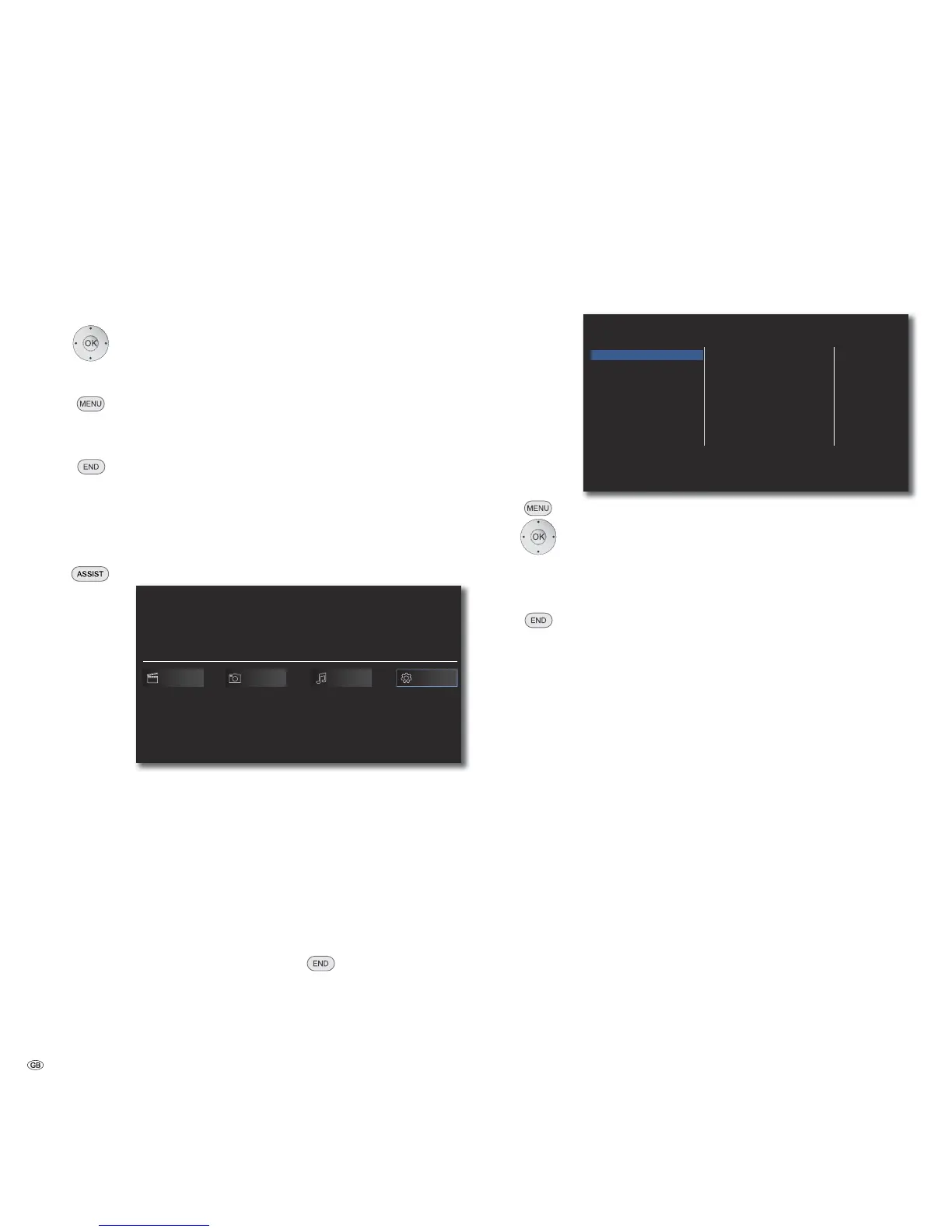
The Home Menu of the BluTechVision Interactive is shown on the screen of the
TV set connected to it. Here you can select the desired functions.
Call up Home Menu.
BluTechVision Interactive
Movie SetupPhoto Music
Select the desired function.
Confirm OK.
Movie Display of Movie menu (page 29) for playback of
video files
Photo Display of the Photo menu (page 32) for photo file
playback
Music Display of Music menu (page 31) for playback of
audio files
Setup Display of Setup menu (page 14) to make settings
➠ In order to call up the Home Menu it may be necessary to
close other open menus with
.
➠ The Movie, Photo, Music menus can be selected when a
corresponding medium is available.
Setup Menu
In the Setup Menu you can carry out any settings and adaptations of your TV
set, for example.
TV Aspect Ratio
Resolution
1080p Display Mode
HDMI Color Setting
DISPLAY
LANGUAGE
AUDIO
LOCK
NETWORK
OTHERS
16:9 Original
1080i
50Hz
YCbCr
Call up the Setup menu.
Select the desired category.
Select the desired sub-category.
Make the desired setting.
Confirm OK.
Close menu.
➠ If the blue bar for menu selection appears at the first level
(left), you will see the current settings in the overview at the
third level (right).
- 14


 To Next Page