Playback of Discs
Disc Menu
BD
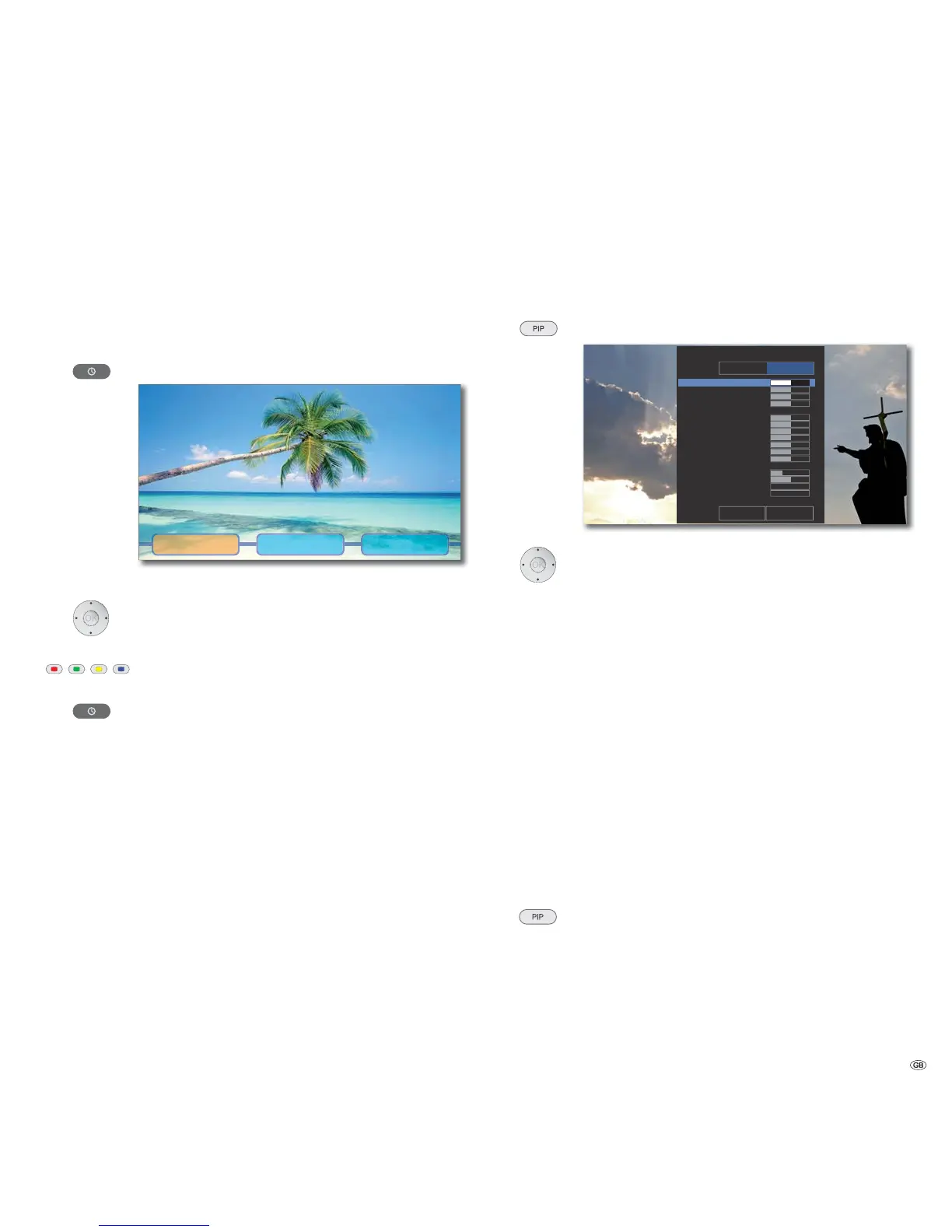
Some discs contain menus to set the language for the film soundtrack, for exam-
ple, or for subtitles, or to select certain scenes. Accompanying film material may
also be available. These menus are individually designed, depending on the disc.
POP-UP-M Select Pop-Up/Disc menu. Example:
Scene selection ExtrasLanguage
➠ Depending on the disc, it is possible that there is no such menu. If so, this
button has no function.
Select menu item.
Confirm OK.
It may be possible to select menu functions with the colour
buttons.
POP-UP-M Pop-Up/Disc Menu end.
Picture Mode
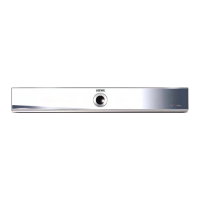
You can carry out various different settings for the screen representation during
playback.
Call up Picture Mode Menu.
T
T
Default User setting
Default Close
Picture Mode
Mode
Contrast
Brightness
Sharpness
Saturation
Red
Green
Blue
Cyan
Magenta
Yellow
Dynamic Contrast
Block NR
Mosquito NR
Black Level
25
25
25
25
25
25
25
25
25
25
2
Low
Off
Off
In the Default selection you can carry out the following settings:
Selecting/setting options.
Block NR Reduce compression artefacts
Mosquito NR Reduce flicker at visible image borders
Black Level Setting black value
In the User setting selection you can also carry out detailed settings for the
screen display:
Contrast Setting contrast
Brightness Setting image brightness
Sharpness Setting contour sharpness of image
Saturation Setting colour saturation
Red Setting red component
Green Setting green component
Blue Setting blue component
Cyan Setting cyan component
Magenta Setting magenta component
Yellow Setting yellow component
Dynam. Contr. Setting dynamic contrast
End the Picture Mode.
27 -


 To Next Page