Start-up
Menu Display
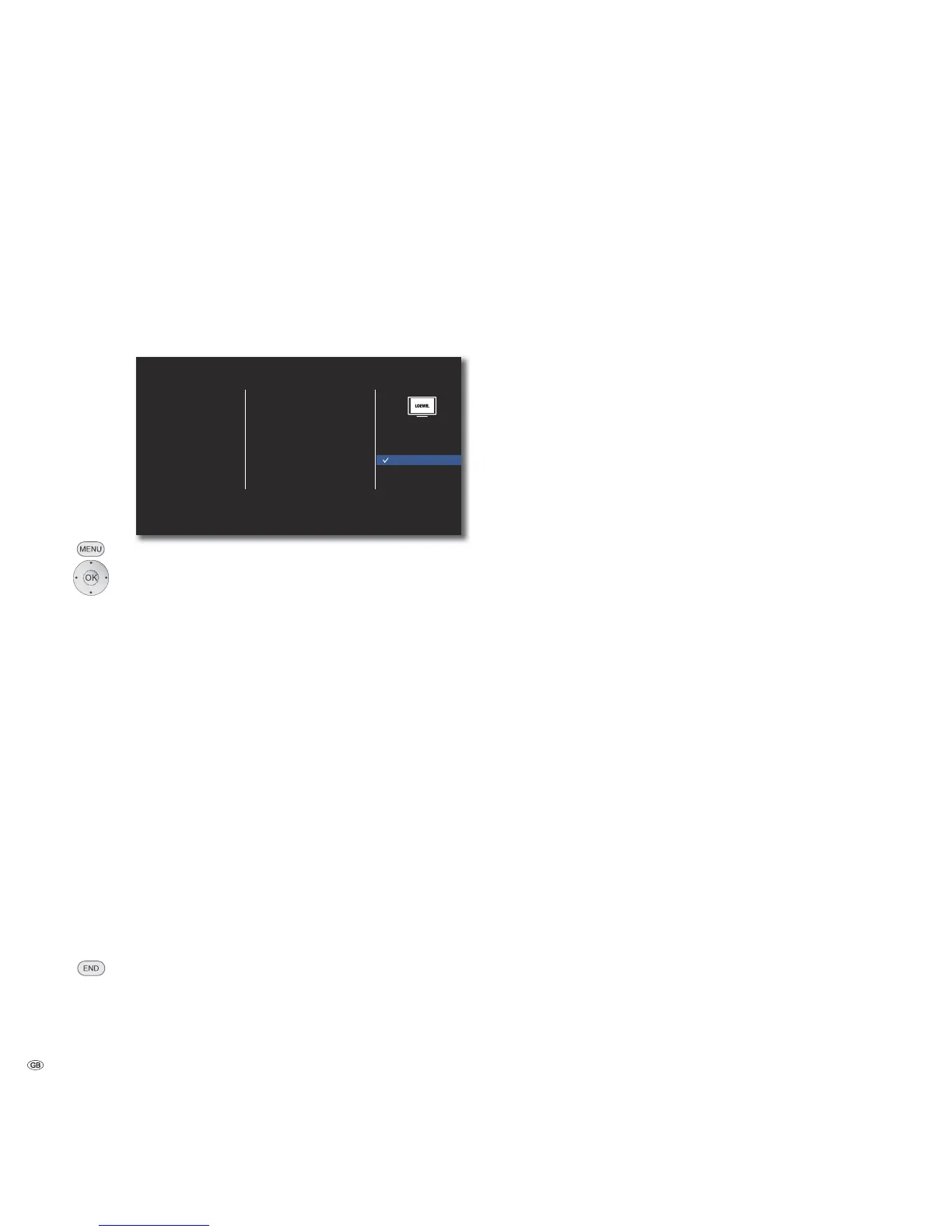
In the menu DISPLAY you can set the screen view of your BluTechVision Interactive
on your TV set.
➠ These settings are automatically imported when the HDMI
socket is used.
4:3 Letterbox
4:3 Panscan
16:9 Original
16:9 Full
TV Aspect Ratio
Resolution
1080p Display Mode
HDMI Color Setting
DISPLAY
LANGUAGE
AUDIO
LOCK
NETWORK
OTHERS
Call up the Setup menu.
Select option DISPLAY.
TV Aspect Ratio
Select option TV Aspect Ratio.
4:3 Letter Box Select this setting is a standard TV unit with 4:3 TV
Aspect Ratio is connected. In the wide screen aspect
ratio, the picture appears with a black bar at the top
and at the bottom of the screen
4:3 Pan Scan Select this setting is a standard TV unit with 4:3 TV
Aspect Ratio is connected. The picture fills the
complete screen and, if required, the areas on both
sides are cut off
16:9 Original Select this setting is a wide-screen TV unit with
16:9 TV Aspect Ratio is connected. The 4:3 picture is
displayed in the original TV aspect ratio with black
strips on the left and right edges of the picture.
16:9 Full-Screen Select this setting if a wide-screen TV unit with
16:9 TV Aspect Ratio is connected. The 4:3 picture
is stretched horizontally (with the same side ratio) in
order to fill the entire screen.
Confirm OK.
Close menu.
Resolution
You can set the resolution of the video signal at the socket HDMI
OUT and COMPONENT VIDEO OUT.
Select Resolution option.
Auto Recordings in wide-screen format appear with black
bars at the top and bottom of the screen
576i Output in 576 lines Interlaced Mode
576p Output in 576 lines Progressive Mode
720p Output in 720 lines Progressive Mode
1080i Output in 1080 lines Interlaced Mode
1080p Output in 1080 lines Progressive Mode
1080p Display Mode
Select the option 24 Hz in order to show movies smoothly
on HDMI compatible TV sets with 1080 lines at 24 Hz picture
frequency.
Select the option 1080p Display Mode.
24 HZ 24 Hz picture frequency for cinema movies
50 Hz 50 Hz picture frequency for TV movies
➠ At the 24 Hz frequency, picture faults can arise when chang-
ing between video and film material. In this case you should
set to 50 Hz.
➠ Even if the option 1080p Display Mode is set to 24 Hz, the
actual picture frequency of the video output is set to 50 Hz
or 60 Hz, depending on the format of the video source, if
your TV set does not support the 1080/24p resolution.
➠ When playing back of a video source with 1080p/24 Hz via
the HDMI connection, via the outputs VIDEO OUT and
COMPONENT VIDEO OUT no video signal is produced.
HDMI Colour Adjustment
Select the video output signal depending on which video output
socket you use ( 11).
Select the option HDMI Color Setting.
YCbCr Select this setting when using the sockets
COMPONENT VIDEO OUT
RGB Select this setting when using the sockets HDMI OUT
➠ While using the HDMI socket this setting is not required.
- 16


 To Next Page