Start-up
Setting the network connection manually
The network parameters can be permanently set manually (e.g. if there is no DHCP
Server in your home network).
Call up the Setup menu.
Select option NETWORK.
Select option Connection Setting.
Confirm OK.
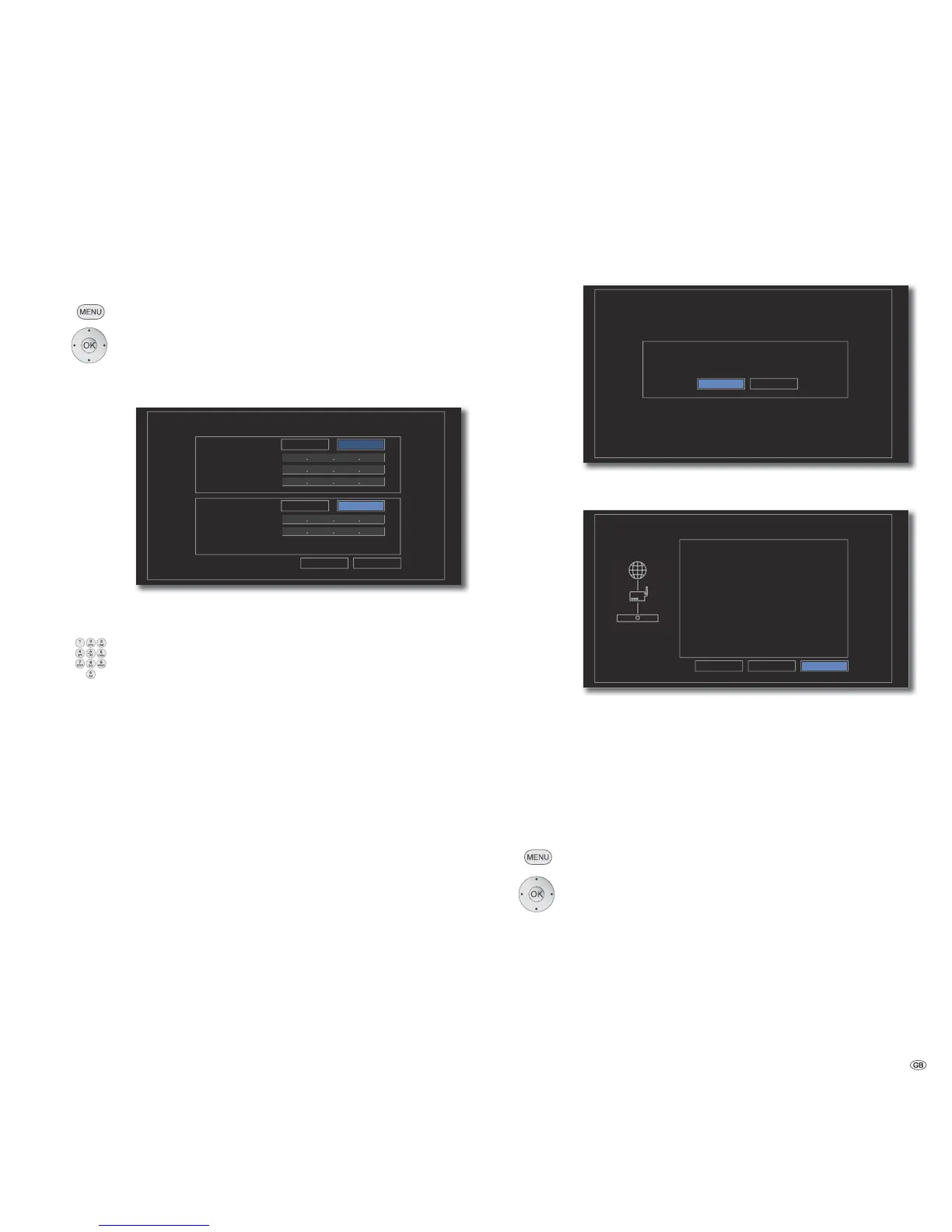
The menu Connection Setting appears.
.. .
.. .
.. .
.. .
.. .
OK
.
. .
192 168 0 6
192 168 0 5
192 168 0 5
255 255 255 0
192 168 0 30
Cancel
IP Mode
Dynamic Static
Auto Manual
IP Address
Subnet Mask
Gateway
DNS Server
Primary
Secondary
CONNECTION SETTING
Select option IP Mode: Select Static.
Confirm OK.
Enter IP Address, Subnet Mask and Gateway
using the number keys on the Assist remote control.
Select option DNS Server: Select Manual.
Confirm OK.
Enter the Primary and, if necessary, the Secondary
DNS Server address using the number keys on the Assist
remote control.
Select option OK.
Confirm OK.
Your BluTechVision Interactive now tries to create a
connection to the internet router in your home network using
the set parameters.
A corresponding message appears that a permanent IP Address
has been allocated.
Setting Wired Static IP completed.
For the connection test, press 'Test'.
OK
CONNECTION SETTING
Test
Select Test option in order to carry out a connection test.
Confirm OK.
0:e0:91:9c:c3:d0
192.168.0.30
255.255.0.0
192.168.0.5
192.168.0.5
OK
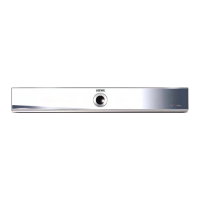
Network is connected.
Wired Network
MAC :
IP :
Subnet Mask :
Gateway :
DNS:
Internet : Success
Local area network : Success
CONNECTION STATUS
RetrySetup
If the connection test is successful a corresponding message
appears in the Connection Status Menu.
OK Close menu.
Retry Repeat
Open Setup menu Connection Settings
BD-LIVE Connection
You can find out whether your BluTechVision Interactive is allowed to create an
internet connection to the BD-LIVE service (page 28).
Call up the Setup menu.
Select option NETWORK.
Select option BD-LIVE Connection.
Confirm OK.
Permitted BD-LIVE is allowed for all content
Partially permitted BD-LIVE is only allowed for content for which a user
certificate is available.
Prohibited BD-LIVE is blocked
21 -


 To Next Page